Google Calendar Reminders Not Working? 2026 Fixes
 by Peter Bednarek, Founder
Contents
Quick answer
Most Google Calendar reminder failures come from one of three settings: the global Notifications dropdown set to "Off", a missing per-calendar notification default, or blocked browser permissions for calendar.google.com. Check those three first. None of them, however, make Google Calendar text your clients. It only ever notifies you, the calendar owner. Texting customers needs a separate reminder tool connected to your calendar.
This is one of the most common complaints about Google Calendar, and it's been getting worse since Google started migrating its entire reminders system to Tasks in late 2025. If your Google Calendar reminders have stopped working, you're not imagining it, and you're not alone.
This article covers two things. First, the actual fixes for Google Calendar notifications that have stopped showing up on desktop, Android, and iPhone. Second, and this is the part most business owners miss, why Google Calendar reminders are fundamentally the wrong tool for reminding your clients about appointments, even when they're working perfectly.
Go to the second part right away if you prefer quick fixes over technical debugging.
Part one: fixing Google Calendar notifications
Let's start with the technical fixes. If your own calendar notifications have stopped appearing, work through these in order. Most problems are solved by the first three.
Check the general notification settings first
Google Calendar has a global notification setting that controls how all notifications are delivered. If this is set wrong, nothing else matters.
Open Google Calendar on your computer. Click the gear icon and go to Settings. Under General, click Notification settings. You'll see a dropdown labelled "Notifications" with three options: Off, Desktop notifications, and Alerts. If this is set to "Off," you won't receive any notifications regardless of what you've configured per calendar or per event. Set it to "Desktop notifications" (shows a brief pop-up that disappears after a few seconds) or "Alerts" (stays on screen until you dismiss it). For appointment reminders, Alerts is usually better — Desktop notifications are easy to miss if you're not looking at your screen.
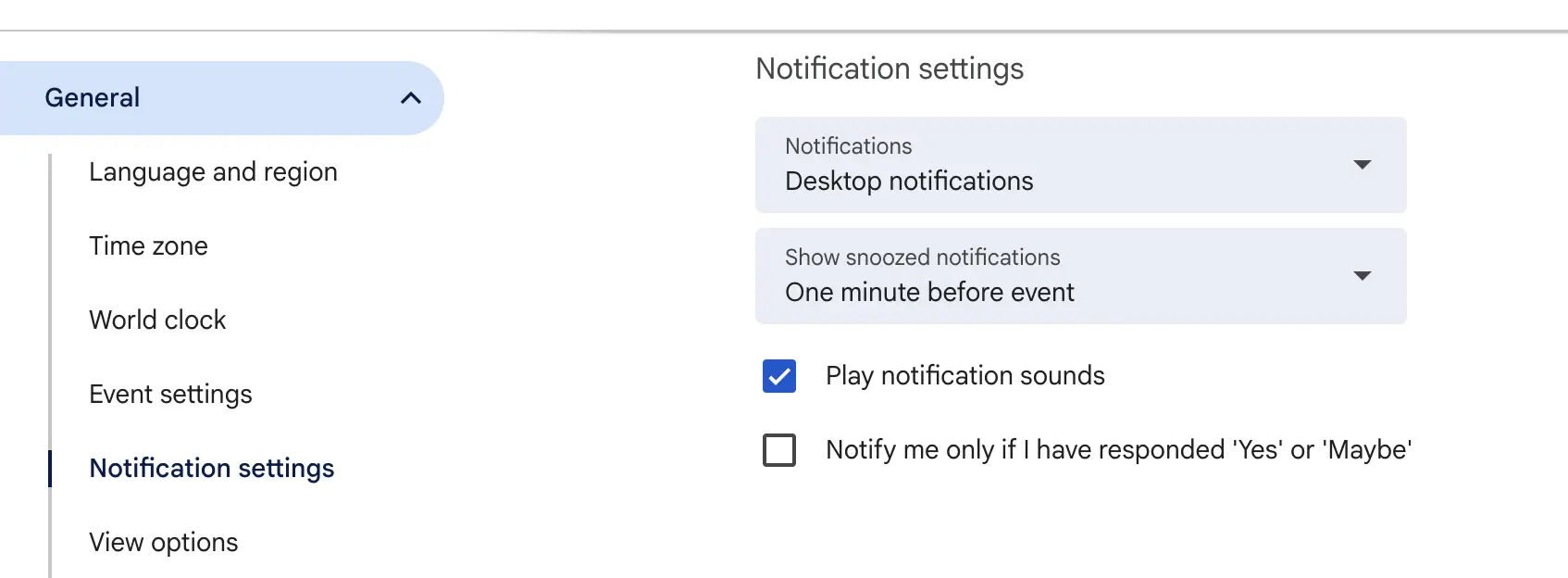
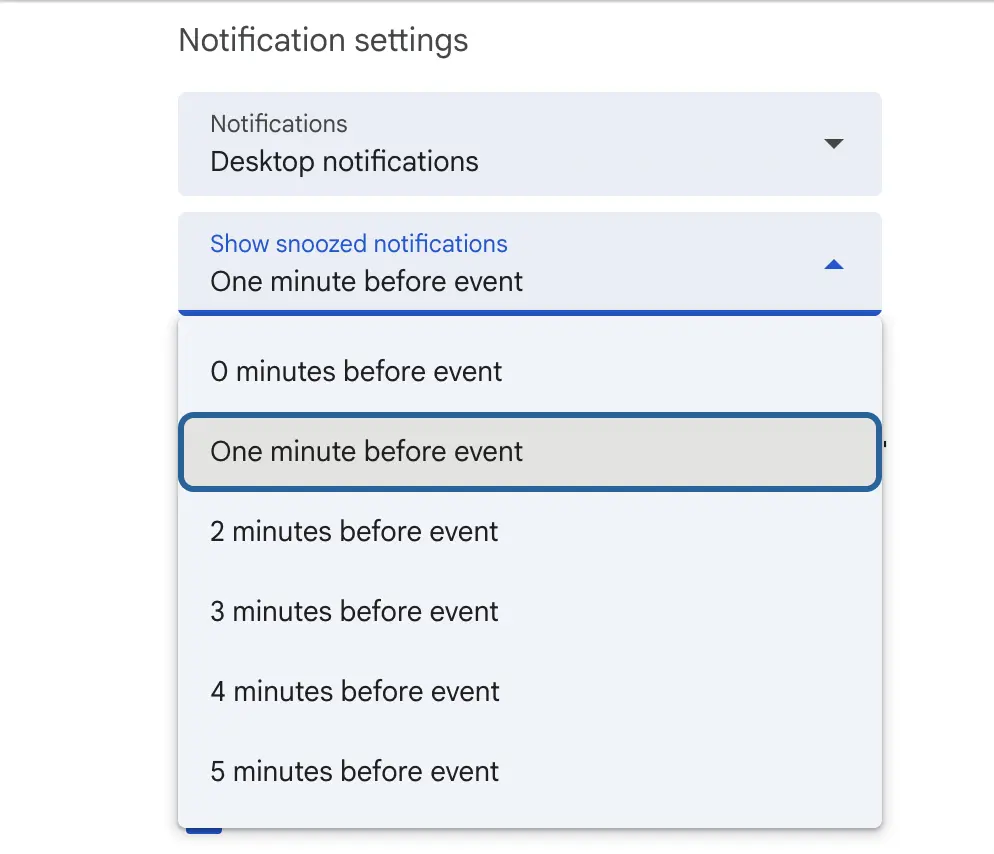
Below that, there's a "Show snoozed notifications" dropdown that controls when a snoozed notification reappears. The options range from "0 minutes before event" to "5 minutes before event." This only matters if you snooze a notification and want to be reminded again before the event starts.
There are also two checkboxes: "Play notification sounds" (turn this on if you're missing silent notifications) and "Notify me only if I have responded 'Yes' or 'Maybe'" (if this is checked, you won't get notifications for events you haven't accepted — uncheck it if you want reminders for all events on your calendar).
Check the per-calendar notification defaults
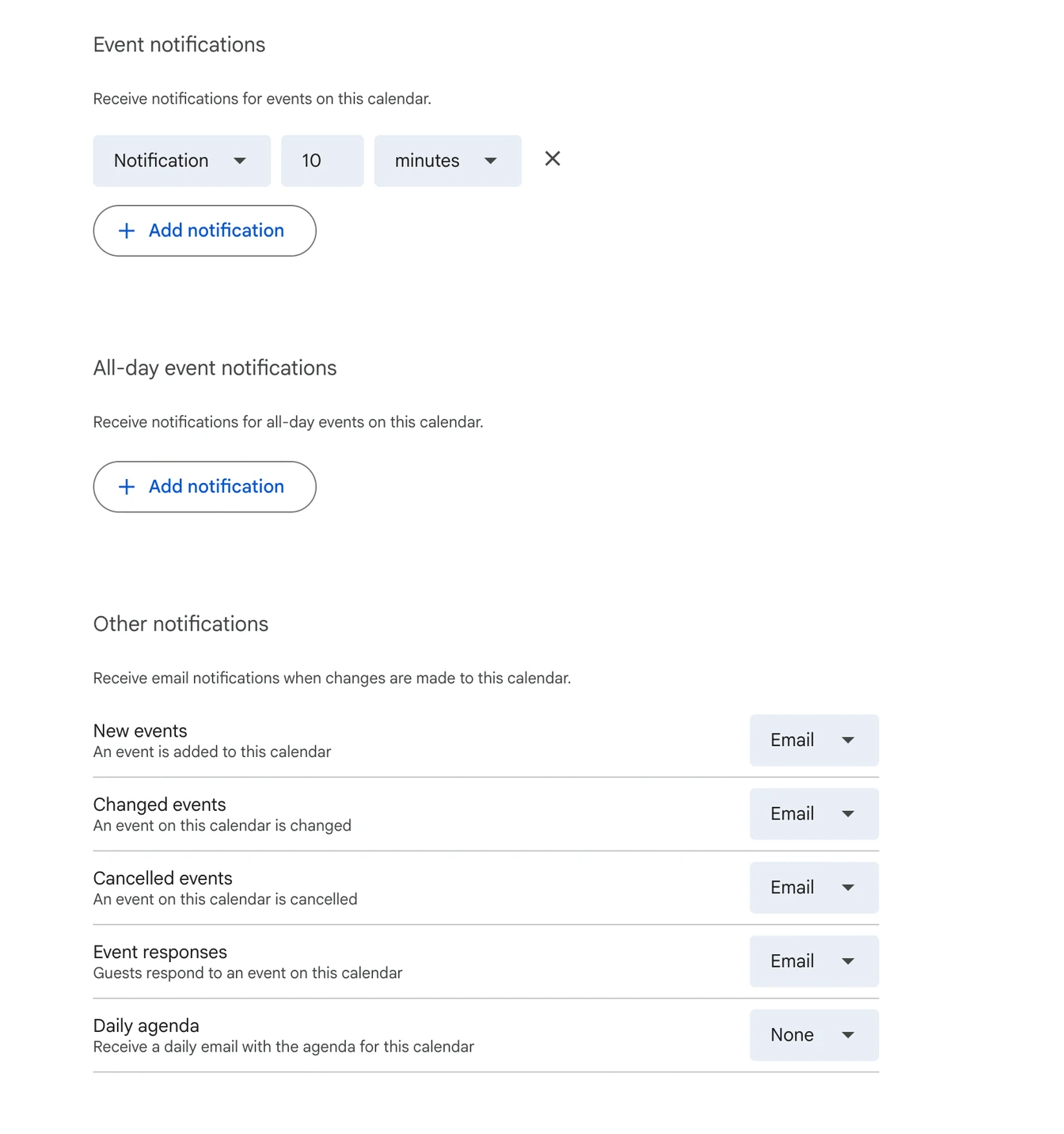
Once the general settings are right, check the defaults for each specific calendar. In Settings, find the calendar in the left sidebar and click it. Look for "Event notifications" and "All-day event notifications." If no notification is set, add one. If one is set, check that the time makes sense (10 minutes before is the default, but you might want 30 minutes or an hour for client appointments).
Check the per-event notification overrides
Individual events can override the calendar defaults. Click on any event that's not sending notifications, then click the pencil icon to edit. Look for the notification section — it shows one or more rows, each with a type (Notification or Email) and a time (for example, "10 minutes"). You can add multiple notifications per event using the "Add notification" link. If no notification row is visible, the event is using the calendar default. If a notification is present but set to "Email" only, you won't see a pop-up - add a "Notification" type as well.
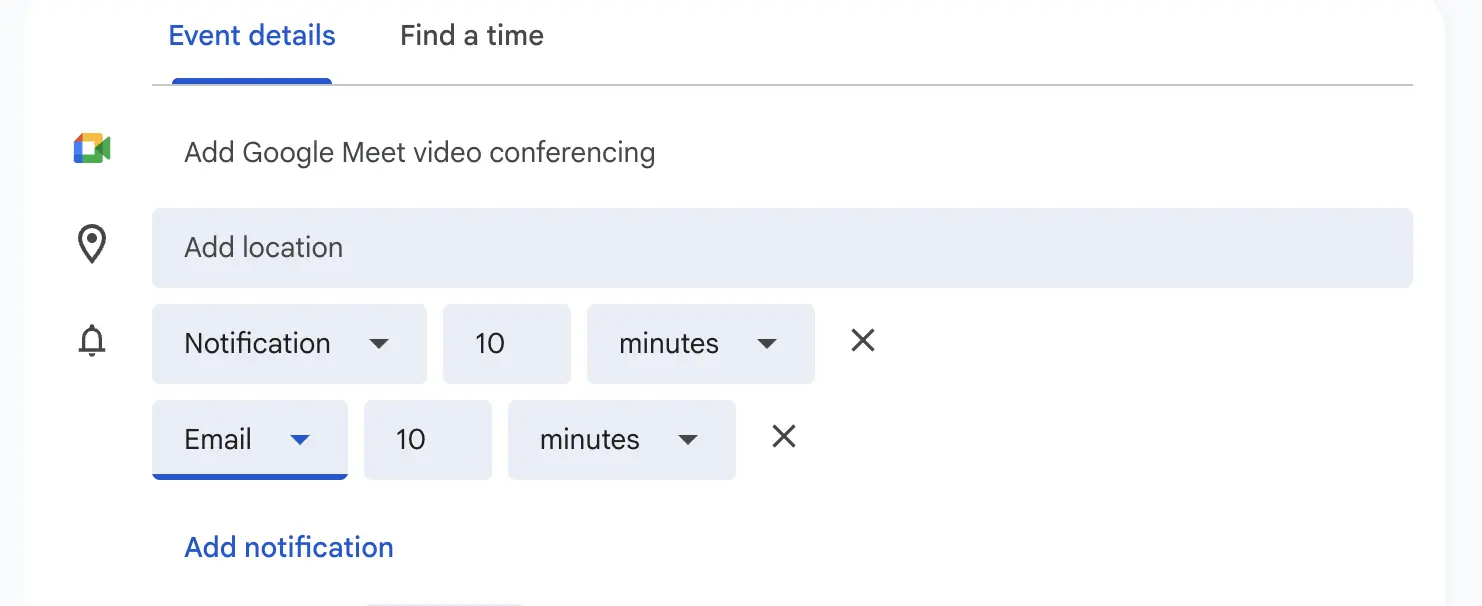
The key thing to understand: per-event settings override per-calendar defaults, and the general Notifications setting (Off / Desktop / Alerts) overrides everything. Check all three levels.
Check your browser notification permissions
On desktop, Google Calendar sends notifications through your browser. If your browser is blocking notifications from calendar.google.com, nothing will come through regardless of your calendar settings.
In Chrome, go to Settings, then Privacy and Security, then Site Settings, then Notifications. Look for calendar.google.com. If it's under "Not allowed to send notifications," move it to "Allowed." If it's not listed at all, open Google Calendar, and the browser should prompt you to allow notifications. If no prompt appears, click the lock icon in the address bar and enable notifications from there.
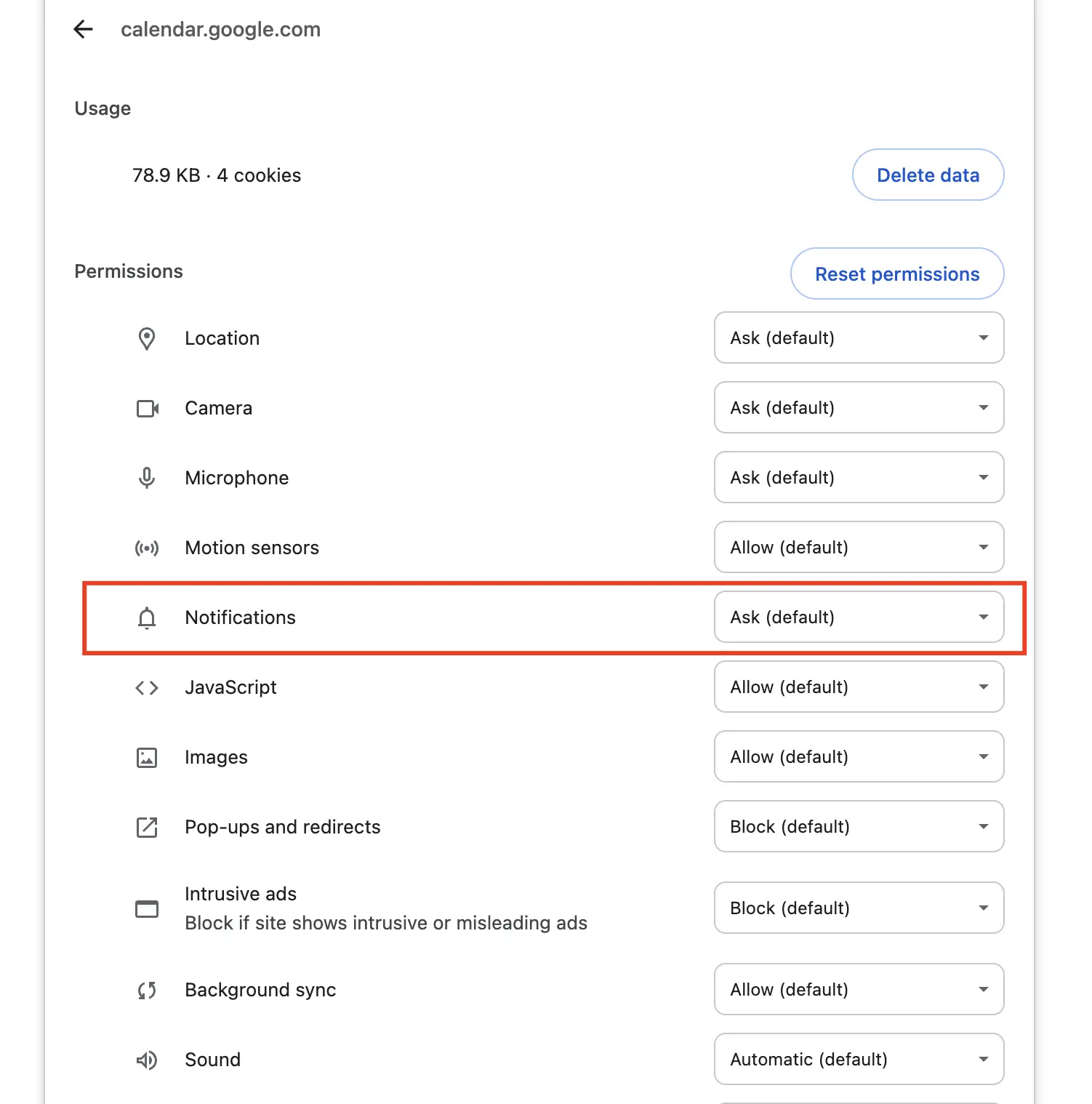
In Safari, Firefox, and Edge, the process is similar: find the notification permissions in browser settings and make sure calendar.google.com is allowed.
One detail that catches people: if you use an ad blocker or privacy extension, it may be silently blocking Google Calendar's notification scripts. Temporarily disable your extensions and test. If notifications work without extensions, re-enable them one by one to find the culprit.
Check your device notification settings
Your operating system can block notifications even when the browser allows them.
Windows: Check that Focus Assist (called Do Not Disturb in Windows 11) is turned off. Go to Settings, then System, then Focus Assist. If it's set to "Priority only" or "Alarms only," browser notifications won't come through. Also check that your browser is allowed to send notifications in Windows Settings under System, then Notifications.
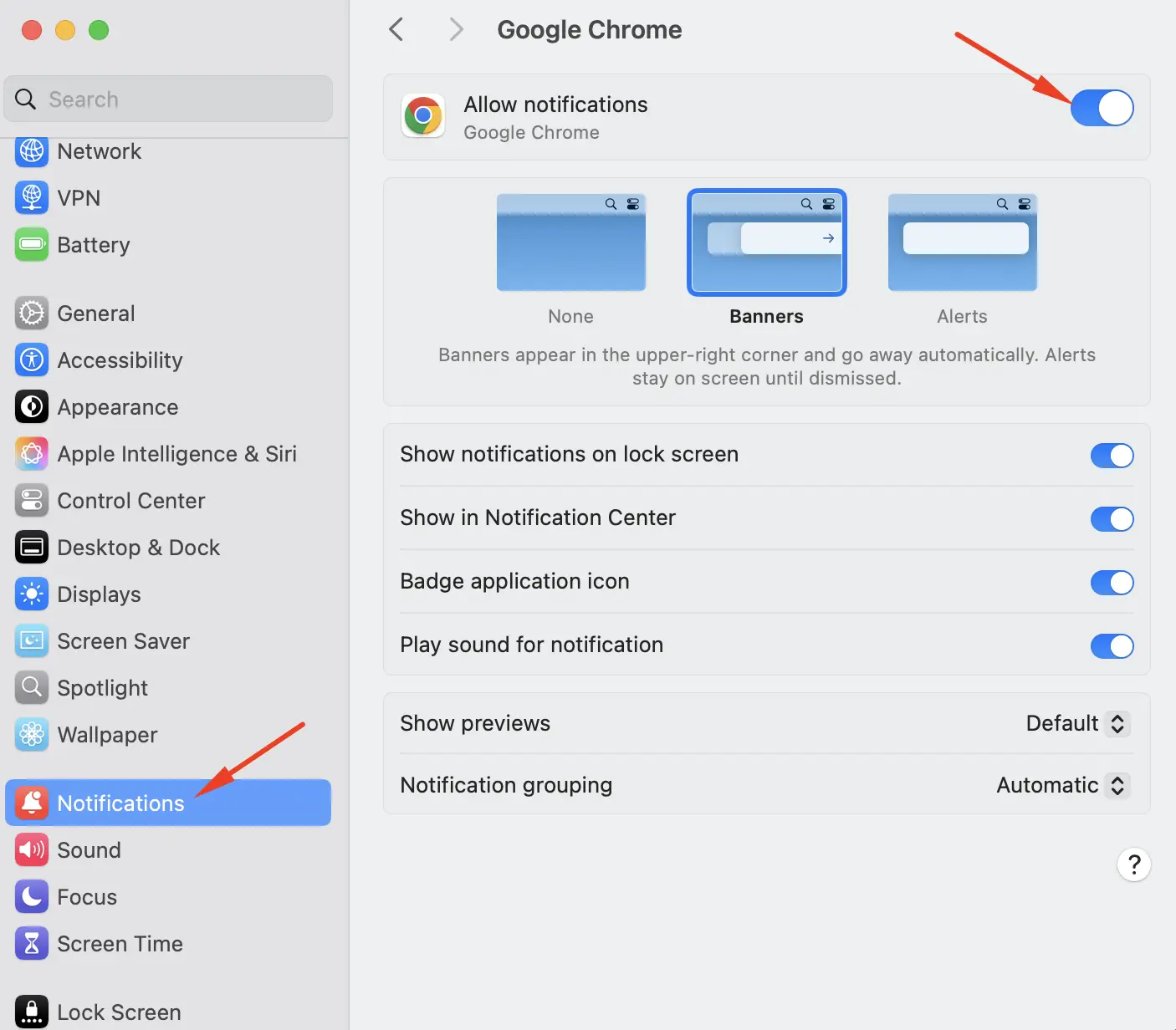
Mac: Go to System Settings, then Notifications, then find your browser in the list. Make sure "Allow notifications" is turned on. If notifications are set to "Banner" style, they might appear and disappear too quickly. Switch to "Alerts" if you need them to stay on screen until you dismiss them. Also check that Do Not Disturb or a Focus mode isn't active.
Android: Open Settings, then Apps, then Google Calendar. Tap Notifications and make sure "Show notifications" is enabled. Check that individual notification categories (event reminders, all-day reminders) are toggled on. Then go to Settings, then Accounts, then your Google account, and make sure Calendar sync is enabled. If sync is off, your calendar won't receive updates and notifications won't fire.
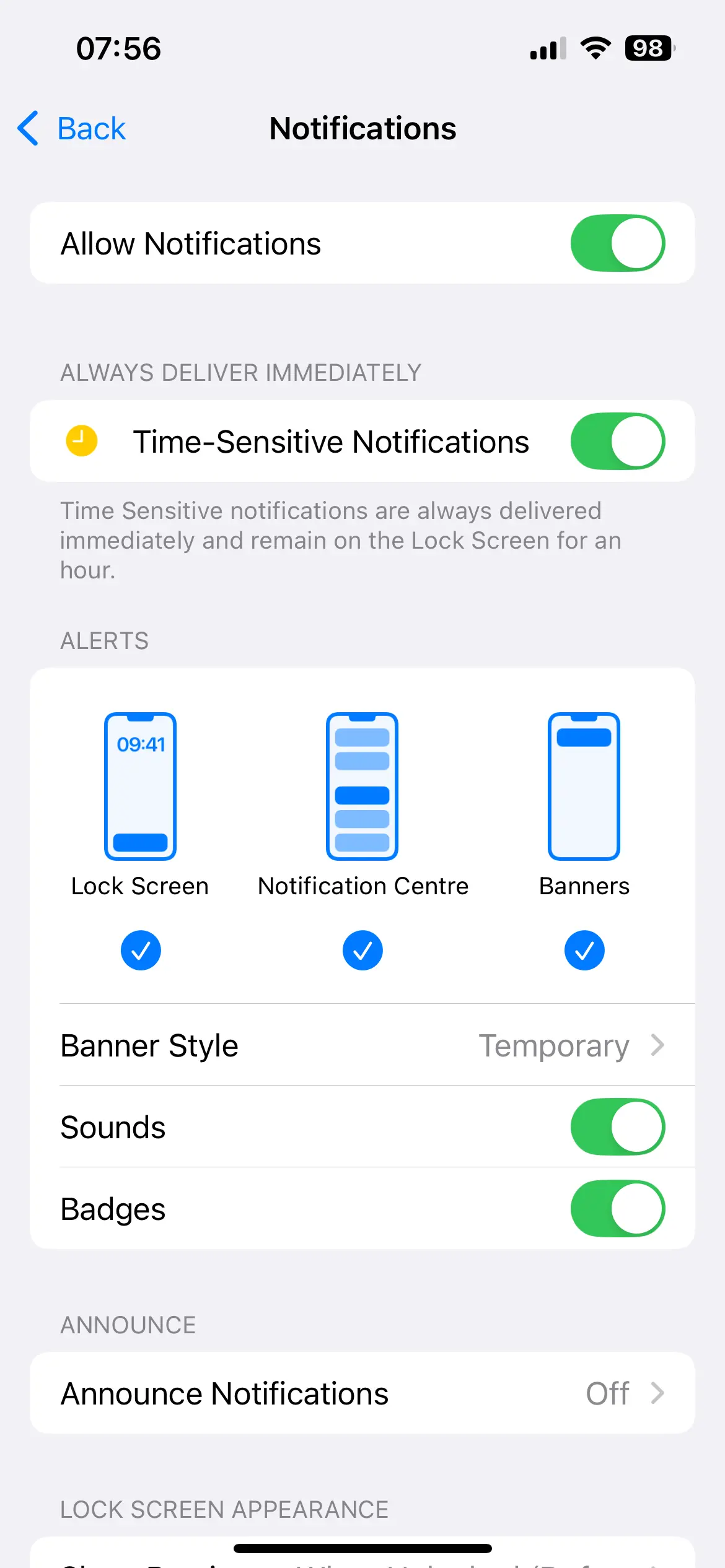
iPhone: Go to Settings, then Google Calendar (or whatever calendar app you use), and make sure notifications are allowed. Then check Settings, then General, then Background App Refresh, and make sure it's enabled for Google Calendar. Without background refresh, the app can't check for upcoming events when it's closed.
Clear cache and re-sync
If the above haven't helped, try clearing your calendar data and forcing a fresh sync.
On Android, go to Settings, then Apps, then Google Calendar, then Storage, and tap "Clear cache" (not "Clear data," which would delete your local settings). Then open the calendar and wait for it to sync.
On a computer, try logging out of Google Calendar, clearing your browser cache for google.com, and logging back in.
If you use multiple Google accounts, make sure the correct account is active when you're checking calendar settings. Notification preferences are per-account, not global.
Were Google Calendar Reminders discontinued? The move to Tasks
If your reminders specifically (as opposed to event notifications) have disappeared, there's a likely explanation. In 2023, Google announced it would migrate Calendar Reminders and Google Assistant Reminders to Google Tasks. This migration rolled out widely in late 2025.
What this means in practice: items you previously created as "Reminders" in Google Calendar are now "Tasks." They still appear on your calendar, but the notification behaviour may have changed. Tasks now support time-blocking and busy status, which is useful for personal productivity but can be confusing if you relied on the old reminder format.
If you had location-based reminders, those no longer work in Tasks. If you had more than 100,000 reminders, the oldest ones may not have migrated. And if you were using Google Keep reminders, those have also moved to Tasks.
The fix: check Google Tasks (the sidebar panel in Google Calendar, or the standalone Tasks app) to see if your reminders are there. If they are, you may need to adjust their notification settings within Tasks rather than Calendar.
When none of the fixes work
Some Google Calendar notification problems are server-side issues that resolve themselves within hours or days. Google's Workspace Status Dashboard at workspace.google.com/status shows current incidents. If Calendar is listed with an issue, the only fix is to wait.
If your notifications work intermittently, the most common cause is sync delays. Google Calendar doesn't push notifications in real time on all devices. There can be a lag of several minutes, particularly on mobile devices with battery optimisation enabled. On Android, check that Google Calendar is excluded from battery optimisation (Settings, then Battery, then Battery optimisation, then Google Calendar, then "Don't optimise").
Part two: the bigger problem Google Calendar can't solve
Here's the thing that matters if you run a service business.
Every fix above solves the same problem: getting Google Calendar to remind you about your own appointments. The notifications go to your phone, your browser, your desktop. They're designed to keep the calendar owner on schedule.
But if you're a plumber, a garage owner, a vet, a heating engineer, or any business that books client appointments, the person who needs the reminder is not you. It's your client. And Google Calendar has no way to send notifications to your clients.
This is not a bug. It's not a missing setting. It's a fundamental design limitation.
Google Calendar can send email invitations to event guests, but that requires your client to have been added as a guest with their email address, and they need to actually open the email. With business email open rates around 20-30%, a large proportion of your clients will never see it.
Google Calendar cannot send an SMS text message to your client's phone number. It removed its own SMS notification feature in January 2019, and even when that existed, it only texted the calendar owner, never clients or attendees.
So even when your Google Calendar reminders are working perfectly, they're only reminding you. Your client still has no idea they have an appointment tomorrow.
What does this cost your business
The difference between a reminder that reaches you and one that reaches your client is the difference between an empty time slot and a completed job.
The published trials put attendance at 78.6% with a text reminder against 67.8% with none (our sources), which is why SMS reminders beat an invitation nobody opens. Text messages have a 98% open rate, with 90% read within three minutes. Compare that with email's 20-30% open rate and response times measured in hours.
For a service business averaging two no-shows per week at £80-150 per appointment, that's £8,000-15,000 per year in lost revenue. A text reminder costing a few pence per message recovers a significant chunk of that.
The maths is simple: if fixing your Google Calendar notifications only reminds you, but a client-facing SMS reminder actually prevents the no-show, then the real fix isn't in your calendar settings. It's in adding an SMS layer on top of your calendar.
What a client reminder system looks like
The good news is that you don't need to stop using Google Calendar. The best approach keeps your existing workflow intact and adds client-facing reminders on top.
Here's how it works with Remindlo, which is built for service businesses that already use Google Calendar.
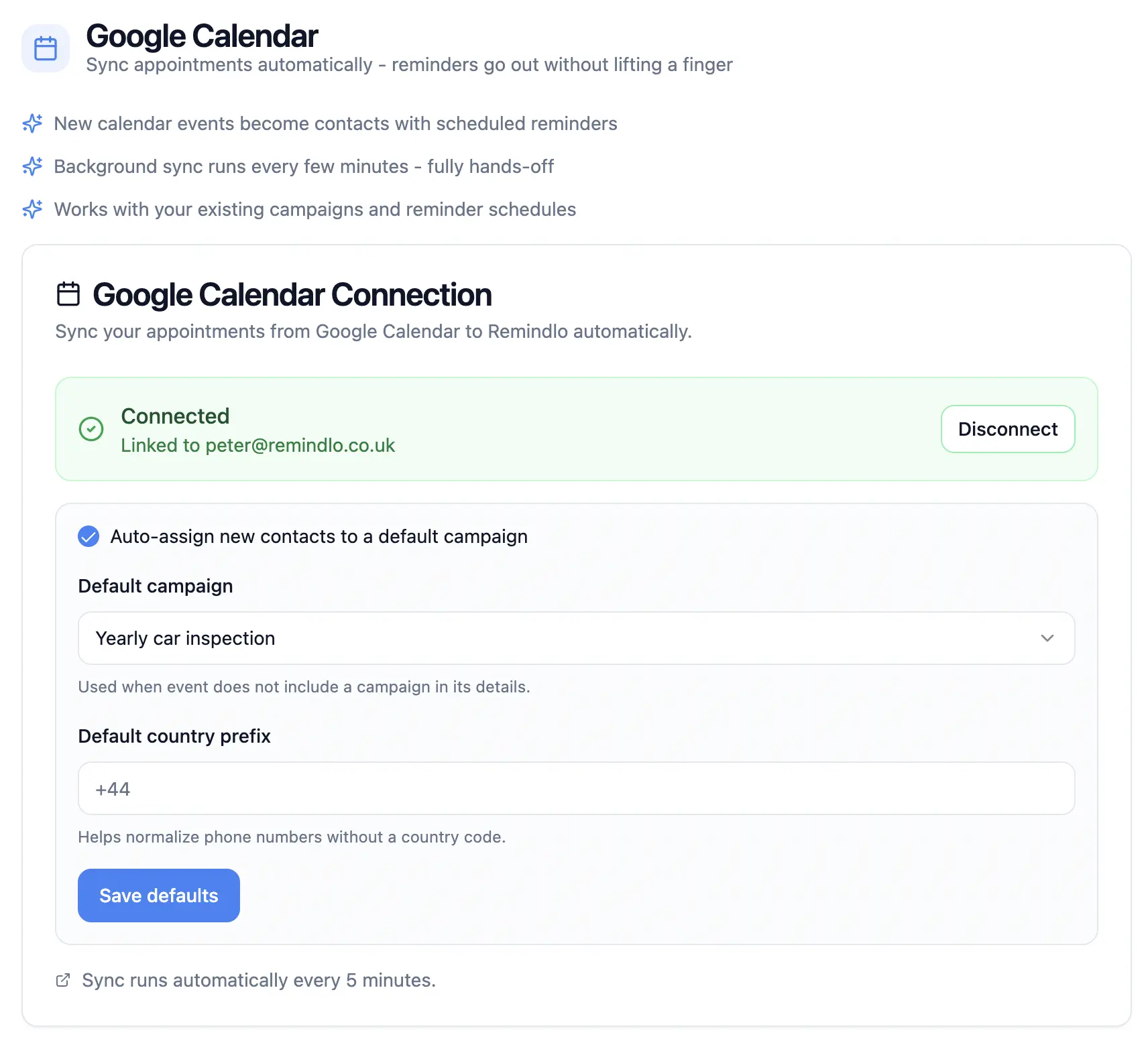
Connect your Google Calendar. In the Remindlo dashboard, go to Integrations and connect your Google account. Select which calendars to monitor. The auto-sync method runs in the background and detects new events automatically. There's no ongoing manual work.
Set up a reminder campaign. Choose when your clients should receive text reminders (24 hours before and 2 hours before is the most effective pattern for service businesses) and write your message template. Include dynamic fields like {first_name}, {date}, and {time} so each message is personalised.
Add appointments as normal. Keep using Google Calendar exactly as you do now. Include the client's phone number in the event description, the title or the location field. Remindlo detects it and sends the SMS automatically at the times you've configured. If you reschedule the event, the reminder updates. If you delete it, the reminder cancels.
The free plan includes 10 SMS per month, enough to test with real clients and see the difference in your no-show rate before committing to a paid plan. No credit card required.
For a detailed walkthrough of both connection methods (auto-sync and sidebar add-on), see our step-by-step Google Calendar SMS setup guide.
How this compares to other approaches
If you've been searching for ways to fix Google Calendar reminders, you've probably come across several alternatives. Here's how they compare for client-facing SMS reminders.
Manual calling or texting. Works for one or two appointments a day, but doesn't scale. When you're running five or ten jobs a day, manually texting each client takes time you don't have. And on busy days, it's the task most likely to be forgotten.
WhatsApp messages. Free, but requires the client to have WhatsApp and for you to have their number saved as a contact. No automation, no scheduling, and mixing business messages with personal conversations gets messy. There's also no way to set it up to send automatically from your calendar. Sending WhatsApp messages at scale also requires verification by the Meta team (the owner of WhatsApp).
Zapier + Twilio. You can build an automation that triggers when a Google Calendar event is created and sends an SMS via Twilio. This works, but you need accounts on three platforms, API key configuration, and ongoing maintenance. Zapier's free plan is limited, and Twilio charges per message. Total cost is typically higher than a purpose-built tool, and setup takes significantly longer. If you have Zapier already within your company, but don't want to manage the compliance process inside Twilio, you can also use our ready integration with Zapier to send out SMS messages.
If you would rather not build and maintain that yourself, the same job as a finished product: Remindlo vs Twilio.
GReminders. A full appointment management platform with SMS, voice calls, and online scheduling. Pricing starts at $15.99/month per user. If you need features beyond reminders, like CRM integration or two-way booking pages, it's worth evaluating. For most small service businesses that just want their calendar events to trigger client texts, it's more platform than needed.
Apptoto. Similar scope to GReminders, starting at $29/month. Strong in healthcare and professional services. Supports SMS, voice, and email reminders with Google Calendar, Outlook, and practice management system integrations.
If you are weighing the two, we cover the differences here: Remindlo vs Apptoto.
Remind1. A simpler Google Calendar add-on for SMS reminders. Over 120,000 installs. Requires phone numbers in a specific format in the event title. Less automated than auto-sync approaches but straightforward for users comfortable with the add-on workflow. Pricing from $9/month.
Remindlo. Built specifically for UK service businesses with recurring client appointments. Auto-sync and sidebar integration methods. Free plan with 10 SMS/month, paid plans from £19/month. Strongest fit for businesses that need both appointment reminders and recurring service reminders (annual boiler servicing, MOT tests, vet checkups), and that want pricing in pounds rather than dollars.
For a full side-by-side comparison, see our guide to the 7 best Google Calendar SMS reminder tools.
Quick troubleshooting reference
If you just want the fix and don't need the context, here's the checklist.
Google Calendar notifications not showing on desktop: check General → Notification settings → Notifications dropdown is set to "Desktop notifications" or "Alerts" (not "Off"), check per-calendar notification defaults have a notification set, check per-event overrides haven't removed the notification, check "Notify me only if I have responded 'Yes' or 'Maybe'" is unchecked (unless you want that filter), check browser permissions for calendar.google.com, check OS notification settings, disable ad blockers temporarily, check that Do Not Disturb / Focus Assist is off.
Google Calendar notifications not showing on Android: enable "Show notifications" in Google Calendar app settings, enable Calendar sync in account settings, check battery optimisation is disabled for Google Calendar, clear app cache, update the app.
Google Calendar notifications not showing on iPhone: enable notifications for Google Calendar in iOS Settings, enable Background App Refresh, check that Do Not Disturb is off, update the app.
Google Calendar reminders disappeared: check Google Tasks, as reminders migrated to Tasks in late 2025. Open the Tasks panel in Google Calendar or the standalone Tasks app.
Google Calendar SMS reminders discontinued: correct, and there is no way to switch them back on. Google removed native SMS notifications in January 2019 with no official replacement, and they only ever texted the calendar owner. Texting clients requires a third-party integration.
Google Calendar not sending notifications to clients: this is a design limitation, not a bug. Google Calendar only sends notifications to the calendar owner. To send SMS reminders to clients, use a third-party integration. Start with Remindlo's free plan or see our comparison of SMS reminder tools.
Frequently asked questions
Were Google Calendar reminders discontinued, or just moved? Not discontinued, moved. Google migrated Calendar Reminders into Google Tasks starting in 2023, with the change rolling out widely in late 2025. Your reminders still appear on your calendar, but they are managed as Tasks now, so the old Reminders interface is no longer available. Google Keep reminders have also moved to Tasks. If your reminders have disappeared, check the Tasks panel in Google Calendar.
Were Google Calendar SMS reminders discontinued? Yes. Google discontinued native SMS notifications in Google Calendar in January 2019, citing infrastructure changes, and never offered an official replacement. Worth knowing before you go hunting for a way to switch them back on: the feature only ever texted the calendar owner, never event guests or clients, so it would not have reminded your customers even when it worked. Third-party tools like Remindlo, GReminders and Remind1 now fill this gap.
Can Google Calendar send a text to my clients? No. Google Calendar can send email invitations to event guests and push notifications to the calendar owner's devices. It cannot send SMS text messages to clients or attendees. This has never been a supported feature. To send client-facing text reminders, you need a third-party tool that integrates with your Google Calendar.
Is there a free way to send SMS reminders from Google Calendar? Remindlo offers 10 free SMS per month with its free plan, which is enough to test the workflow. Remind1 has a limited free tier. Zapier + Twilio can be assembled at low cost but requires more technical setup. There is no fully free, unlimited option because SMS delivery has a per-message cost.
Do I need Google Workspace for reminder integrations to work? No. Most Google Calendar SMS integrations, including Remindlo, work with both free Google accounts and paid Google Workspace accounts. The calendar API access is the same on both.
Will fixing my notification settings also remind my clients? No. All the fixes in this article address notifications sent to you, the calendar owner. Even when working perfectly, Google Calendar does not send any notification to your clients. Client reminders require a separate system.
Is there an official replacement for Google Calendar's discontinued SMS notifications? No. There is no setting in Google Calendar or Google Workspace that re-enables SMS, and Google has shipped no replacement since 2019. The only way to send a text from a calendar event is a third-party integration that reads your calendar and sends the message itself.