How to Send Automatic SMS Reminders from Google Calendar (Step-by-Step)
 by Peter Bednarek, Founder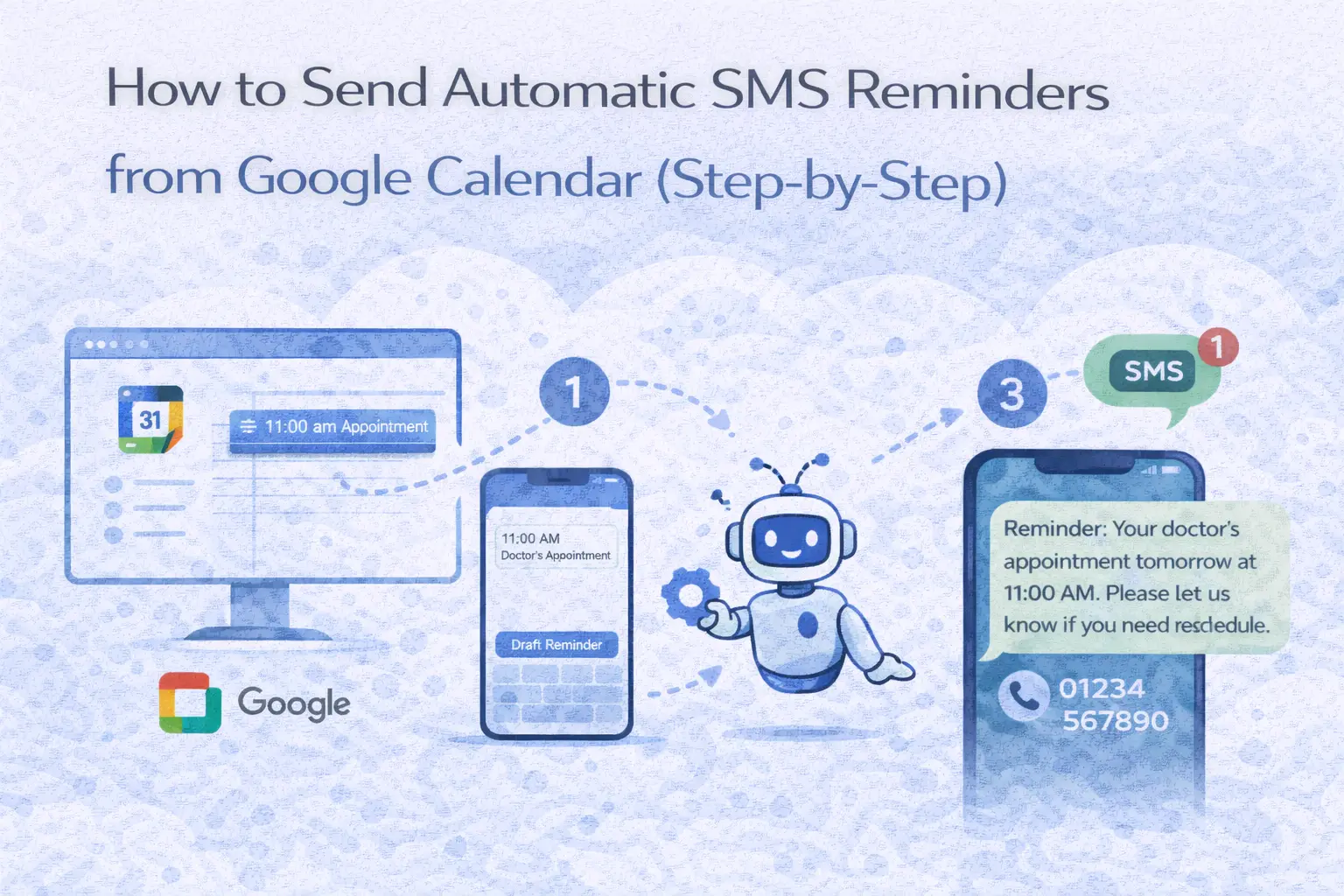
If you rely on Google Calendar to manage client appointments, you've probably noticed one frustrating gap: there's no built-in way to send SMS reminders to your clients. Google Calendar can send email notifications and push alerts to you, the calendar owner, but it cannot text your customers to remind them about their upcoming visit.
Contents
- Why can't Google Calendar do this on its own
- What you need before you start
- Two ways to connect: auto-sync vs. manual plugin
- Setting up auto-sync (recommended method)
- Using the sidebar add-on (optional, complementary method)
- Tips for effective SMS reminders
- Alternative methods (and why they're harder)
- How much does it cost?
- Frequently asked questions
- Start sending SMS reminders in the next 5 minutes
This guide walks you through how to set up automatic SMS reminders that are triggered directly by your Google Calendar events. No coding, no spreadsheets, no copying phone numbers into a separate app. By the end, every appointment you add to your calendar will automatically generate an SMS reminder to your client at the time you choose.
The whole setup takes under five minutes. Read it, and you'll know why SMS matters for appointments.
Why can't Google Calendar do this on its own
Before diving in, it helps to understand exactly what Google Calendar does and doesn't support when it comes to reminders.
Google Calendar offers three types of native notifications: email reminders sent to event attendees, push notifications sent to your phone or browser, and pop-up alerts on your desktop. All three are useful for reminding yourself about upcoming events. None of them sends a text message to a phone number.
Even Google Workspace (the paid business version of Google's tools) doesn't solve this problem. Workspace offers limited SMS notifications in some regions, but only for the account owner's own reminders, not for contacting clients or customers. You can't add a client's phone number to a calendar event and have Google text them automatically.
This is where most businesses get stuck. They assume Google Calendar handles everything, then wonder why clients keep missing appointments. To text your clients about upcoming visits, you need a third-party integration. The best ones work entirely in the background, so your workflow doesn't change at all - you keep using Google Calendar exactly as you do today.
What you need before you start
The setup is simple, but make sure you have these three things ready: a Google account with Google Calendar (free or Workspace - both work), a list of clients you want to remind (or at least your next few appointments with phone numbers), and about 5 minutes of uninterrupted time.
You don't need a Twilio account, an API key, or any technical knowledge. The tool handles SMS delivery infrastructure behind the scenes.
Two ways to connect: auto-sync vs. manual plugin
Remindlo offers two methods for integrating with Google Calendar. You can use one or both, depending on how you prefer to work.
Auto-sync (recommended) connects through the Remindlo dashboard. Once enabled, Remindlo monitors your calendar in the background and processes new events automatically. If an event contains a client's phone number, Remindlo schedules SMS reminders based on your campaign settings - no action needed on your part. If an event doesn't have a phone number, no reminder is scheduled for it until you add one to the event. The sync runs in near real-time, usually picking up changes within a few minutes.
Manual sidebar add-on installs directly into Google Calendar as a sidebar panel. When you open any calendar event, the Remindlo sidebar appears, showing event details, detected phone numbers, and campaign options. You can manually assign a campaign, enter a missing phone number, or trigger an immediate sync. This method gives you more control per event but requires a manual step for each appointment.
For most businesses, auto-sync is the better choice. Set it up once, and every appointment with a phone number triggers reminders automatically. Use the sidebar add-on as a complement - for example, to handle events where the phone number is missing or to check the status of a specific reminder.
Setting up auto-sync (recommended method)
Step 1: Create a Remindlo account
Go to remindlo.co.uk/register and create a free account. Fill in your business name, select your industry, and set a password. The free plan includes 10 SMS reminders per month and unlimited email reminders - enough to test the full workflow with real clients before committing.
Step 2: Connect Google Calendar
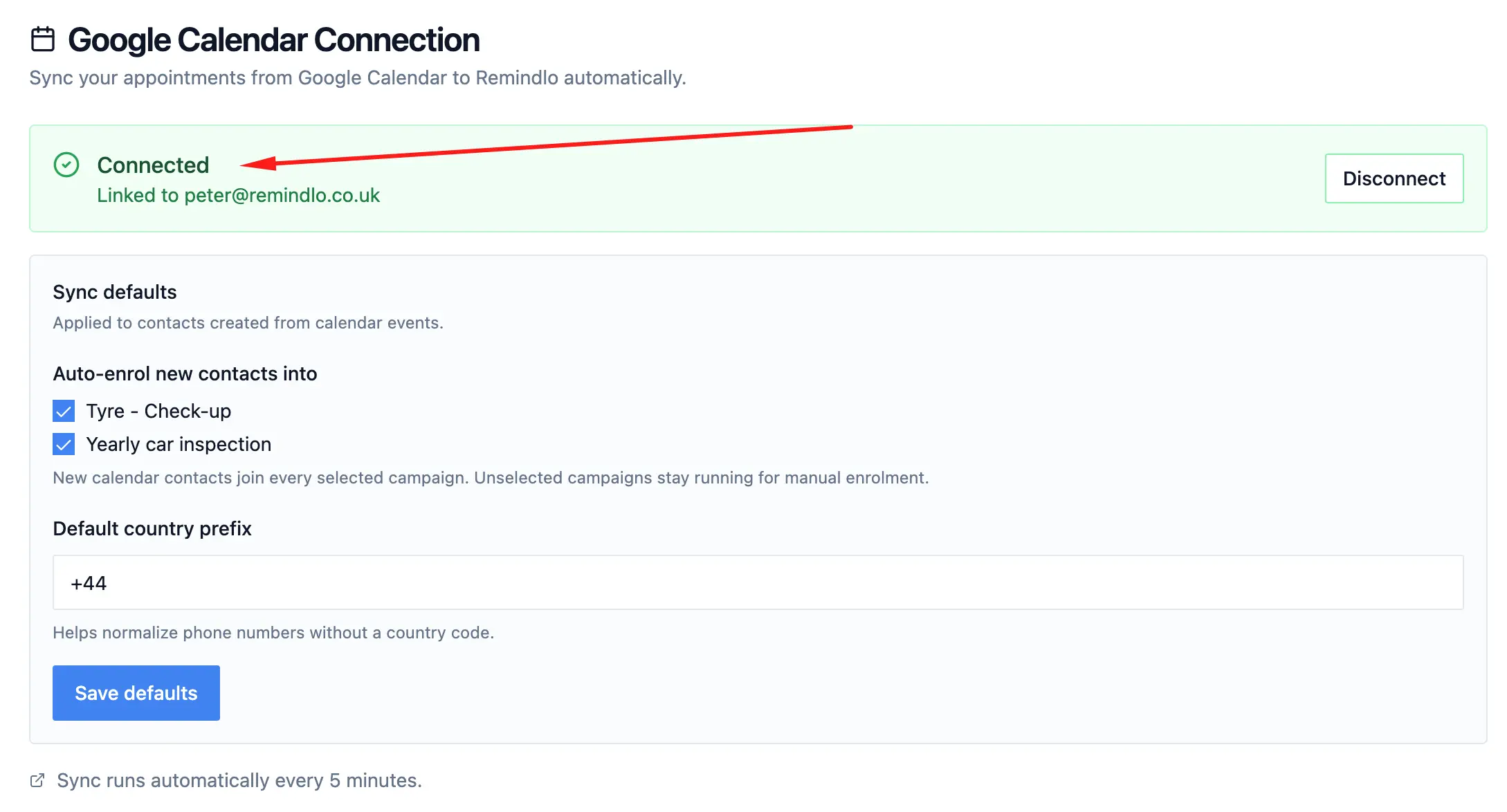
Open the Remindlo dashboard and go to Integrations. Click Connect Google Calendar. You'll be redirected to Google's OAuth flow where you authorise Remindlo to read your calendar events. This uses the same secure connection method as thousands of other Workspace integrations.
Select which calendars Remindlo should monitor. If you use a single calendar for all appointments, select just that one. If you have separate calendars for different services, locations, or team members, you can connect multiple calendars and Remindlo will watch all of them.
That's it for the connection. Remindlo now syncs with your calendar.
Step 3: Set up a reminder campaign
A campaign defines when and how reminders are sent. Navigate to Campaigns in the dashboard and create a new campaign. Here's what to configure:
Timing. Choose when the SMS should go out relative to the appointment. Common setups include 24 hours before (gives clients time to reschedule if needed), 2 hours before (a same-day nudge), or both. You can stack multiple reminders per campaign.
Message template. Write the text of your SMS. Remindlo supports dynamic fields that auto-populate from your calendar event data. For example:
"Hi, this is a reminder about your appointment on {date} at {time}. If you need to reschedule, please call us on 020 1234 5678."
Keep the message under 160 characters if possible to ensure it's delivered as a single SMS segment. Longer messages work but may be split into two texts.
Channel. Choose SMS, email, or both. Combining channels works well - for instance, an email 3 days before and an SMS 24 hours before.
Step 4: Add appointments to your calendar as normal
This is where the automation pays off. Once your campaign is active and auto-sync is running, you don't need to do anything differently. Just add appointments to Google Calendar the way you always have. Include the client's phone number somewhere in the event - the description field works well, but the title or attendee fields work too.
Remindlo's intelligent event processing handles the rest:
Phone number found in event: SMS reminders are scheduled automatically based on your campaign settings.
No phone number found: No reminder is scheduled. Add the phone number to the calendar event and it syncs on the next poll.
When the scheduled reminder time arrives - say, 24 hours before the appointment - your client receives a text message with the personalised details. If the appointment is changed or cancelled in Google Calendar, Remindlo detects the change during sync and updates or removes the reminder automatically.
Using the sidebar add-on (optional, complementary method)
If you'd like per-event visibility directly inside Google Calendar, install the Remindlo sidebar add-on from the Google Workspace Marketplace.
Once installed, a Remindlo panel appears in the right sidebar whenever you open a calendar event. The sidebar shows:
The detected phone number (if one is present in the event)
The currently assigned campaign
The reminder status (scheduled, sent, or pending)
From here you can manually assign or change the campaign, enter a phone number if one is missing, or trigger an immediate sync rather than waiting for the next background cycle.
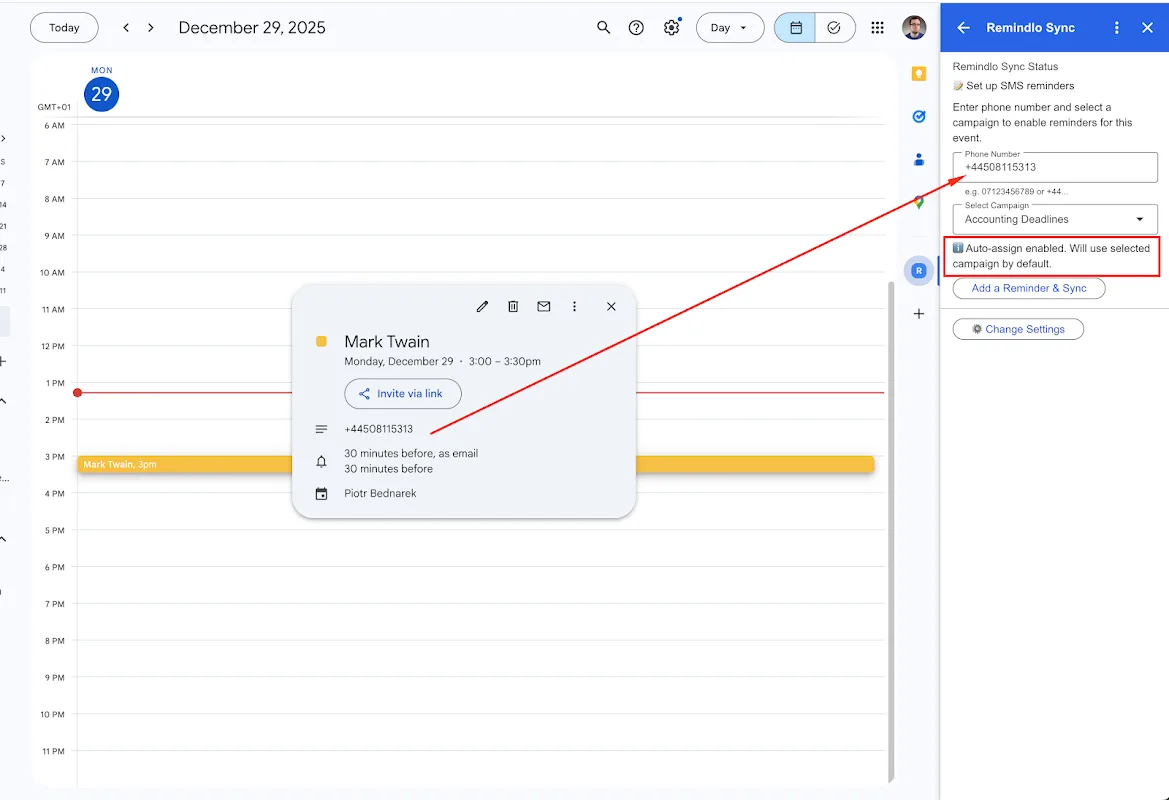
This is particularly useful for handling edge cases - events where the phone number wasn't included, or situations where you want to quickly check whether a specific client's reminder has been sent.
Tips for effective SMS reminders
Once the system is running, a few small adjustments can significantly improve results.
Send the first reminder 24 hours before the appointment. This gives clients enough notice to reschedule if needed, which is better for your business than a no-show. An empty slot you know about in advance can be offered to another client. A no-show is just dead time.
Keep messages short and clear. Include the date, time, and your business name. Avoid marketing language - this is a service message, not an ad. Clients appreciate brevity.
Include a way to contact you. A phone number or reply instruction gives clients an easy path to reschedule rather than simply not showing up.
Use the client's name if you have it. Personalised messages feel less like automated spam and more like a genuine reminder from a business that knows them.
Don't over-remind. Two messages per appointment (24 hours + 2 hours before) is usually the sweet spot. More than that can feel intrusive.
Put the phone number in every calendar event. The auto-sync method is only as good as the data in your calendar. Make it a habit to include the client's phone number in the event description, title or location field. If you forget, that event simply gets no reminder until you add a number to it, but the more numbers you include upfront, the more fully automatic the system becomes.
Alternative methods (and why they're harder)
The auto-sync method above is the simplest path from Google Calendar to automatic SMS. But you may have seen other approaches mentioned online. Here's a quick overview so you can make an informed decision.
Zapier or Make (Integromat) automation. You can create a workflow that triggers when a new Google Calendar event is created, extracts the phone number, and sends an SMS via Twilio or another provider. This works, but requires setting up accounts on multiple platforms (Zapier + Twilio), configuring API keys, handling message formatting yourself, and paying for both the automation platform and the SMS provider separately. For a technical user who enjoys building automations, it's a viable route. For most small business owners, it's unnecessary overhead when dedicated tools exist.
If you would rather skip the wiring entirely, here is the comparison: Remindlo vs Twilio.
Other calendar add-ons with manual setup. Some Google Calendar SMS tools require you to open the sidebar and manually create a reminder for every single event. This works for a handful of appointments per week, but it becomes tedious if you have 10 or more daily bookings. It also introduces human error - if you forget to set a reminder for one appointment, that client gets no notification. This is exactly the gap that auto-sync solves.
Full-featured scheduling platforms (GReminders, Apptoto). These are comprehensive platforms with CRM integration, voice calls, online booking, and more. They're excellent for larger practices but come at a higher price point ($30-50+/month) and involve a steeper learning curve. If you need Salesforce integration or HIPAA compliance, they're worth considering. If you just need your calendar events to trigger text reminders, they're more than you need.
We compare the reminder-only approach against one of them here: Remindlo vs Apptoto.
For a detailed comparison of all these tools with pricing and pros/cons, see our guide to the best Google Calendar SMS reminder tools.
How much does it cost?
Remindlo offers a permanent free plan with 10 SMS per month and unlimited email reminders. For most solo practitioners or very small businesses, this is enough to get started and see the impact on no-show rates.
If you need more volume, the Starter plan is £19/month for 75 SMS, and the Standard plan is £49/month for 250 SMS. Both include unlimited emails. There are no contracts, setup fees, or hidden charges, and you can cancel at any time.
For context, a single no-show costs the average service business £50-150 in lost revenue. If SMS reminders prevent even one or two no-shows per month, the tool pays for itself many times over.
For full pricing details, visit the Remindlo pricing page.
Frequently asked questions
Does this work with Google Workspace and free Gmail accounts?
Yes. The Remindlo integration works with both free Google accounts and paid Google Workspace accounts. The calendar sync works identically on both.
Can I send reminders to clients in different countries?
Yes. Remindlo supports SMS delivery to the UK, US, and most European countries. Make sure to include the correct international dialling code with the phone number (e.g. +44 for UK, +1 for US, +39 for Italy). You can also pre-set your default country code, so in case you forget to add it the system will add it automatically.
What happens if I change or cancel an appointment in Google Calendar?
Remindlo detects changes during its background sync. If an appointment is rescheduled, the reminder is updated to match the new time. If an appointment is deleted, the reminder is cancelled automatically.
What if a calendar event doesn't have a phone number?
Events without a detectable phone number are skipped: no reminder is scheduled for them. The fix is to add the number to the calendar event itself. Remindlo picks up the change on the next sync, usually within a few minutes, and schedules the reminder from there.
Do my clients need to install anything?
No. SMS reminders are standard text messages delivered to any mobile phone. Your clients don't need an app, a smartphone, or an internet connection to receive them.
Is this GDPR compliant?
Yes. Appointment reminders are considered a legitimate interest under UK GDPR, meaning you don't need separate marketing consent to send them. However, you should include an opt-out option in your messages and respect any client who asks not to receive texts. For more details, see the Remindlo messaging policy.
Can I use this for recurring appointments?
Yes. If you create a recurring event in Google Calendar, Remindlo will create reminders for each occurrence. This is particularly useful for businesses with regular service intervals - annual MOT reminders, six-monthly dental check-ups, quarterly boiler servicing, and so on.
Can I use both auto-sync and the sidebar add-on at the same time?
Yes, and this is actually the recommended setup for many businesses. Auto-sync handles the bulk of your reminders automatically, while the sidebar add-on gives you a quick way to check on individual events, handle missing phone numbers, or manually assign campaigns when needed.
Start sending SMS reminders in the next 5 minutes
The setup is genuinely quick. Connect your calendar, configure a campaign, and your next appointment with a phone number will automatically trigger an SMS reminder to your client.
Connect your Google Calendar to Remindlo for free - 10 SMS per month, no credit card required.
For the full technical walkthrough with screenshots, visit our help centre guide on integrating SMS reminders with Google Calendar. If you'd like to compare Remindlo with other options first, read our comparison of the 7 best Google Calendar SMS reminder tools.
If you run an MOT station, use Google Calendar, and want to send SMS reminders to your customers about their MOTs being due, check out the dedicated guide, Google Calendar MOT Reminders: Step-by-Step Setup. For service businesses specifically, see Send SMS Reminders from Google Calendar: Complete Guide. If your Google Calendar notifications aren't working at all, see our troubleshooting guide.
For a broader overview of all automation methods, see our SMS automation guide.