How to Automate Appointment Reminders with Google Calendar
 by Peter Bednarek, Founder
If you're still calling or texting clients one by one to remind them about tomorrow's appointments, you already know it doesn't scale. On quiet days you keep up. On busy days, someone gets missed, doesn't show up, and you lose an hour's revenue plus whatever you spent on travel.
Contents
- Method 1: Google Calendar's built-in reminders (free, limited)
- Method 2: Google Calendar + Remindlo (automated SMS to clients)
- Method 3: Google Calendar + Zapier (for custom automation flows)
- How the three methods compare
- Beyond appointment reminders: recurring service notifications
- Frequently asked questions
Google Calendar is where most small service businesses keep their schedule. It's free, it's on your phone, and it syncs across devices. What it doesn't do, at least not natively, is send reminders to your clients. It reminds you of your own events. Your clients hear nothing.
This guide covers three ways to automate appointment reminders from Google Calendar, starting with what's built in and working up to full SMS automation. Each method builds on the last, so you can start simple and scale as your business grows.
Method 1: Google Calendar's built-in reminders (free, limited)
Google Calendar has a notification system that works well for reminding you about your own schedule. It's worth setting up properly even if you plan to add client-facing reminders later, because it ensures you never miss an appointment on your end.
What it can do
Google Calendar sends three types of notifications: desktop pop-ups in your browser, push notifications on your phone via the Google Calendar app, and email reminders to your Gmail address. You can set these per calendar or per event, and you can stack multiple reminders (for example, one notification 24 hours before and another 30 minutes before).
Since late 2025, Google has also migrated its Reminders feature to Google Tasks, which adds time-blocking and busy status. Tasks appear on your calendar and can trigger their own notifications.
What it can't do
Google Calendar cannot send any notification to your clients. No SMS, no email to their address (unless they've been added as a guest and happen to use Google Calendar themselves), and no push notification to their phone. This is a design limitation, not a missing setting. For a detailed breakdown of what Google Calendar's notification system covers and doesn't cover, see our troubleshooting guide.
How to set it up
Go to Settings in Google Calendar, find the calendar you use for client bookings, and set default notifications under "Event notifications." A good starting point is two notifications: one at 24 hours and one at 30 minutes. This ensures you're prepared for each appointment, even if it was booked weeks ago.

If you use Google Calendar for both personal and business events, consider creating a separate calendar for client appointments. That way you can set different notification defaults for each, and you'll later be able to connect only the business calendar to a client reminder tool.
When this is enough
If you're a sole trader with a handful of appointments per week and your clients are generally reliable, Google Calendar's built-in notifications may be all you need on your end. But the moment you start losing revenue to no-shows, it's time to add client-facing reminders.
Method 2: Google Calendar + Remindlo (automated SMS to clients)
This is where the real automation happens. You keep using Google Calendar exactly as you do now, and Remindlo monitors your calendar in the background, detects appointments, and sends SMS or email reminders to your clients at the times you choose.
There are two ways to connect Remindlo to your Google Calendar: the auto-sync integration, and the Google Workspace Marketplace add-on.
Option A: Auto-sync (recommended for most businesses)
Auto-sync is the hands-off method. Once connected, Remindlo monitors your Google Calendar continuously. When you add a new appointment, it's picked up automatically. When you reschedule, the reminder updates. When you cancel, the reminder is removed. You don't need to do anything differently in your day-to-day workflow.
Step 1. Create a free account at remindlo.co.uk/register. The free plan includes 10 SMS per month - enough to test with real clients.
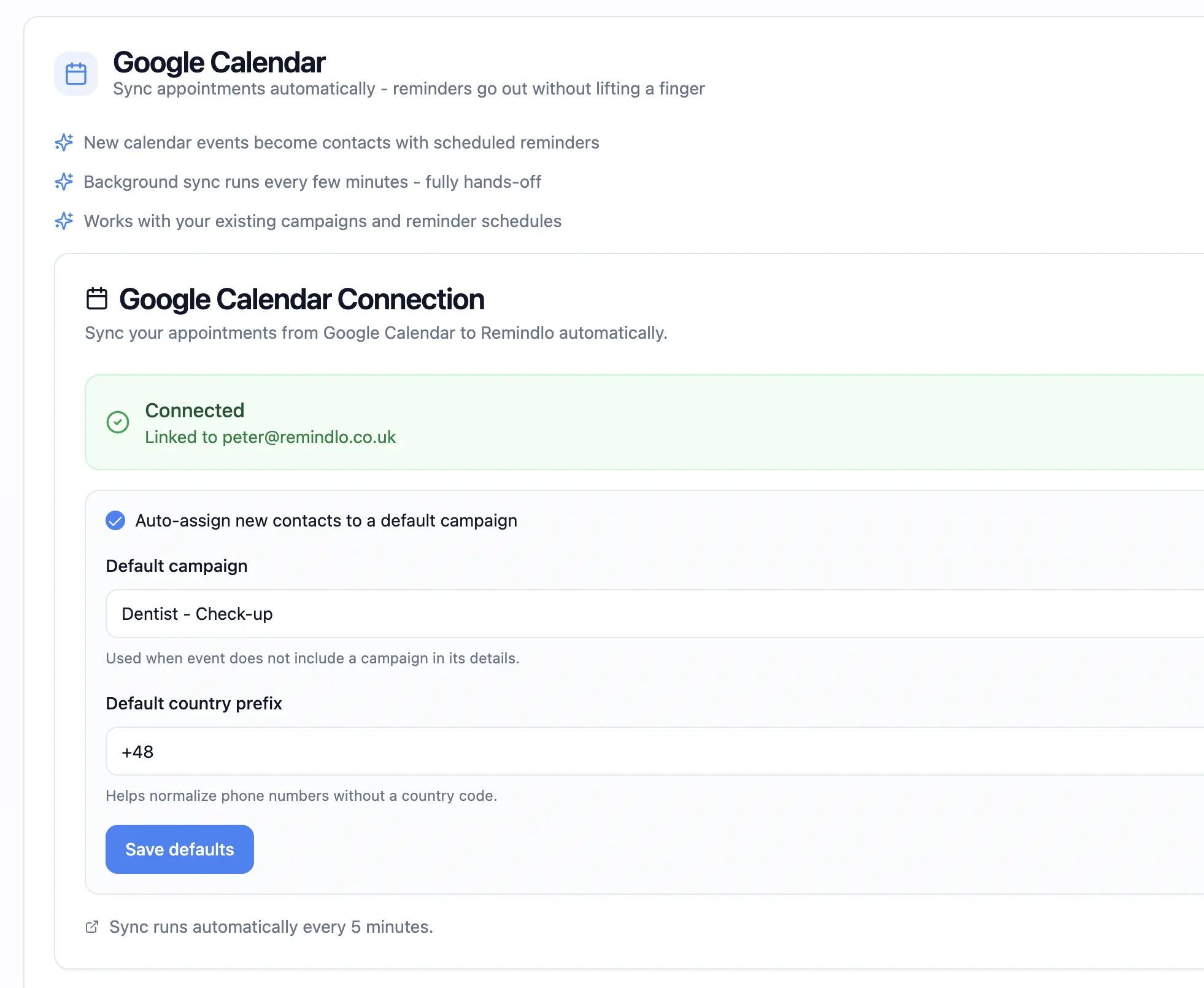
Step 2. Go to Integrations in the Remindlo dashboard and click Connect Google Calendar. Authorise access through Google's standard OAuth flow. Select which calendars Remindlo should monitor. If you have separate calendars for different services or team members, you can connect them all.
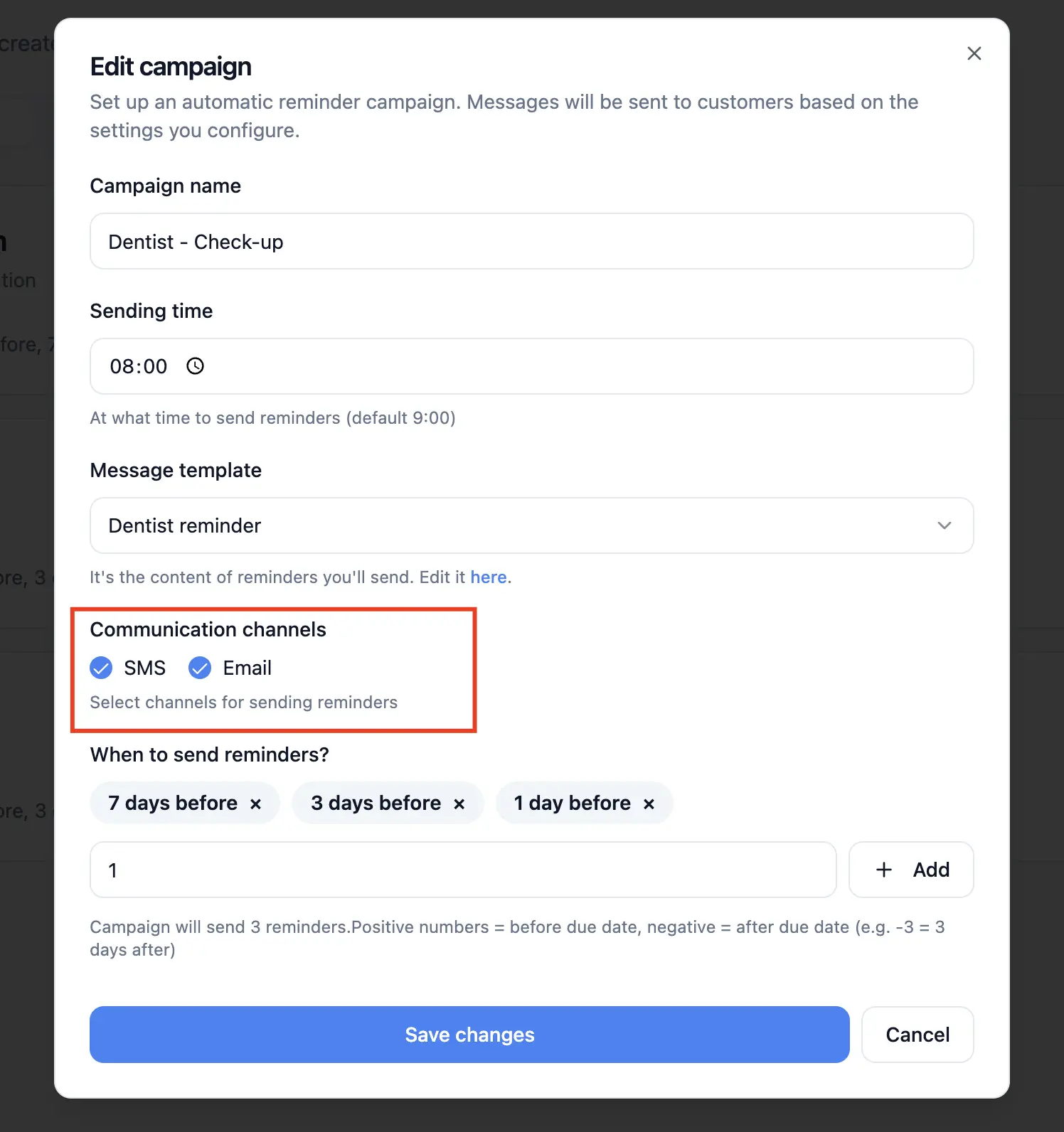
Step 3. Create a reminder campaign. This defines the message and timing. The most effective setup for service businesses is two reminders: one 3 days before the appointment (gives the client time to rearrange, and gives you time to fill the slot) and one 24 hours before (a final confirmation).
Write your message using dynamic fields:
Hi {first_name}, just a reminder about your appointment with {business_name} tomorrow at {time}. If you need to reschedule, call us on [your number]. Thanks!
Step 4. Include the client's phone number in your Google Calendar events. The description field is the most natural place, but the title or notes field works too. Remindlo detects the number automatically. If an event doesn't have a phone number, no reminder is created for it. Add the number to the event and Remindlo picks it up on the next sync, usually within a few minutes.
Step 5. Carry on as normal. Every new appointment with a phone number triggers automatic SMS reminders. That's the entire setup. Prefer sending additional emails - they'll be scrapped from the event as well, and if your campaign is also marked to send emails, the system will automatically do it.
For the full technical walkthrough of auto-sync, including how to handle recurring events, multiple calendars, and team setups, see the Google Calendar integration guide.
Option B: Google Workspace Marketplace add-on
If you prefer to control which specific events trigger reminders, the Remindlo add-on in the Google Workspace Marketplace gives you per-event control from directly inside Google Calendar.
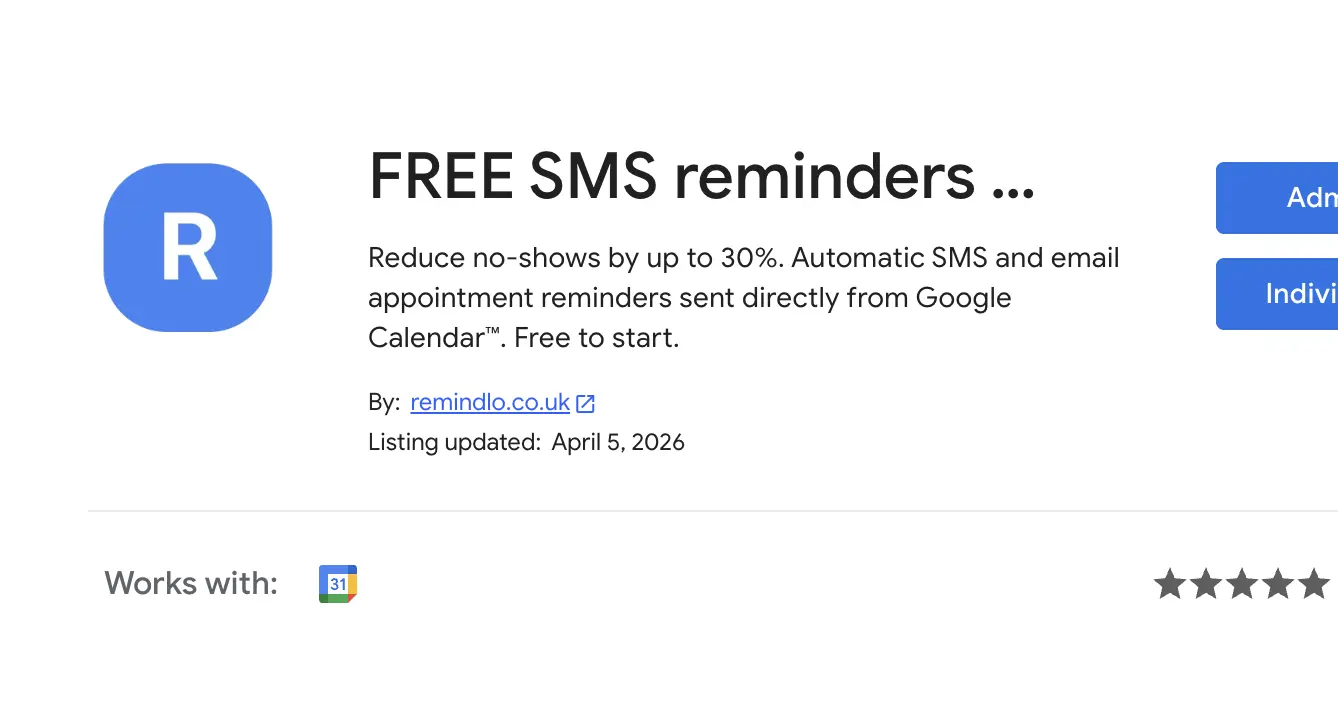
Install the add-on from the Marketplace, and it appears as a sidebar panel when you open an event in Google Calendar. From there, you can enroll individual events in a reminder campaign, adjust the timing, or override the default message for that specific appointment.
This method is useful when you don't want every calendar event to trigger a reminder - for example, if you use the same calendar for personal and client appointments and don't want to separate them into different calendars. You choose which events get reminders, one at a time.
Most businesses start with auto-sync (Option A) because it requires zero ongoing effort, and use the add-on (Option B) for edge cases where they want manual control over a specific event.
What SMS reminders cost
Remindlo's pricing is straightforward:
Plan | Monthly cost | SMS included | Per additional SMS |
|---|---|---|---|
Free | £0 | 10 | - |
Starter | £19 | 75 | ~20p |
Standard | £49 | 250 | ~20p |
All plans include unlimited email reminders. For most small service businesses, the Starter plan covers the reminder volume comfortably. At two reminders per appointment and 30 appointments per month, that's 60 SMS - well within the 75 allowance.
The maths on ROI is simple: if one SMS reminder prevents one no-show per month, and an average appointment is worth £80-150, the Starter plan pays for itself four to eight times over. For a more detailed breakdown, see how your customer list drives repeat revenue.
Method 3: Google Calendar + Zapier (for custom automation flows)
If you need more than standard appointment reminders - for example, triggering SMS from Google Forms submissions, syncing reminders with a spreadsheet, or building multi-step automation flows - Remindlo's Zapier integration opens up a wider set of possibilities.
Zapier acts as a bridge between Google Calendar (or any of 7,000+ other apps) and Remindlo. You create "Zaps" - automated workflows triggered by events in one app that cause actions in another.
Example Zap: Google Calendar event → SMS reminder
Trigger: New event created in Google Calendar Action: Create a contact and schedule a reminder in Remindlo
This achieves something similar to auto-sync, but with more flexibility. You can add filters (only trigger for events with "Client" in the title), delays (wait 5 minutes after creation to catch edits), or multi-step sequences (create contact, then add to a specific campaign, then log the event in a Google Sheet).
Example Zap: Google Sheets row → SMS reminder
Trigger: New row added to a Google Sheet Action: Create a contact and send a one-off message via Remindlo
This is useful for businesses that keep their client list in a spreadsheet rather than (or in addition to) Google Calendar. When you add a new client to the sheet with their phone number and appointment date, Zapier triggers the reminder automatically. For the full setup guide, see how to send SMS reminders from Google Sheets.
Example Zap: Calendly booking → SMS reminder
Trigger: New Calendly event created Action: Create a contact and schedule a reminder in Remindlo
If you use Calendly for online booking but find its built-in SMS reminders too expensive (Calendly charges $48/month on its Teams plan for SMS), this Zap gives you SMS reminders through Remindlo at a fraction of the cost. For details, see the Calendly SMS reminders guide.
When to choose Zapier over auto-sync
For most businesses that simply want Google Calendar events to trigger client SMS reminders, auto-sync (Method 2) is faster to set up and simpler to maintain. Choose Zapier when you need custom logic, multi-app workflows, or when your appointment data lives somewhere other than Google Calendar.
Zapier's free plan allows 100 tasks per month. Paid plans start at $19.99/month. This is on top of your Remindlo plan, so factor in both costs.
For a full overview of what's possible with the Zapier integration, see the Remindlo Zapier integration page and the Zapier setup guide.
How the three methods compare
Method 1: GCal native | Method 2: Remindlo auto-sync / add-on | Method 3: Zapier + Remindlo | |
|---|---|---|---|
Reminds you | Yes | Yes (plus GCal's own) | Yes |
Reminds your clients | No | Yes (SMS + email) | Yes (SMS + email) |
Setup time | 2 minutes | 5-10 minutes | 15-30 minutes |
Ongoing effort | None | None (auto-sync) | Minimal (Zap runs itself) |
SMS to clients | No | Yes | Yes |
Email to clients | Only if added as guest | Yes (unlimited) | Yes |
Works with GCal free | Yes | Yes | Yes |
Works with Workspace | Yes | Yes | Yes |
Per-event control | Yes | Yes (add-on) | Yes (via filters) |
Custom multi-app flows | No | No | Yes |
Cost | Free | Free – £49/month | Free – £49/month + Zapier plan |
Best for | Personal scheduling | Most service businesses | Custom / multi-tool workflows |
Beyond appointment reminders: recurring service notifications
Most guides on automating appointment reminders stop at confirming bookings that already exist. But for service businesses with recurring clients - heating engineers, MOT garages, vet practices, dentists - the bigger opportunity is in reminding clients to book in the first place.
An appointment reminder confirms something already scheduled: "Your boiler service is tomorrow at 10am." A service reactivation message generates a new booking: "Hi Sarah, your boiler was last serviced in October. It's coming up to that time again. Would you like to book?"
Remindlo handles both. Appointment reminders run off your Google Calendar events. Recurring service reminders run off your customer contact list, where each client has a service date and a reminder cycle (every 12 months for boilers, every 6 months for dental checkups, every year for MOT tests).
The combination is where the real revenue impact lies. In randomised trials, attendance rose from 67.8% to 78.6% when people were sent a text reminder (our sources). Recurring service reminders bring customers back who would otherwise drift to a competitor. Together, they build a business that doesn't depend on a constant stream of new leads to maintain revenue.
For industry-specific examples:
MOT garages: how to send automated MOT reminders and reducing no-shows at your MOT station
Heating engineers: how to automate boiler service reminders and HVAC customer retention strategies
Vet practices: reducing no-shows at your vet practice and best veterinary reminder software UK
Mobile service businesses: SMS reminders for mobile service businesses
Frequently asked questions
Can Google Calendar send automatic reminders to my clients? No. Google Calendar only sends notifications to the calendar owner (you). It cannot send SMS or email reminders to your clients or event attendees. To automate client-facing reminders, you need a third-party tool connected to your calendar. See our detailed explanation of this limitation.
Do I need to change how I use Google Calendar? No. All three methods work on top of your existing calendar workflow. The only new habit with Remindlo auto-sync is including the client's phone number somewhere in the calendar event, which many businesses do already.
What happens if I reschedule or cancel an appointment? With auto-sync, Remindlo detects the change and updates or cancels the reminder automatically. With Zapier, the behavior depends on your Zap configuration - you may need a separate Zap to handle cancellations.
Is the Marketplace add-on free? Yes. The Remindlo add-on in the Google Workspace Marketplace is free to install. SMS sending uses your Remindlo plan credits. The free Remindlo plan includes 10 SMS/month.
Can I use Remindlo with Outlook or Apple Calendar? Yes. Google Calendar connects over OAuth, while Outlook, Microsoft 365 and Apple iCloud connect through a published calendar link that Remindlo checks every hour - see SMS reminders for Outlook and Office 365 or SMS reminders for iCloud and Apple Calendar. If your IT administrator has disabled calendar publishing on your Microsoft 365 tenant, connect through Zapier instead: the Zapier integration page lists the supported triggers.
Is it GDPR compliant to send appointment reminders by SMS? Yes. Appointment reminders sent to existing clients about services they've booked are considered a legitimate interest under UK GDPR. Include your business name in the message, and give clients an easy way to opt out. For the full legal overview, see our UK GDPR and SMS compliance guide.
How does this compare to full scheduling platforms like Calendly or Acuity? Calendly and Acuity are booking platforms - they handle the scheduling process (online booking pages, availability management). Remindlo is a reminder platform - it handles what happens after the booking is made. If you already use Google Calendar for scheduling and don't need an online booking page, Remindlo adds the reminder layer without replacing your workflow. If you use Calendly but find its SMS pricing too high ($48/month for Teams), you can connect Calendly to Remindlo via Zapier for significantly cheaper SMS reminders.
Can I also send marketing messages or seasonal greetings? Yes. Remindlo supports one-off messages in addition to automated reminders. Many businesses use this for seasonal touchpoints - for example, Easter greetings or end-of-year thank-you messages. These keep your business name on clients' phones between appointments.
What is my flow of sending SMS reminders to customers is even more complicated? That's not a problem. If you outfrew all the methods we mentioned here and want to take full control over the process, you can use our powerful API and programmatically send out messages, add contacts, enroll them in campaigns, and build a deep integration with the systems you already use in your business. Here you can find detailed documentation for the SMS API Reminders.
Using Outlook as your Calendar? See our detailed guide on how to Automate Appointment SMS Reminders with Outlook Calendar.