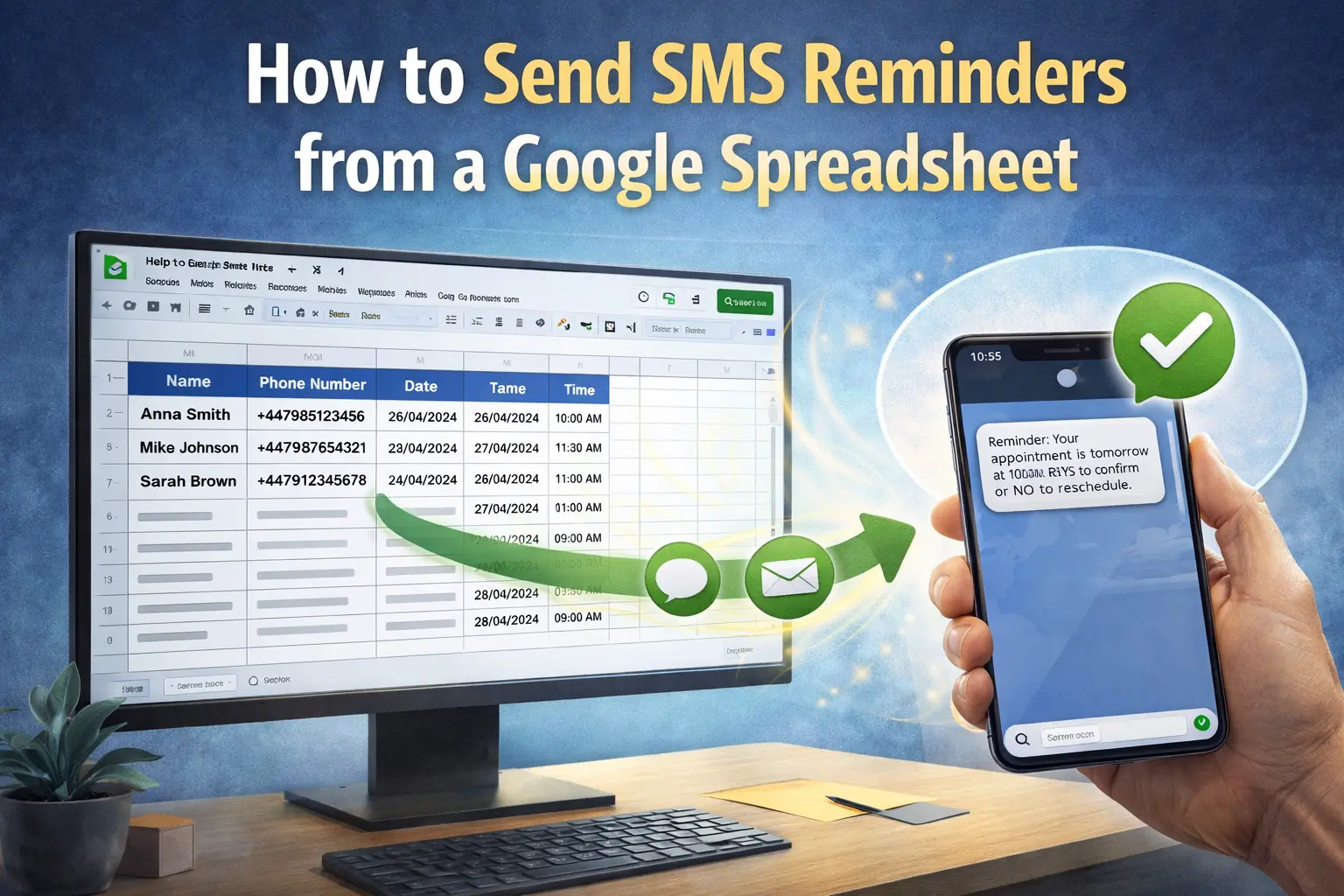
How to Send SMS Reminders from a Google Spreadsheet
Use Google Sheets as a simple CRM and send automatic SMS reminders via Remindlo and Zapier. Free template included.
Contents
Many small businesses manage their client lists in a Google Spreadsheet. If that sounds like you, this guide shows how to turn that spreadsheet into an automated SMS reminder system with Remindlo, so every client gets a text before their next appointment.
There are two ways to do it. You can import your sheet straight into Remindlo in about two minutes, which needs no other tools, or you can connect the sheet through Zapier so new rows flow across on their own. Both are covered below.
If the rows come from an online shop rather than a booking diary, the same sheet can drive reorder reminders.
We have also prepared a free Google Sheets template that works as a mini CRM - ready to copy and start using right away.
What You Need
-
A Google account with access to Google Sheets.
-
A Remindlo account - create one for free.
-
A Zapier account - only for Option 2 below. The one-off import needs no third-party tool.
Two Ways to Do This
Pick the one that matches how you work:
|
Option 1: One-off import |
Option 2: Keep the sheet in sync |
|---|---|
|
You already have a client list and want reminders running today. Takes about two minutes. No Zapier, no extra cost. |
The spreadsheet stays your working system and you add rows to it every week. Needs a Zapier account. |
|
Re-run the import whenever you want; contacts are matched on phone number, so nobody is duplicated. |
New and updated rows flow into Remindlo automatically, within about 15 minutes. |
Both use the same spreadsheet and the same columns, so you can start with Option 1 and add Option 2 later.
Free Google Sheets CRM Template
We have created a ready-to-use spreadsheet template that works as a simple customer database. It includes all the fields Remindlo needs to send SMS reminders, plus extras like recurrence settings and marketing consent.
→ Open the free Google Sheets CRM template
To use it, open the link above and go to File → Make a copy. That gives you your own editable version. The template is open to anyone with a Google account.
Template Columns Explained
|
Column |
Description |
Required for SMS |
|---|---|---|
|
First name |
Client's first name. Used to personalise messages. |
Recommended |
|
Last name |
Client's last name. |
Optional |
|
|
Client's email address. |
Optional |
|
Phone number |
Must include the country code (e.g. +44 for UK, +1 for US). |
Yes |
|
Note |
Any additional information about the client. Stored as a note on the contact in Remindlo. |
Optional |
|
Next Visit/Service/Appointment |
The date of the client's next appointment. This is the date Remindlo uses to schedule the SMS reminder. |
Yes |
|
Recurrent service |
Whether this client has a recurring appointment (yes/no dropdown). |
Optional |
|
Repeat interval |
How often the appointment repeats (e.g. 12 for every 12 months). |
If recurrent |
|
Repeat schema |
The unit for the repeat interval (e.g. months, weeks). |
If recurrent |
|
Consent to receive messages |
Whether the client has given consent to receive SMS (yes/no dropdown). Anything other than "yes" counts as no consent, including a blank cell or a missing column. |
Yes |
Option 1: Import Your Spreadsheet Directly
This is the fastest route and it needs nothing but your sheet and a Remindlo account.
Step 1: Create a Campaign
A campaign is the schedule that decides when a reminder goes out. Contacts only receive messages once they belong to one.
-
Go to your Remindlo campaigns.
-
Create a campaign (for example "Appointment Reminders") and set when reminders should be sent, such as 7 days and 1 day before the visit.
-
Write the message. Use
{{first_name}}and{{business_name}}to personalise it.
Step 2: Download Your Sheet as CSV
In Google Sheets, open the tab with your client list and choose File → Download → Comma-separated values (.csv).
Column names do not have to match anything exactly. Everyday headings such as "First name", "Phone number" or "Next Visit/Service/Appointment" are recognised automatically, so you can import our template or your own sheet as it stands.
Step 3: Import into Remindlo
-
Open Contacts and click Import CSV.
-
Select the file you just downloaded.
-
Under Add imported contacts to campaign, tick the campaign you created in Step 1. This is the step that actually starts the reminders - without it the contacts are stored but nothing is scheduled.
-
Click Import. You will see how many contacts were added and a line for any row that could not be read.
That is it. Reminders are scheduled from the date in your appointment column.
What Gets Imported
Phone numbers can be written the way people normally write them. All of these work:
-
+44 7700 900123 -
07700 900123 -
+44 (0) 7700 900123
Dates can be DD/MM/YYYY or YYYY-MM-DD. Notes may contain commas and line breaks. Rows that cannot be read are listed individually, so you can fix just those and import again.
Re-Running the Import
Importing the same list twice does not create duplicates. Remindlo matches on phone number first, then email, and updates the existing contact instead. So if your spreadsheet is the master copy, you can simply export and import again whenever it changes - a simple alternative to Option 2.
Option 2: Keep the Sheet in Sync with Zapier
Use this when the spreadsheet stays your day-to-day system and you want new rows to reach Remindlo on their own.
How It Works
The flow is simple:
-
You add or update a client row in your Google Sheet.
-
Zapier detects the new or updated row.
-
Zapier sends the data to Remindlo via the Create Contact action.
-
Remindlo schedules an SMS reminder based on the appointment date and your campaign settings.
Despite the name, Create Contact does not blindly add a row every time. It matches on phone number first, then email, and updates the existing contact when it finds one. That is why the trigger is New or Updated: editing a row updates the same contact rather than creating a second one, and a contact already in the campaign is not enrolled twice.
Once set up, you just maintain your spreadsheet. The rest happens automatically.
Setting Up the Zap
Step 1: Prepare Your Spreadsheet
Either copy our free template (File → Make a copy) or use your existing spreadsheet. If using your own, make sure it has at minimum these columns:
-
Phone number (with country code, e.g. +447700900123). To add it correctly in Google Sheets, add it with ' at the beginning. Example: '+44508115312
-
Next appointment date
-
First name (recommended for personalised messages)
Step 2: Create a Campaign in Remindlo
Before connecting Zapier, set up a campaign in Remindlo that defines your reminder schedule:
-
Go to your Remindlo dashboard.
-
Create a new Campaign (e.g. "Appointment Reminders").
-
Configure when reminders should be sent (e.g. 24 hours before, 2 hours before).
-
Write your message templates. Use variables like
{{first_name}}and{{business_name}}to personalise each message. -
Note the campaign name. You will use it in the Zap to look the campaign up.
Step 3: Create the Zap in Zapier
Set up the trigger
-
Log in to Zapier and click Create a Zap.
-
Choose Google Sheets as the trigger app.
-
Select New or Updated Spreadsheet Row as the trigger event.
-
Connect your Google account and select your spreadsheet and worksheet.
-
Test the trigger - Zapier will pull in a sample row from your sheet.
Look up your campaign
Contacts are enrolled by campaign ID, not by name. Getting this wrong fails quietly: the contact is still created and the Zap still reports success, but the enrolment is dropped and no reminder is ever sent. Add a lookup step so Zapier fills the ID in for you.
-
Click + to add an action step.
-
Search for Remindlo and select Find Campaign.
-
Connect your Remindlo account if you have not already.
-
Look up the campaign you created in Step 2.
-
Test the step and check it returns that campaign, including its ID.
Set up the Remindlo action
-
Click + to add a second action step.
-
Search for Remindlo and select Create Contact.
-
Connect your Remindlo account if you have not already.
-
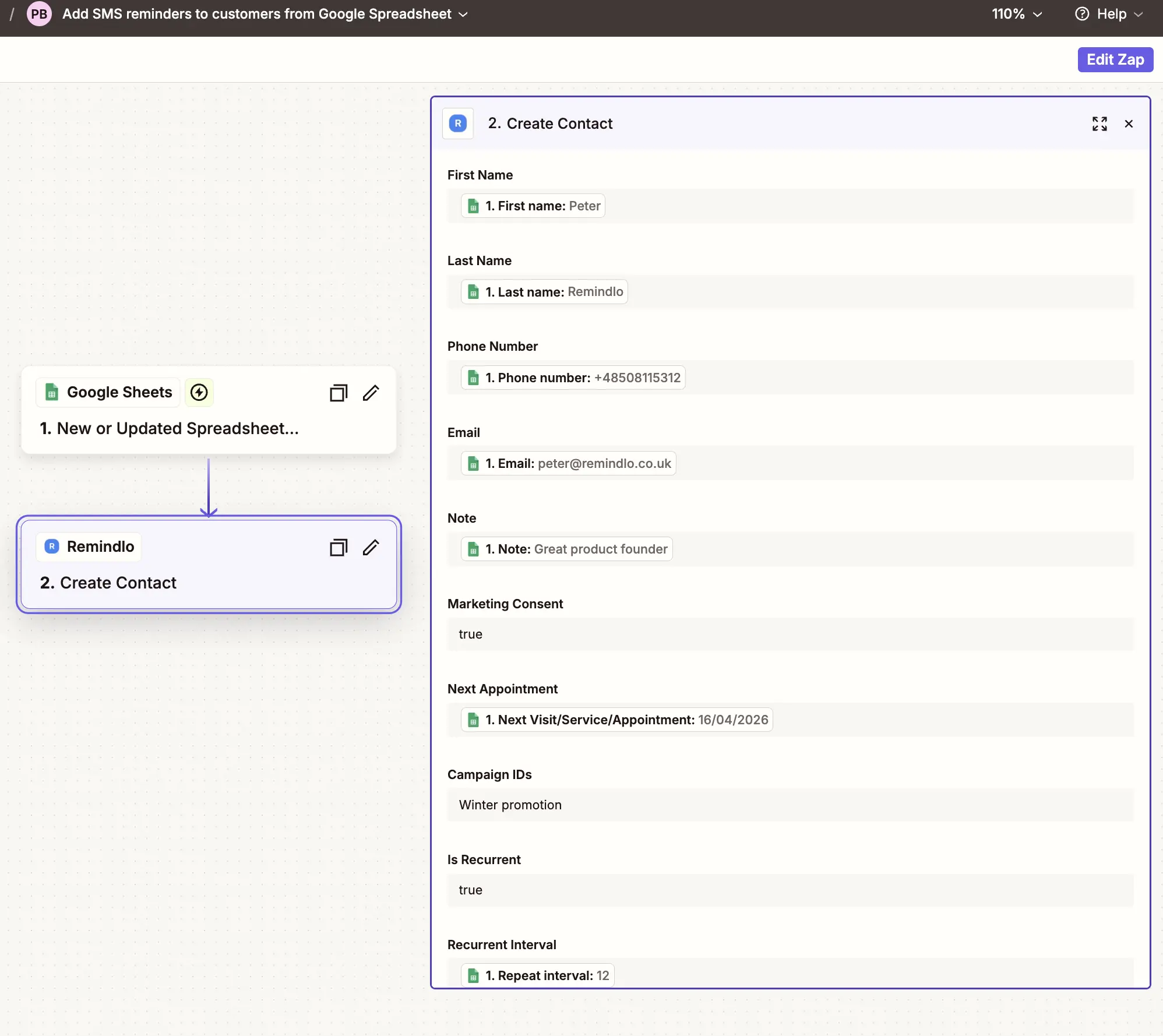
Map the spreadsheet columns to Remindlo fields:
Remindlo Field
Google Sheets Column
First Name
First name
Last Name
Last name
Phone Number
Phone number
Email
Email
Note
Note
Marketing Consent
Consent to receive messages
Next Appointment
Next Visit/Service/Appointment
Campaign IDs
The ID from the Find Campaign step (see below) - not the campaign name
Is Recurrent
Recurrent service
Recurrent Interval
Repeat interval
-
Test the action, then open the contact in your Remindlo dashboard and check the campaign is listed on it. The contact appearing is not enough on its own - the campaign is what schedules the reminder.
To enrol a contact in several campaigns at once, put the IDs in the same field separated by commas.
Step 4: Turn On the Zap
Once both steps test successfully, click Publish to activate the Zap. From now on, every new or updated row in your spreadsheet will automatically create or update a contact in Remindlo and schedule the SMS reminder.
Handling Recurring Appointments
The template includes columns for recurring services. If a client visits regularly (e.g. every 6 months for a dental checkup, every 12 months for a boiler service), you can set:
-
Recurrent service to "yes"
-
Repeat interval to the number (e.g. 6, 12)
-
Repeat schema to the unit (e.g. months, weeks)
Remindlo will use this information to automatically schedule future reminders after each appointment, so you do not need to update the spreadsheet every time.
Who Is This For?
This setup is ideal for small businesses that:
-
Already manage clients in a spreadsheet and want to add SMS reminders without switching to a new system.
-
Do not use a booking platform like Calendly or Cal.com or Square Appointments but still want automated text reminders.
-
Want a free, simple CRM without the complexity of full CRM software.
-
Have recurring clients (hairdressers, dentists, mechanics, cleaners, pet groomers, tutors, vets) and want to reduce no-shows.
See even more examples of how useful Google Sheets can be as an SMS Reminder tool.
Tips and Best Practices
-
Include the country code for numbers outside the UK - write +353 86 123 4567, not 086 123 4567, so Remindlo delivers to the right country. UK numbers work either way:
+44 7700 900123and07700 900123are both understood, with or without spaces. -
Use a consistent date format for the appointment column. DD/MM/YYYY works well for UK businesses. The spreadsheet template is set up so you only need to click the date cell twice and selectw the date from a ready calendar. That guarantees the necessary format.
-
Keep one row per client. If you need to update an appointment, edit the existing row rather than adding a new one. The "New or Updated Row" trigger in Zapier will pick up the change.
-
Fill in the consent column. It is not just record-keeping for UK messaging regulations - it is the switch that lets messages go out at all. Remindlo sends only to contacts marked as consenting, so a client left blank stays silent no matter how well everything else is set up.
-
Test with your own number first. Add yourself as a test row to verify the full flow before adding real clients.
Troubleshooting
Imported contacts are not getting reminders
-
Check the contact is in a campaign. If you did not tick a campaign during the import, open the contact and assign one.
-
Check Consent to receive messages is set. A contact needs both consent and a campaign before anything is sent.
-
Check the appointment date is in the future. Remindlo does not send reminders for past dates.
Some rows failed to import
-
Every contact needs a phone number or an email address.
-
Check the date format is
DD/MM/YYYYorYYYY-MM-DD. US-styleMM/DD/YYYYis not accepted because it cannot be told apart from UK dates. -
The import lists each failed row separately with the reason, so you can correct those rows and import the file again.
Zap is not detecting new rows
-
Zapier polls Google Sheets every few minutes. Allow up to 15 minutes for a new row to be detected.
-
Make sure the row is fully filled in. Zapier may skip rows where key fields are empty.
-
Check that the correct spreadsheet and worksheet are selected in the Zap trigger.
Contact not appearing in Remindlo
-
Check the Zap's Task History in Zapier for error messages.
-
Verify the phone number includes a country code (e.g. +44).
-
Make sure your Remindlo account is connected and authorised in Zapier.
Reminder not sending
-
Check that the appointment date is in the future. Remindlo does not send reminders for past events.
-
Verify the contact is enrolled in the correct campaign in your Remindlo dashboard.
-
Make sure your campaign has active reminder messages configured.
Duplicate contacts
-
Create Contact matches on phone number first, then email, so sending the same client again updates them rather than adding a second record. Adding new rows for existing clients is safe.
-
Duplicates appear when the matching key itself changes - almost always because a client's phone number was corrected in the sheet. Remindlo cannot tell that the new number belongs to the old contact, so it creates one. Delete the stray contact in the dashboard, and prefer editing the phone number there rather than in the spreadsheet.
Need Help?
If you need assistance setting up SMS reminders from Google Sheets, contact us at support@remindlo.co.uk. We are happy to help you get everything connected.