Cal.com SMS Reminders: Send Texts from Free Plan
Send automatic SMS reminders for Cal.com bookings using Remindlo and Google Calendar. Works with any Cal.com plan, including free.
Contents
- What You Need
- How Cal.com's Built-in SMS Works - and Its Limitations
- The Alternative: Cal.com → Google Calendar → Remindlo
- Method 1: Connect via Google Calendar Integration
- Method 2: Use the Remindlo Google Calendar Add-on
- Method 3: Connect Directly via Zapier
- Comparison: Cal.com Native SMS vs Remindlo
- Tips and Best Practices
- Troubleshooting
- Need Help?
Cal.com is a powerful open-source scheduling platform, but if you want to send SMS reminders to clients before their appointments, you may find that Cal.com's built-in text messaging has some significant limitations - especially around cost, sender identity, and two-way communication. This guide shows you how to add reliable SMS reminders to any Cal.com booking, even if you are on Cal.com's free plan.
The approach is straightforward: Cal.com syncs events to Google Calendar. Remindlo monitors your Google Calendar and automatically sends SMS reminders for every appointment that includes a phone number. You can also connect Cal.com to Remindlo directly via Zapier.
What You Need
A Cal.com account (any plan, including free).
A Google account with Google Calendar.
A Remindlo account - create one for free.
Cal.com connected to Google Calendar (we cover this below).
How Cal.com's Built-in SMS Works - and Its Limitations
Cal.com offers SMS reminders through its Workflows feature, powered by Twilio. Here is what you should know before relying on it:
Paid plans only for meaningful use - SMS workflows are available on Team ($20/user/month) and Organisation plans. Free users receive no complimentary SMS credits and must purchase them separately.
Credit-based system - Team plans include 750 credits per member per month. Organisation plans include 1,000 credits per member. Each SMS costs credits depending on the destination country.
International fees add up - While US and Canada messages are included at no extra charge, international SMS is priced at Twilio's cost plus an 80% processing fee. For UK-based businesses sending to UK numbers, this can get expensive quickly.
When credits run out, SMS stops - Once you exhaust your monthly credits, Cal.com falls back to sending reminders by email instead of text. You can purchase additional credits, but you need to monitor usage carefully.
Twilio sender numbers - Messages are sent via Twilio, meaning your clients may receive texts from an unfamiliar phone number rather than a number associated with your business.
One-way messaging - Cal.com's SMS reminders are notifications only. If a client replies to the text, there is no built-in system to capture or display their response.
These limitations work for some use cases, but if you need a dedicated sender number, two-way communication, and predictable costs - especially for UK-based businesses - there is a better way.
The Alternative: Cal.com → Google Calendar → Remindlo
Here is how it works:
Cal.com syncs events to Google Calendar - this is a built-in Cal.com feature available on every plan, including free.
Remindlo monitors your Google Calendar - it automatically detects new events and reads phone numbers from the event details.
SMS reminders are sent automatically - Remindlo sends personalised text reminders before each appointment, from a dedicated phone number that your clients can reply to.
This approach works with any Cal.com plan, has no credit system, and gives your clients a recognisable sender number with two-way messaging.
Method 1: Connect via Google Calendar Integration
This is the recommended approach. It takes about 5 minutes to set up, and then everything runs on autopilot.
Step 1: Connect Cal.com to Google Calendar
If you have not already done this:
Log in to your Cal.com account.
Go to Settings → Installed Apps (or visit the App Store).
Find Google Calendar and click Install.
Authorise Cal.com to access your Google Calendar.
Under Settings → Calendars, select which calendar new bookings should be added to.
Once connected, every new Cal.com booking will automatically appear as an event in your Google Calendar. Cancellations and rescheduled events sync too.
Step 2: Capture Phone Numbers in Cal.com
For SMS reminders to work, Remindlo needs a phone number in the calendar event. Cal.com can include attendee information in the event, so make sure you collect phone numbers:
Go to your Event Types in Cal.com.
Edit the event type you want to add SMS reminders to.
Under Advanced → Booking Questions, add a Phone Number field.
Mark it as Required so every booking includes a number.
When someone books, their phone number will be included in the Google Calendar event - exactly where Remindlo looks for it.
Step 3: Connect Google Calendar to Remindlo
Follow our detailed guide to connect your Google Calendar to Remindlo:
→ How to Integrate SMS Reminders into Google Calendar
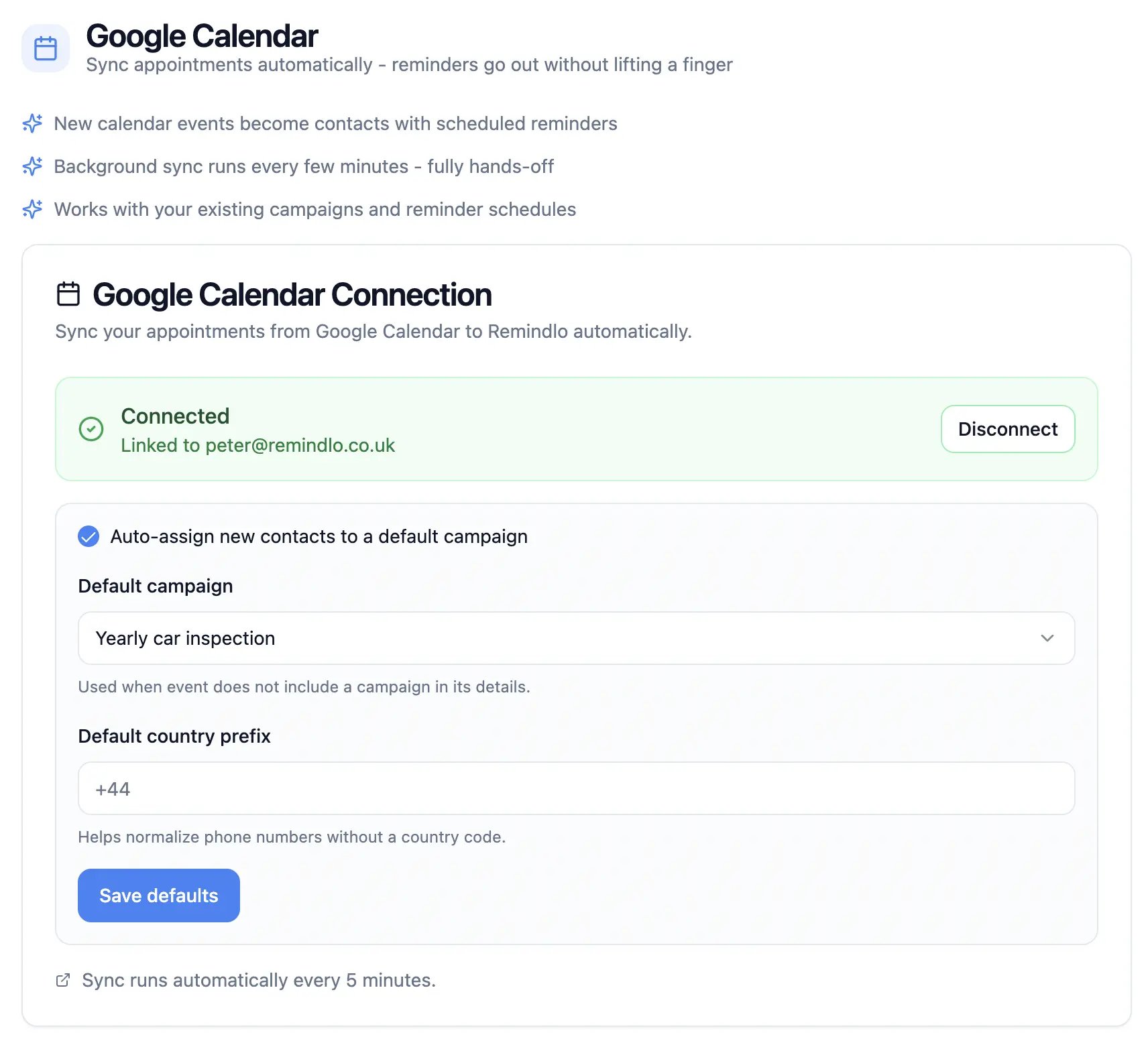
The guide covers connecting your calendar, enabling autopilot, and customising your reminder messages with dynamic variables like {{first_name}} and {{business_name}}.
Step 4: Done - Remindlo Handles the Rest
Once connected, Remindlo runs on autopilot. For every new Cal.com booking that includes a phone number, Remindlo will automatically:
Detect the event in your Google Calendar.
Extract the client's phone number from the event details.
Schedule SMS reminders based on your configured timing (e.g. 24 hours before, 2 hours before).
Send personalised text messages from a dedicated phone number.
Remove scheduled reminders if the event is cancelled or rescheduled.
Method 2: Use the Remindlo Google Calendar Add-on
If you prefer more hands-on control, you can use the Remindlo sidebar plugin directly in Google Calendar. This add-on lets you:
Manually assign contacts to events.
Set a default country prefix for phone number normalisation.
Choose which campaign each event type belongs to.
For setup instructions, see the add-on section of our Google Calendar guide:
→ Google Calendar Add-on (Sidebar Plugin) Setup Guide
Method 3: Connect Directly via Zapier
If you prefer a direct connection without Google Calendar as a bridge, you can use Zapier to link Cal.com and Remindlo. With Zapier, you can set up a Zap that automatically adds a contact to Remindlo every time someone books through Cal.com.
This method gives you the most flexibility - you can map specific Cal.com fields to Remindlo contact fields, trigger different campaigns based on event types, and combine it with other automations across 9,000+ apps.
Comparison: Cal.com Native SMS vs Remindlo
Feature | Cal.com Native SMS | Remindlo via Google Calendar |
|---|---|---|
Cal.com plan required | Team ($20/user/mo) or Organisation | Any plan, including free |
Monthly SMS credits | 750–1,000/member (varies by plan) | Plan-based, no credit system |
When credits run out | Falls back to email | N/A - no credit limits |
International SMS cost | Twilio rate + 80% processing fee | Included in Remindlo plan |
Sender number | Twilio-assigned number | "Remindlo" as sender or always the same number |
Client replies | Not captured | Two-way - replies visible in dashboard |
Message personalisation | Basic variables | Rich templates with dynamic variables |
UK SMS support | Charged per message via Twilio | UK-focused, included in plan |
Setup effort | Built-in workflow setup | One-time Google Calendar connection (~5 min) |
Tips and Best Practices
Send two reminders - one the day before and one a few hours before the appointment. This is the most effective pattern for reducing no-shows.
Include your business name - since Remindlo sends from a dedicated number, adding your business name in the message helps clients immediately recognise who is texting.
Use dynamic variables - personalise messages with
{{first_name}},{{business_name}}, and{{business_phone}}for a professional touch.Make the phone number required in your Cal.com event type booking questions, set the phone number field as required, so every booking captures a number.
Test with a sample booking - book a test appointment through your Cal.com link using your own phone number to verify the full flow works before going live.
Troubleshooting
Cal.com events not appearing in Google Calendar
Check that Cal.com's Google Calendar app is installed and connected - go to Settings → Installed Apps and verify the Google Calendar connection.
Under Settings → Calendars, make sure you selected the correct destination calendar for new bookings.
New events may take a moment to sync. Wait and refresh your Google Calendar.
Phone numbers not detected by Remindlo
Ensure the phone number question is added to your Cal.com event type's booking questions.
Check that the number includes a country code (e.g. +44 for UK). You can set a default country prefix in the Remindlo Google Calendar add-on. Then we'll add it automatically if you forget to add it yourself.
Open the event in Google Calendar and check that the phone number appears in the event description or notes, or in the location field on its own or after a
Tel:label.
Reminders not sending
Verify your Remindlo account is active, and the Google Calendar is connected.
Check the Remindlo dashboard for sync status and any error messages.
Make sure the event is far enough in the future for reminders to be scheduled (past events are ignored).
Wrong timezone on reminders
Confirm your timezone settings match in Cal.com, Google Calendar, and Remindlo.
Cal.com uses the Booker's timezone by default - check that this matches the calendar event.
Need Help?
If you run into any issues setting up SMS reminders for your Cal.com appointments, contact us at support@remindlo.co.uk. We are happy to help you get everything connected.