How to Integrate SMS and Email Reminders into Google Calendar
Connect Google Calendar to Remindlo and automate SMS and email reminders for every appointment.
Contents
- Why SMS Reminders Beat Standard Email Notifications
- Does Google Calendar Have Built-in SMS Reminders?
- Prerequisites
- Method 1: Connect Google Calendar to the Remindlo Dashboard
- Method 2: Google Calendar Sidebar Add-on
- How Email Reminders Work with Google Calendar
- What Happens When You Change or Cancel an Event
- Which Businesses Benefit Most?
- Remindlo vs Other Google Calendar Reminder Tools
- Best Practices for Higher Response Rates
- Troubleshooting Common Issues
- Frequently Asked Questions
- Get Started in 5 Minutes
Connect Google Calendar to Remindlo and automate SMS and email reminders for every appointment. This guide shows you exactly how to set up the integration, customize messages, and start reducing no-shows today.
Whether you run a dental practice, MOT testing station, or beauty salon, this step-by-step tutorial will help you send automatic text and email reminders to clients without any manual work.
Why SMS Reminders Beat Standard Email Notifications
Before diving into the setup, let's address a common question: why bother with SMS when Google Calendar already sends email reminders?
The numbers tell the story:
SMS open rate: 98% - almost every text gets read
Email open rate: 20-30% - most appointment emails go unnoticed
SMS response time: 90 seconds - people check texts immediately
Email response time: 90 minutes - if they respond at all
For appointment-based businesses, this difference translates directly into revenue. A client who misses a generic Google notification might forget their appointment entirely. A branded text message from your business cuts through the noise.
That said, email reminders still have their place - especially as a second touchpoint alongside SMS. That's why Remindlo supports both channels. You can send SMS for the primary reminder and add email as a backup, or use both together for maximum reach.
Since switching to SMS reminders, our no-show rate dropped from 15% to under 5%. That's thousands of pounds saved every month."
Sarah, Dental Practice Manager, Manchester
Does Google Calendar Have Built-in SMS Reminders?
No. Google Calendar offers three types of native notifications:
Email reminders - sent to attendees' Gmail
Push notifications - requires the Google Calendar app installed
Browser pop-ups - only works if the calendar is open
None of these send actual SMS text messages to phone numbers, and the built-in email notifications are generic - they don't carry your brand, your message, or your booking link. To send personalised SMS and branded email reminders to your clients, you need a tool like Remindlo.
Prerequisites
Before starting the integration, make sure you have:
A Remindlo account (create one for free)
A Google Workspace or personal Google Calendar you own
Phone numbers stored in calendar event descriptions - and/or clients added as event guests (for email reminders)
The setup takes about 5 minutes.
Method 1: Connect Google Calendar to the Remindlo Dashboard
This is the recommended approach for most businesses. Once connected, Remindlo monitors your calendar and sends SMS and email reminders automatically.
Step 1: Connect Google Calendar
Open the Remindlo dashboard and go to Integrations
Select Google Calendar and click Connect
Log in with Google and allow Remindlo to read your calendars (select all permissions)
That's it for the connection. Remindlo now syncs with your calendar.
Step 2: How Remindlo Handles Your Events
Remindlo works on autopilot with intelligent event processing:
Phone number found in event: SMS reminders are scheduled automatically based on your campaign settings
Guest email found: If you've added a client as an event guest, Remindlo picks up their email address automatically. If your campaign has the email channel enabled, branded email reminders are sent alongside SMS
No phone or email: No reminder is scheduled. Add a phone number to the event, or invite the client as a guest, and it syncs on the next poll
If you already invite the client as a guest and Google supplies their name, you can keep your usual event titles. Add a phone number in the description for SMS, invite the client as a guest for email, or do both. Remindlo also reads the location field, where the number must be on its own or follow a Tel: label. If the guest has no usable name, Remindlo takes the name from the title, so check the title format before using personalised greetings.
-> Connect your Google Calendar now
Where the client's name comes from
Remindlo first uses the selected client's guest name, then falls back to the event title if that name is missing or is just an email address. A customer name explicitly saved through the add-on takes priority. If you rely on the title, use Mary Smith with Phone: 07912 345678 in the description, or Mary Smith 07912 345678 as the title. Keep service details out of the title when using {{last_name}}. See Where the client's name comes from for the full rules and how to use a greeting without a name.
Step 3: Customize Your Reminder Messages
Navigate to Campaigns in your Remindlo dashboard to customize reminder messages. You can use dynamic variables to personalize each text and email:
Variable | What it inserts |
|---|---|
{{first_name}} | Client's first name |
{{last_name}} | Client's last name |
{{next_due_at_date}} | Appointment date |
{{business_name}} | Your business name |
{{business_phone}} | Your contact number |
{{business_address}} | Your location |
{{note}} | Custom note |
Example SMS message:
Hi {{first_name}}, reminder: your appointment at {{business_name}} is tomorrow. To reschedule call us on {{business_phone}}.
Keep SMS messages under 160 characters when possible to avoid splitting into multiple segments. Email reminders use the same template but are wrapped in a branded HTML layout with your business name.
Step 4: Choose Your Reminder Channels
In your campaign settings, you can select which channels to use:
SMS only (default) - text message reminders
SMS + Email - both channels for maximum reach
Email only - for clients who prefer email
When both channels are enabled, Remindlo sends each reminder through every available channel. If a contact has both a phone number and email, they get both. If they only have one, they get that one.
Step 5: Set Your Reminder Schedule
Most successful businesses send two reminders:
2 days before - gives clients time to reschedule if needed
24 hours before - final confirmation when it's top of mind
You can configure this timing in your campaign settings. Some industries benefit from a third reminder 7 days before for appointments booked far in advance.
Step 6: Send a Test Reminder
Before going live:
Create a test event in Google Calendar with your own phone number in the description
Add yourself as a guest to test email reminders
Wait for Remindlo to sync (usually within minutes)
Confirm the SMS and/or email reminders arrive at the expected time
Method 2: Google Calendar Sidebar Add-on
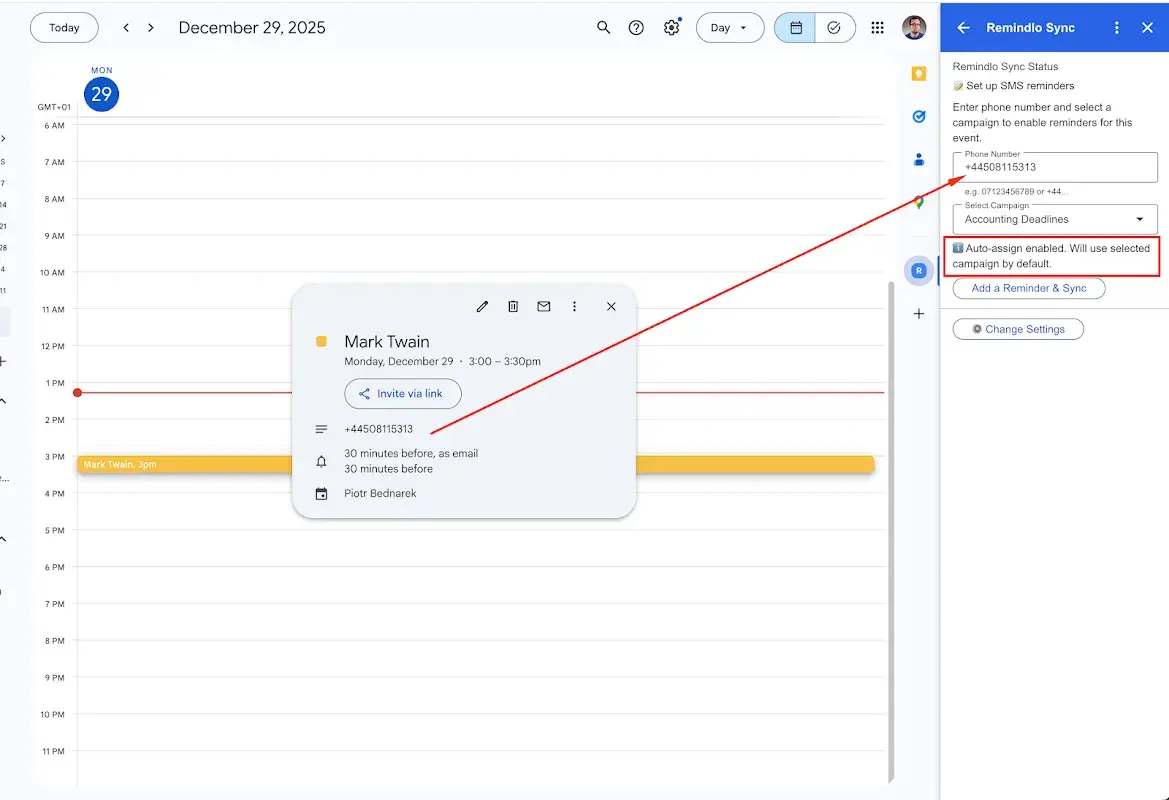
Prefer working directly inside Google Calendar? The Remindlo sidebar add-on lets you manage reminders without leaving your calendar.
Install the Add-on
Open Google Calendar in your browser
Click the sidebar on the right and look for Remindlo
If you don't see it, install from Google Workspace Marketplace
Link Your Remindlo Account
In the add-on sidebar, click Link Your Remindlo Account
Click Get API Key from Remindlo - this opens your dashboard
Copy your API key (starts with
sk_live_)Paste the key in the add-on and choose whether to enable auto-assign
Click Save & Continue and select your default campaign
Configure Add-on Settings
Auto-assign: When enabled, new contacts are presented automatically with the default campaign
Default Country Prefix: Set to
+44for UK numbers or+1for US. This converts local formats (07xxx) to the international formatAccount actions: Test connection, open dashboard, or reset if needed
Using the Add-on with Events
When you open any calendar event, the Remindlo sidebar shows:
Sync status - whether reminders are scheduled
Phone detection - found or missing
Email detection - automatically picked up from event guests
Manual controls - sync now, resolve missing data, change campaign
If a phone number is missing, you can enter it manually or provide an email address instead. The add-on pre-fills the email field from event guests automatically.
How Email Reminders Work with Google Calendar
When you add a client as a guest to a Google Calendar event, Remindlo automatically picks up their email address. Here's what happens:
Guest detection: Remindlo reads the event attendees and filters out your own email, conference rooms, and declined guests
Contact creation: The guest's email is saved to their contact record in Remindlo - alongside their phone number if available
Branded emails: Unlike Google's generic notifications, Remindlo sends professionally branded reminder emails with your business name, your message, and a direct reply-to your business email
Reply handling: When a client replies to a Remindlo email reminder, the reply goes directly to your business email - not to a no-reply address
This means you get the best of both worlds: the convenience of Google Calendar's guest list combined with personalised, branded reminder emails that actually drive responses.
What Happens When You Change or Cancel an Event
Reminders follow your calendar, not the other way round. Once an event has synced, Remindlo keeps watching it - so you carry on editing appointments in Google Calendar exactly as you did before, and the reminders adjust themselves.
You move an appointment
The visit is updated with its new date and time, and any reminder that has not gone out yet follows it. A visit moved from Friday to the following Tuesday gets its "2 days before" reminder on the Sunday, not on the Wednesday that has already passed.
You cancel or delete an event
Three things happen on the next sync:
The visit is marked cancelled - it stays visible in the client's history rather than vanishing, so you can still see what was booked
Reminders queued for that visit are withdrawn - nobody is told to turn up to an appointment that is not happening
The client's next due date is recalculated from their remaining visits, so a reminder for a different booking carries on untouched
Cancelling a visit does not delete the client. They stay in your contact list with their history, their consent setting and any other appointments intact - which matters, because a cancelled appointment is exactly the client you want to win back later.
How quickly it takes effect
The dashboard integration checks your calendar every few minutes, so a cancellation is normally reflected inside that window. The sidebar add-on can trigger an immediate sync if you need it sooner.
One thing worth knowing: a reminder that has already been sent cannot be recalled. If you cancel an appointment after the 24-hour reminder has gone out, the client has already received it. Cancel in the calendar as early as you can, and for anything imminent, follow up with the client directly.
Which Businesses Benefit Most?
Google Calendar SMS and email integration works especially well for:
MOT Testing Stations - annual MOT reminders bring customers back automatically
Tire Shops - seasonal reminders for winter/summer tyre changes
Dental Practices - 6-month checkup reminders reduce patient churn
Car Garages - service interval reminders for oil changes, inspections
Beauty Salons - rebooking reminders for regular treatments
Veterinary Clinics - vaccination and checkup reminders
Any business with recurring appointments and client phone numbers or email addresses can benefit.
-> Calculate how much you could save
Remindlo vs Other Google Calendar Reminder Tools
Several tools offer Google Calendar SMS integration. Here's what makes Remindlo a better choice:
Feature | Remindlo | Typical Competitors |
|---|---|---|
Free tier | 10 SMS/month | Often no free tier |
Channels | SMS + Email | SMS only |
Email from guests | Automatic | Not supported |
Works | Worldwide | Usually US-first |
Setup time | 5 minutes | 15-30 minutes |
Auto-sync | Real-time | Hourly or manual |
Cancelled events | Reminders withdrawn automatically | Often need manual cleanup |
Sidebar add-on | Included | Often extra cost |
Starting price | Free | GBP 30-50/month |
Best Practices for Higher Response Rates
After helping hundreds of businesses set up SMS reminders, we've identified what works:
Message timing:
Send the first reminder 3 days before
Send a final reminder 24 hours before
For appointments booked weeks ahead, add a 7-day reminder
Message content:
Keep SMS under 160 characters
Always include your business name
Provide a way to reschedule (phone number or reply option)
Use the client's first name
Channel strategy:
Use SMS as your primary channel - it has the highest open rate
Add email as a backup for clients who may miss texts
If you only have an email address (no phone), email reminders are still far better than nothing
What to avoid:
All caps (looks like spam)
Multiple exclamation marks
Vague messages without appointment details
Sending more than 3 reminders per appointment
Troubleshooting Common Issues
No reminders being sent
Check that your Google Calendar is connected in Integrations
Verify events have phone numbers in the description or clients added as guests
Confirm your campaign is active and has the right channels enabled
Reminders arriving at wrong times
Check timezone settings in both Remindlo and Google Calendar
Verify they match your actual business timezone
Test with a new event to confirm the fix
Duplicate reminders
This usually happens when:
The same event exists in multiple synced calendars
Solution: don't need to duplicate events across the calendars
Phone numbers not detected
Remindlo looks for phone numbers in specific formats. For best results:
Use international format: +44 7700 900000
Or label clearly: "Phone: 07700 900000"
Set your default country prefix in settings to handle local formats
Email not being picked up
If email reminders aren't being sent:
Make sure the client is added as a guest on the event (not just mentioned in the description)
Check that your campaign has the email channel enabled
Verify the guest hasn't declined the event - declined attendees are skipped
Frequently Asked Questions
How much does it cost to send SMS reminders from Google Calendar?
Remindlo offers a free tier with 10 SMS per month - enough to test the system. Paid plans start at GBP 19/month for 75 SMS. See full pricing.
Are email reminders included in the free plan?
Yes. Email reminders are available on all plans, including the free tier. There is no separate charge for email - you only pay for SMS.
Won't email reminders duplicate Google Calendar notifications?
They serve different purposes. Google's built-in notifications are generic one-liners ("Event in 30 minutes"). Remindlo emails are branded, personalised messages from your business with your contact details and booking link. They also follow your campaign schedule (e.g. 2 days before, 24 hours before) rather than the fixed Google timing.
What happens when a client replies to an email reminder?
Replies go directly to your business email address (set in your Remindlo account settings). This means you can respond to clients normally from your inbox - no special setup needed.
Can I send SMS reminders to multiple clients at once?
Yes. If an event has multiple attendees with phone numbers, each receives their own personalized reminder.
Do clients need to install any app?
No. Reminders arrive as standard SMS text messages and regular emails. Clients don't need to download anything or create accounts.
Is this GDPR compliant?
Yes. Remindlo is built for businesses with GDPR compliance in mind. You're responsible for having appropriate consent to contact clients, which is typically covered by your existing appointment booking process.
How quickly do new appointments sync?
The dashboard integration syncs in near real-time - usually within a few minutes. The sidebar add-on can trigger immediate manual syncs.
Get Started in 5 Minutes
Ready to reduce no-shows and save hours of manual reminder calls?
Connect Google Calendar in Integrations
Customize your reminder message and choose your channels
Let Remindlo handle the rest
No credit card required. Your first 10 SMS are free. Email reminders are unlimited.