Calendly SMS Reminders: Send Texts from Any Plan
Send automatic SMS reminders for Calendly bookings using Remindlo and Google Calendar. Works with any Calendly plan, including free.
Contents
- What You Need
- How Calendly's Built-in SMS Works - and Its Limitations
- The Alternative: Calendly → Google Calendar → Remindlo
- Method 1: Connect via Google Calendar Integration
- Method 2: Use the Remindlo Google Calendar Add-on
- Comparison: Calendly Native SMS vs Remindlo
- Example Reminder Messages You Can Send
- What Does Remindlo Cost on Top of Calendly?
- Can I Just Connect Twilio or ClickSend Directly?
- Beyond the Pre-Appointment Reminder
- Tips and Best Practices
- Automate Further with Zapier
- Troubleshooting
- Frequently Asked Questions
- Need Help?
- Calendly Alternatives?
Short answer: you can send SMS reminders for Calendly bookings on any Calendly plan, including the free one, by letting Calendly sync to Google Calendar and connecting Remindlo to that calendar. Setup takes about five minutes, there is no per-seat fee, and Remindlo has a free plan so you can test the whole flow before paying for anything.
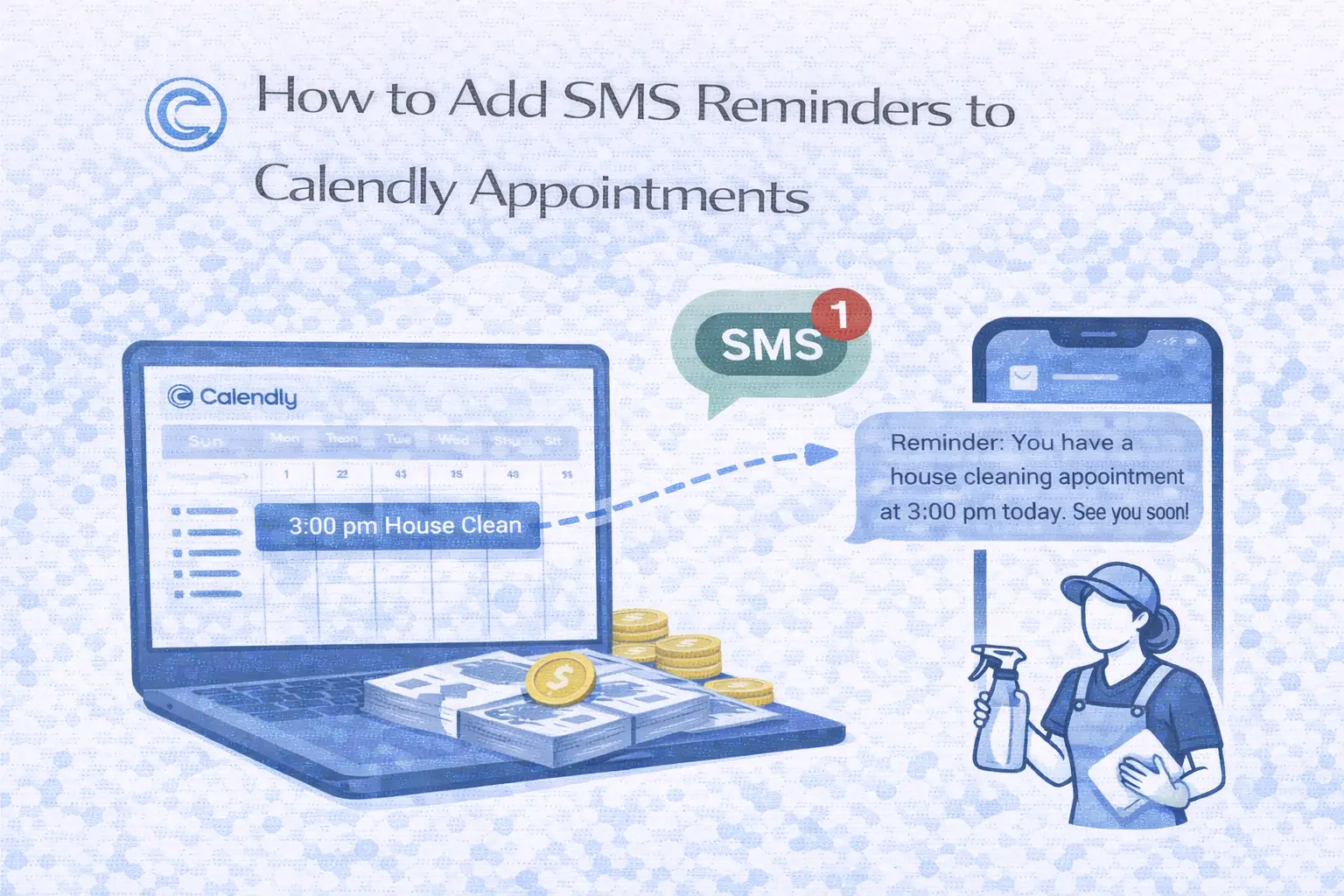
Calendly is a great tool for managing bookings, but if you want to send SMS reminders to clients before their appointments, you will quickly run into limitations with Calendly's built-in text messaging. This guide shows you how to add reliable, two-way SMS reminders to any Calendly booking - even if you are on Calendly's free plan.
The method is simple: Calendly already syncs events to Google Calendar. Remindlo monitors your Google Calendar and automatically sends SMS reminders for every appointment that includes a phone number. No extra integrations to build, no coding required.
What You Need
A Calendly account (any plan, including free).
A Google account with Google Calendar.
A Remindlo account - create one for free.
Calendly connected to Google Calendar (we cover this below).
How Calendly's Built-in SMS Works - and Its Limitations
Calendly offers text message reminders through its Workflows feature. Here is what you should know before relying on it:
Paid plans only - SMS is not available on Calendly's free plan or during the trial period. You need at least the Standard plan ($10/seat/month).
Limited credits - You get 250 SMS credits per seat per month (1,000 on Enterprise). Each message costs 1–9 credits, depending on the country.
No top-ups - When your credits run out, Calendly falls back to email. You cannot purchase additional credits. The only workaround is adding more seats to your account.
Random sender numbers - Messages are sent from randomly assigned US phone numbers via Twilio. Your clients see an unknown number, which can cause confusion or lead to messages being ignored.
No replies - Calendly's text messages are one-way only. If a client replies to the reminder, the response goes nowhere. You will never see it.
180-character limit - Each message is capped at 180 characters, which limits what you can include.
Phone number field is optional - Calendly cannot make the phone number question mandatory on booking forms due to SMS regulations. Invitees can also opt out later.
Host-booked appointments - When you book an appointment on behalf of a client, there is no way to add their phone number for SMS reminders.
These limitations are manageable for some businesses, but if you need reliable, recognisable SMS reminders with two-way communication, there is a better approach.
The Alternative: Calendly → Google Calendar → Remindlo
Here is how it works:
Calendly syncs events to Google Calendar - this is a built-in Calendly feature available on every plan.
Remindlo monitors your Google Calendar - it automatically detects new events and reads phone numbers from the event details.
SMS reminders are sent automatically - Remindlo sends personalised text reminders before each appointment, from a dedicated phone number.
This approach works with any Calendly plan, has no credit limits, and gives your clients a recognisable sender number they can reply to.
Method 1: Connect via Google Calendar Integration
This is the recommended approach. It takes about 5 minutes to set up, and then everything runs on autopilot.
Step 1: Connect Calendly to Google Calendar
If you have not already done this:
Log in to your Calendly account.
Go to Integrations in the top menu.
Find Google Calendar and click Connect.
Authorise Calendly to access your Google Calendar.
Select which calendar to sync events to.
Once connected, every new Calendly booking will automatically appear as an event in your Google Calendar. Cancellations sync too.
Step 2: Capture Phone Numbers in Calendly
For SMS reminders to work, Remindlo needs a phone number in the calendar event. Calendly includes invitee information in the event description, so you need to make sure a phone number is collected:
Go to your Event Types in Calendly.
Edit the event type you want to add SMS reminders to.
Under Booking Form, add a Phone Number question.
Mark it as Required so every booking includes a number.
When an invitee books, their phone number will be included in the Google Calendar event description - exactly where Remindlo looks for it.
Step 3: Connect Google Calendar to Remindlo
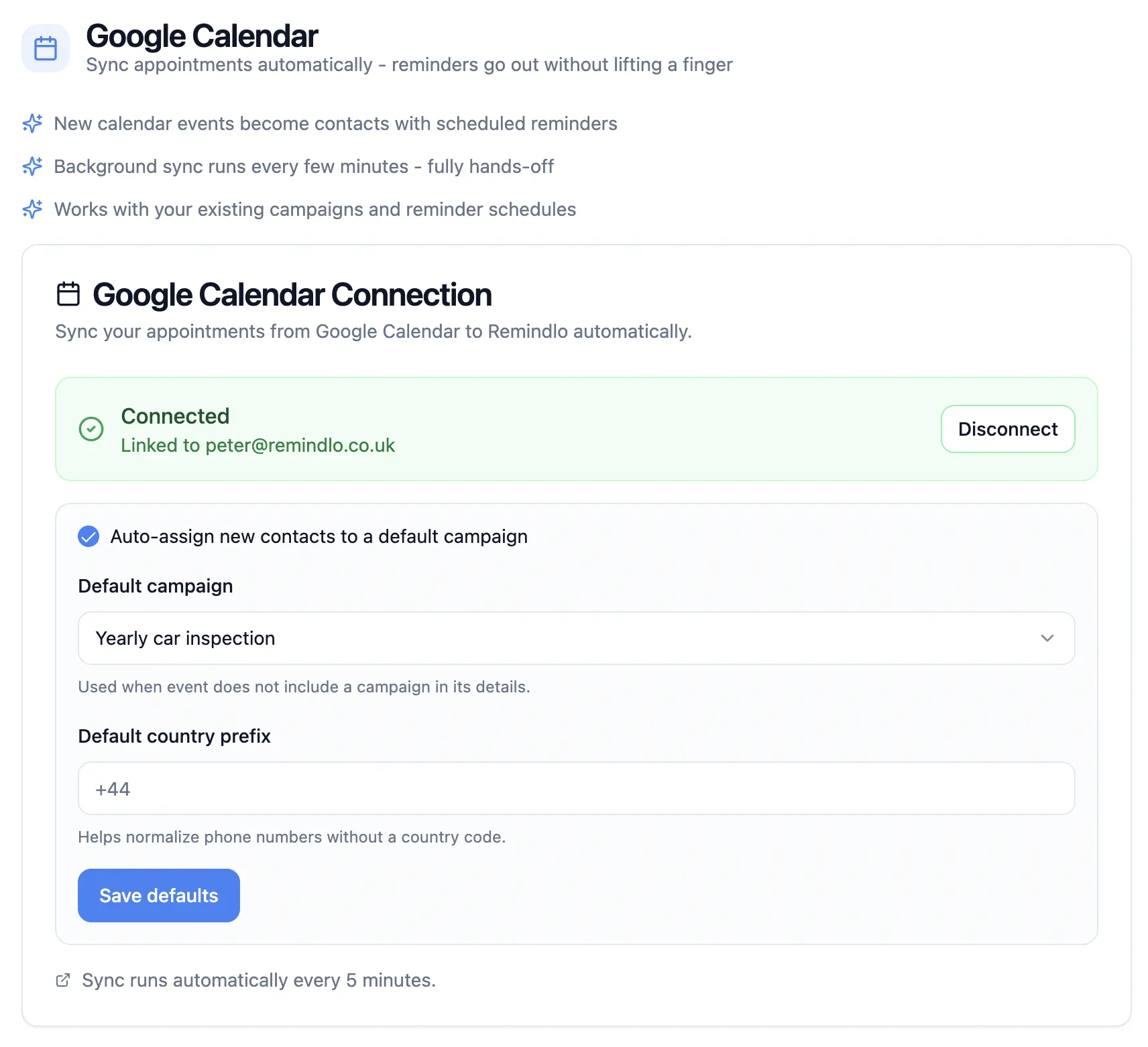
Follow our detailed guide to connect your Google Calendar to Remindlo:
→ How to Integrate SMS Reminders into Google Calendar
The guide covers connecting your calendar, enabling autopilot, and customising your reminder messages with dynamic variables like {{first_name}} and {{business_name}}.
Step 4: Done - Remindlo Handles the Rest
Once connected, Remindlo runs on autopilot. For every new Calendly booking that includes a phone number, Remindlo will automatically:
Detect the event in your Google Calendar.
Extract the client's phone number from the event details.
Schedule SMS reminders based on your configured timing (e.g. 24 hours before, 2 hours before).
Send personalised text messages from a dedicated phone number.
Remove scheduled reminders if the event is cancelled.
Method 2: Use the Remindlo Google Calendar Add-on
If you prefer more hands-on control, you can use the Remindlo sidebar plugin directly in Google Calendar. This add-on lets you:
Manually assign contacts to events.
Set a default country prefix for phone number normalisation.
Choose which campaign each event type belongs to.
For setup instructions, see the add-on section of our Google Calendar guide:
→ Google Calendar Add-on (Sidebar Plugin) Setup Guide
Comparison: Calendly Native SMS vs Remindlo
Feature | Calendly Native SMS | Remindlo via Google Calendar |
|---|---|---|
Calendly plan required | Standard ($10/seat/mo) or higher | Any plan, including free |
Monthly SMS limit | 250 credits/seat (no top-ups) | Plan-based, no credit system |
When limit is reached | Falls back to email | N/A - no credit limits |
Sender number | Random US phone number | "Remindlo" as sender or always the same number |
Client replies | Not supported (no-reply) | Two-way on numeric senders, replies land in your dashboard |
Message length | 180 characters | Standard SMS length. Multiple segments supported |
Message personalisation | Basic variables | Rich templates with dynamic variables |
International support | Some carriers may block | International support |
Setup effort | Built-in toggle | One-time Google Calendar connection (~5 min) |
Example Reminder Messages You Can Send
Remindlo reminders are built from templates you write yourself, so the wording is yours rather than a fixed format. Here are three templates and what the client actually receives.
The day before the appointment
Hi {{first_name}}, this is {{business_name}}. Reminder: your appointment is tomorrow at {{next_due_at_hour}}. Need to move it? {{business_booking_url}}
Renders as: Hi Sarah, this is Bright Studio. Reminder: your appointment is tomorrow at 14:30. Need to move it? bright.studio/book
A few hours before
{{first_name}}, see you at {{next_due_at_hour}} today. {{business_name}}. Running late or need to reschedule, call {{business_phone}}.
Renders as: Sarah, see you at 14:30 today. Bright Studio. Running late or need to reschedule, call 020 7946 0101.
The day after the visit
Thanks for coming in on {{last_service_at_date}}, {{first_name}}. If you have a moment, we would love a quick review. Book your next visit any time: {{business_booking_url}}
Because Remindlo has no 180 character cap, you have room for a full sentence and a link rather than a truncated one.
What Does Remindlo Cost on Top of Calendly?
Remindlo is billed separately from Calendly, and there is a free tier so you can run the whole flow before paying anything.
Plan | Price | SMS included |
|---|---|---|
Free | £0 | 10 SMS per month |
Starter | £19/month or £199/year | 75 per month (900 per year) |
Standard | £49/month or £499/year | 250 per month (3,000 per year) |
If you need more messages in a given month, one-off packs cost £9 for 50 SMS, £49 for 300 and £219 for 1,500. If you run out mid-month, we automatically top your account up with the 50 SMS pack, which works out at £0.18 per SMS. There is no separate per-message charge and no bill at the end of the month.
Two differences from Calendly's SMS billing are worth calling out. Remindlo does not charge per seat, so adding team members does not multiply the cost. And there is no credit system that silently switches your reminders back to email once the allowance runs out, which is what happens on Calendly after its 250 monthly credits per seat are used up.
Can I Just Connect Twilio or ClickSend Directly?
Yes, and for some teams that is the right call. Calendly's own SMS is delivered through Twilio, and you can wire Twilio, ClickSend or any other SMS gateway to Calendly yourself using Zapier, Make or their APIs.
What you take on when you do is worth knowing up front:
Sender setup - you register and maintain the number or sender ID, and the registration rules differ from country to country.
Scheduling - an SMS API sends immediately. "24 hours before the appointment" is logic you have to build and keep running.
Cancellations and reschedules - when a booking moves, something has to withdraw or re-time the queued message.
Consent and opt-outs - recording who agreed to be messaged and honouring opt-out requests stays your responsibility.
Delivery visibility - you get webhooks and logs rather than a dashboard your team can read.
Remindlo sits on top of that same carrier layer, routing through Twilio and Telnyx automatically depending on the destination, and packages the scheduling, cancellation handling, opt-out tracking and delivery reporting around it. If you would rather own that yourself, the direct gateway route is perfectly viable. If you would rather not maintain it, this is precisely the part Remindlo replaces.
Beyond the Pre-Appointment Reminder
Reminders before the appointment are the obvious use, but a Calendly booking also gives you an anchor for messages after the visit. Remindlo campaigns can be timed in either direction:
Before the visit - one or several reminders, for example seven days, three days and one day ahead.
After the visit - a thank-you or review request the day after, using
{{last_service_at_date}}.Win-back - a message weeks or months later to clients who have not rebooked, with your booking link so they can book in one tap.
All three run off the same synced calendar, so once Calendly is connected there is nothing to add per booking.
Tips and Best Practices
Send two reminders - one the day before and one a few hours before the appointment. This is the most effective pattern for reducing no-shows.
Include your business name - since Remindlo sends from a dedicated number, adding your business name in the message helps clients immediately recognise who is texting.
Use dynamic variables - personalise messages with
{{first_name}},{{business_name}}, and{{business_phone}}for a professional touch.Make the phone number required - in your Calendly event type booking form, set the phone number field as required so every booking captures a number.
Test with a sample booking - book a test appointment through your Calendly link using your own phone number to verify the full flow works before going live.
Automate Further with Zapier
Remindlo integrates directly with Zapier, giving you access to over 9,000 apps - including Calendly. With Zapier, you can trigger SMS reminders directly from new Calendly bookings, without needing Google Calendar as a bridge.
For example, you can set up a Zap that automatically adds a contact to Remindlo every time someone books through Calendly. The SMS reminder is then sent on your configured schedule.
The Google Calendar method described above will continue to work perfectly. Zapier simply offers an additional route for businesses that prefer a more direct connection. Note that the Zapier integration with Calendly requires a paid Calendly plan.
Troubleshooting
Calendly events not appearing in Google Calendar
Check that Calendly's Google Calendar integration is active - go to Calendly → Integrations → Google Calendar and verify the connection.
Make sure you selected the correct calendar for syncing.
New events may take a few minutes to appear. Wait and refresh your Google Calendar.
Phone numbers not detected by Remindlo
Ensure the phone number question is added to your Calendly event type's booking form.
Check that the number includes a country code (e.g. +44 for the UK, +1 for the US). You can set a default country prefix in the Remindlo Google Calendar add-on, so we'll add it automatically if that's missing.
Open the event in Google Calendar and check that the phone number appears in the event description, or in the location field on its own or after a
Tel:label.
Reminders not sending
Verify your Remindlo account is active, and the Google Calendar is connected.
Check the Remindlo dashboard for sync status and any error messages.
Make sure the event is far enough in the future for reminders to be scheduled (events in the past are ignored).
Wrong timezone on reminders
Confirm your timezone settings match in Calendly, Google Calendar, and Remindlo.
Calendly uses the invitee's timezone by default - check that this matches the calendar event.
Frequently Asked Questions
Does Calendly send SMS reminders on the free plan?
No. Calendly's own text reminders are part of Workflows and need at least the Standard plan, and they are not available during the trial. Syncing Calendly to Google Calendar and connecting Remindlo works on every Calendly plan, including the free one, because the reminder is sent by Remindlo rather than by Calendly.
Is there an additional cost on top of Calendly?
Remindlo has a free plan that includes 10 SMS per month, so a low-volume setup can cost nothing extra. Paid plans are £19 per month for 75 SMS and £49 per month for 250 SMS, with yearly options at £199 and £499. Extra packs cost £9 for 50 SMS, £49 for 300 and £219 for 1,500, and overage is £0.18 per SMS. There is no per-seat charge, so adding colleagues does not increase the price.
Can I customise the reminder message, or does it sound automated?
You write the message yourself. Templates support variables such as {{first_name}}, {{business_name}}, {{business_phone}} and {{business_booking_url}}, so each text reads as though you sent it personally, and there is no 180 character cap to truncate it. The example messages above show a template alongside what the client actually receives.
Can clients reply to the reminders?
That depends on the sender the message goes out from. Where Remindlo sends from a standard phone number, replies come back into your dashboard and you can answer from there. Where messages go out under an alphanumeric sender ID, which shows your business name in place of a number, mobile networks provide no return path and those messages are one-way. In that case give clients a route inside the message itself using {{business_phone}} or {{business_booking_url}}. Calendly's built-in SMS is one-way in every case.
Can I get a text when someone books, not just before the appointment?
Yes. Remindlo campaigns are timed relative to the appointment, so alongside reminders before the visit you can schedule a message after it, such as a thank-you, a review request or a win-back weeks later. Everything runs off the same synced calendar.
Does this work outside the United States?
Yes. Remindlo routes messages through Twilio and Telnyx depending on the destination country, so delivery is not tied to a single market. Store client numbers in international format with the country code and the correct route is chosen automatically.
Do I have to stop using Calendly?
No. Calendly stays exactly as it is and keeps handling your booking pages, availability and calendar sync. Remindlo only reads the resulting calendar events and sends the reminders. If you are on a paid Calendly plan with Workflows enabled, switch its text reminders off so clients do not receive two messages from two different senders.
Need Help?
If you run into any issues setting up SMS reminders for your Calendly appointments, contact us at support@remindlo.co.uk. We are happy to help you get everything connected.
Calendly Alternatives?
If you consider switching from Calendly to another solution, see our full guide on Calendly alternatives for SMS Appointment Reminders in 2026.