SMS Appointment Reminders for Outlook & Office 365 (2026)
 by Peter Bednarek, Founder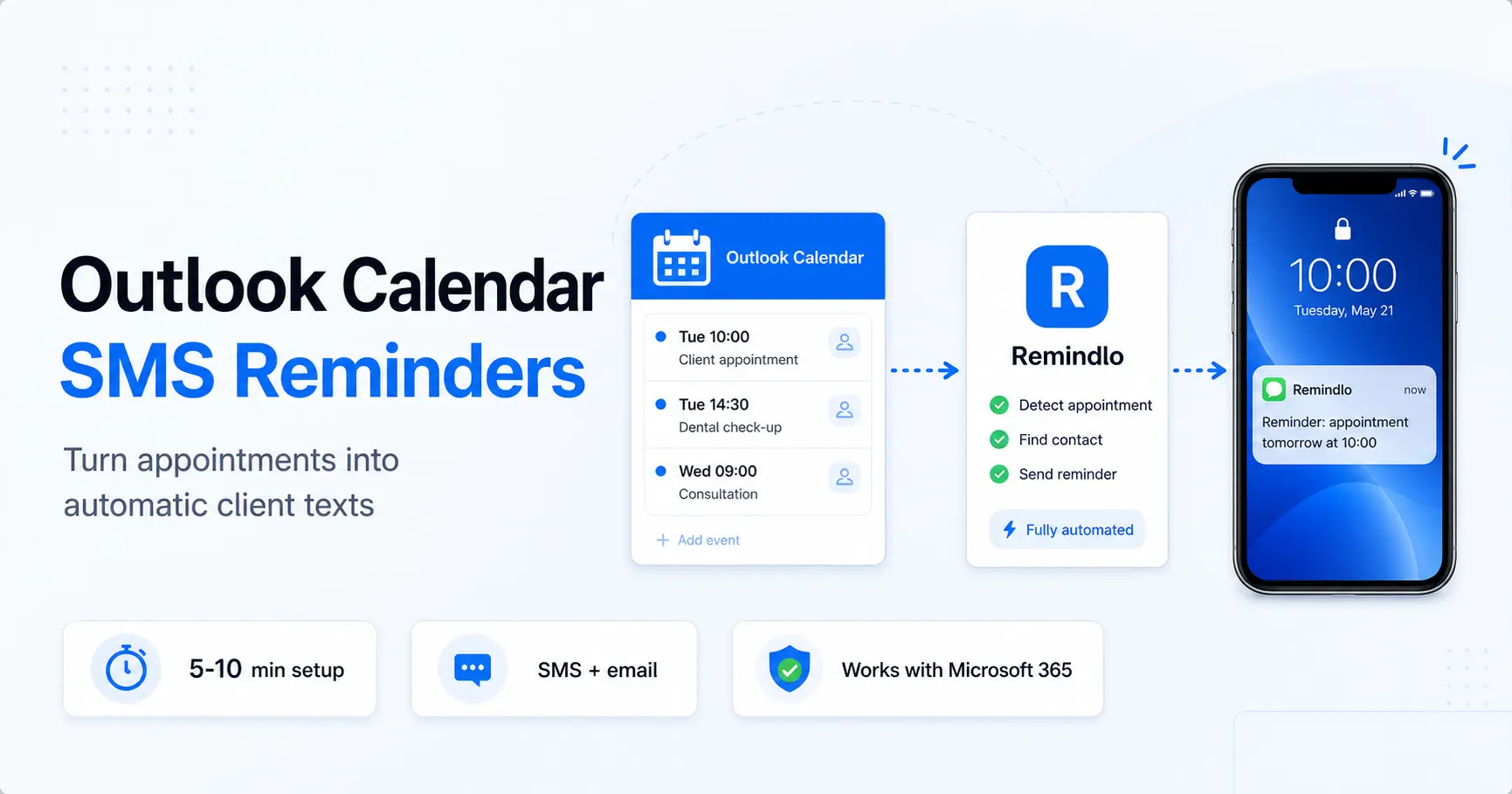
Connect your Microsoft account from the Remindlo dashboard to send appointment reminders from your default Outlook calendar. No add-in or published calendar link required. Learn how to add client phone numbers, enable a campaign and test the first reminder.
Contents
- Do Outlook and Office 365 send SMS appointment reminders?
- Method 1: Outlook's built-in reminders and meeting invites (free, limited)
- Method 2: Outlook Calendar + Remindlo (automated SMS to clients)
- Method 3: Outlook + Zapier + Remindlo (for work accounts and custom flows)
- How the three methods compare
- Beyond appointment reminders: recurring service reactivation
- Frequently asked questions
- The bottom line
Outlook is the calendar most professional services live in. Accountants, consultants, solicitors, healthcare practices, surveyors, and mobile engineers on Microsoft 365 work accounts: if it's a business that bills its time, Outlook is usually the source of truth. What Outlook does very well is remind you about your own day. What it doesn't do is automatically text your clients the day before their appointment.
Do Outlook and Office 365 send SMS appointment reminders?
Not on their own. Neither Outlook.com, Office 365, nor Microsoft 365 can text an appointment reminder to a client. They can pop up a reminder for you and email attendees who accepted a meeting invite, but there is no built-in SMS. To send text appointment reminders from an Office 365 or Microsoft 365 calendar, you connect the calendar to a tool like Remindlo that reads your events and sends the SMS for you. The rest of this guide shows exactly how, starting with what Outlook already does. If you would rather see the product side first, the Outlook and Office 365 integration overview covers what the reminders look like once they are running.
Start with the direct Microsoft connection in Method 2 for automatic client reminders. Method 1 explains Outlook’s own reminders; Method 2 also includes the optional ICS route, and Method 3 covers custom workflows through Zapier.
Method 1: Outlook's built-in reminders and meeting invites (free, limited)
Outlook has two related features that are worth understanding before you reach for a third-party tool, because together they cover a surprising amount of ground for sole traders.
What it can do
Personal reminders. Outlook pops up a desktop reminder, a push notification on the Outlook mobile app, and (on Microsoft 365) an email to your own inbox at whatever lead time you choose. You can set defaults under File > Options > Calendar in classic Outlook, or via Settings > Calendar > Events and invitations in Outlook on the web.
Meeting invites with email reminders to attendees. This is the bit Google Calendar can't do natively in the same way. When you invite a client as an attendee on an Outlook meeting, they receive the invite by email, it lands in their calendar (if they use any common calendar app), and Outlook can be configured to email them a reminder before the event. If your clients all run Outlook themselves and accept meeting invites reliably, this gets you most of the way.
What it can't do
Outlook does not send SMS. There is no native option to text a client about an upcoming appointment. It cannot reactivate dormant customers who haven't booked yet ("your boiler service is due again"). And the meeting-invite reminder only reaches people who accepted the invite into their own calendar app: clients who got the invite as an email but never opened it in a calendar see nothing.
It also can't help with the broader recurring-service problem, which is where most service businesses lose the bulk of their revenue. An MOT garage doesn't need to remind a customer about Thursday's slot. It needs to remind them in 11 months that their MOT is due, before they drift to a competitor. Outlook is silent on that.
How to set it up properly
Even if you plan to add a client-facing tool later, get the built-in setup right first.
Set a sensible default reminder lead time, typically 15 to 30 minutes for routine work and 1 day for anything that needs preparation.
Keep client bookings organised. If you plan to use Remindlo's direct Microsoft connection, put those appointments in the account's default calendar. For a separate calendar, use an ICS feed if publishing is available.
When you invite a client as an attendee, tick "Request responses" only when you actually want the RSVP back. For most appointments you don't, and turning it off avoids cluttering their inbox.
When this is enough
Sole trader, low volume, clients who genuinely use Outlook on their own devices and accept invites: built-in reminders may carry you for a while. The moment you have clients on WhatsApp, iPhone Mail, Gmail, or a paper diary, and you start losing income to people who simply forgot, it's time to add SMS.
Method 2: Outlook Calendar + Remindlo (automated SMS to clients)
Connect your Microsoft account directly from Remindlo’s dashboard. Remindlo reads your default Outlook calendar through Microsoft Graph and schedules SMS or email reminders according to your campaigns. You do not need to publish a calendar URL or install an Outlook add-in.
Both personal Outlook.com accounts and Microsoft 365 work or school accounts can use the direct connection. Organisation policies may require administrator approval. Remindlo requests read access and does not edit your calendar. Sync runs periodically in the background; it is not instantaneous.
Connect your Microsoft account in Remindlo, or create a free account to get started.
Connect Microsoft Account from the dashboard
Open Integrations in Remindlo and find the Outlook / Microsoft 365 connection.
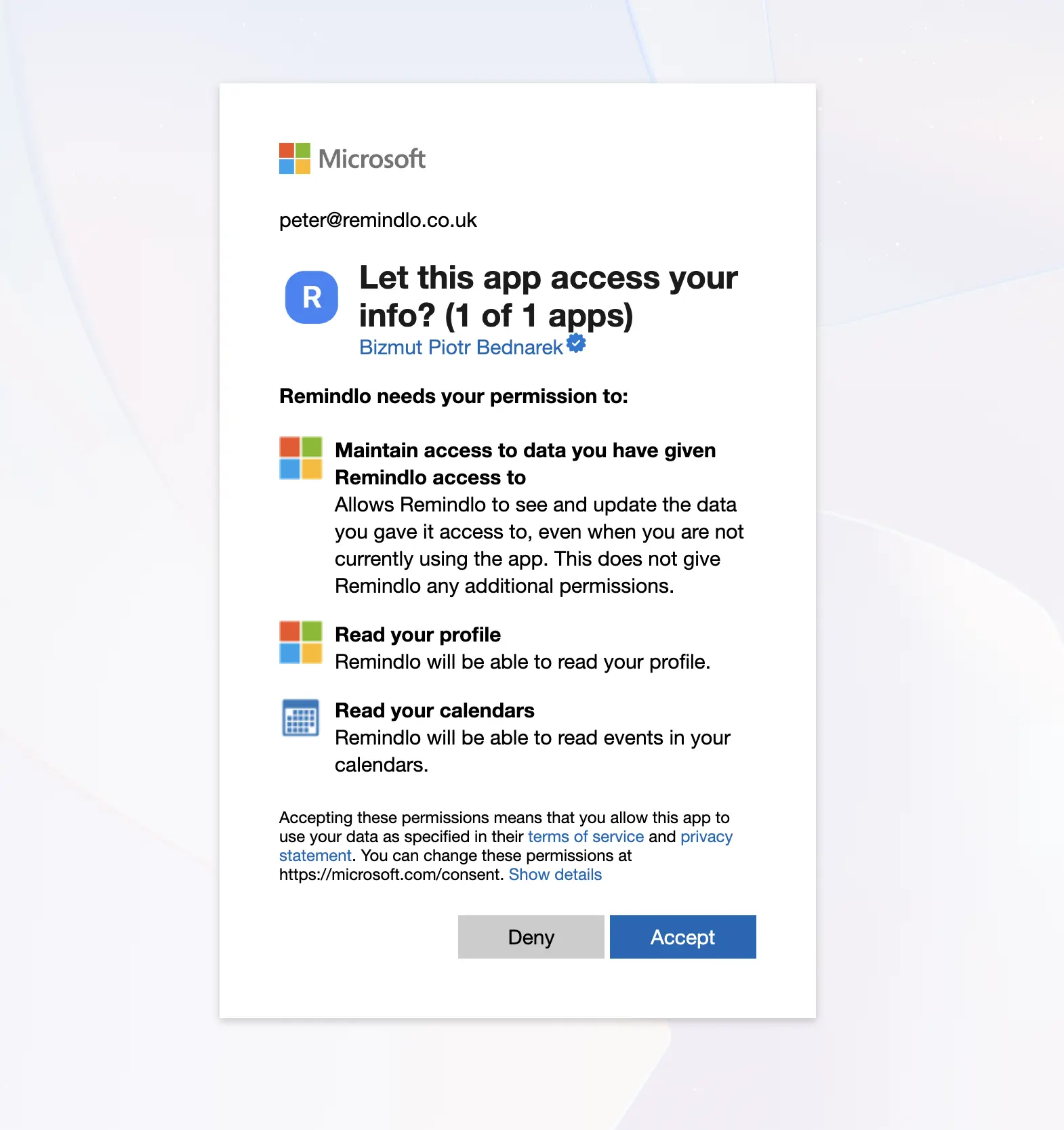
Click Connect Microsoft Account, sign in to the Microsoft account that holds your appointments and accept the requested permissions. For a work or school account, your administrator may need to approve the connection.
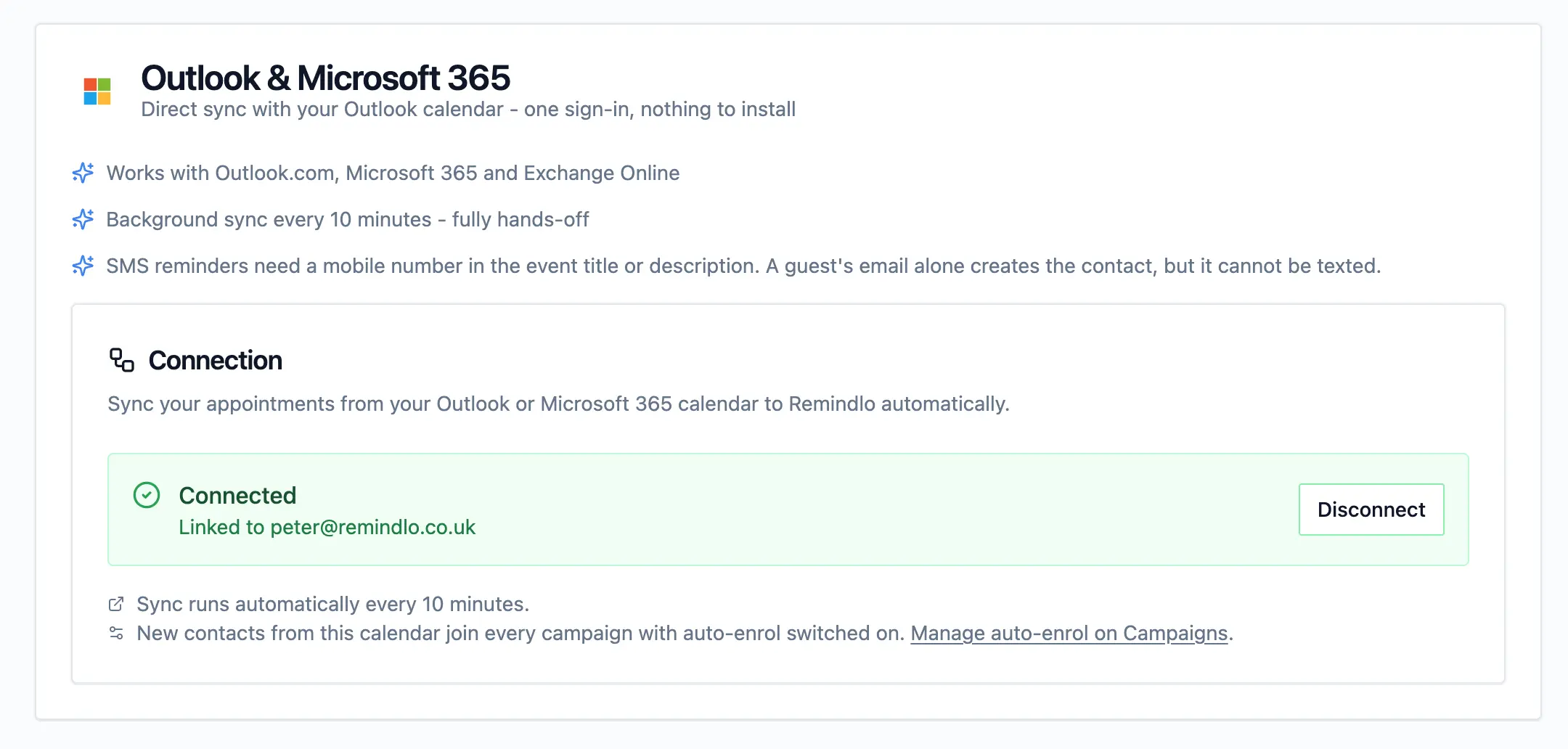
Return to Remindlo and check that the connection shows Connected. The direct integration reads the account's default calendar. Appointments stored only on your device, or in a different calendar, are not included by this connection.
Add a test appointment with your own mobile number in the description, for example
Phone: +447912345678. In Campaigns, start an SMS reminder campaign and enable Auto-enrol new contacts. Choose an appointment time that leaves room for the sync and your reminder schedule, then check the contact and scheduled message in Remindlo.
Sync runs on Remindlo's servers, so Outlook does not need to stay open. You can keep editing the connected Microsoft calendar in Outlook on the web, Windows, Mac or mobile. No Outlook add-in or marketplace installation is required.
A synced contact is not proof that an SMS is scheduled. SMS reminders need a usable mobile number on the event and an eligible running campaign. A guest email can create an email-only contact, but cannot receive an SMS. If you use local phone numbers, set the default country prefix in Remindlo Settings. An event with neither a usable phone number nor a guest email has no recipient for a reminder.
Choose your reminder campaign
A campaign defines the message and the timing. The most effective default for service businesses is two reminders:
One 3 days before the appointment, so the client has time to rearrange and you have time to fill the slot.
One 24 hours before as a final confirmation.
Write the message template using dynamic fields:
Hi {{first_name}}, just a reminder about your appointment with {{business_name}} tomorrow at {{next_due_at_hour}}. If you need to reschedule, call us on {{business_phone}}. Thanks!
Save your template, start the campaign and enable Auto-enrol new contacts. New eligible appointments can then enrol in that campaign. Check the first test contact and scheduled reminder before relying on the setup for clients.
Add phone numbers to your events
For the direct Microsoft connection, put the client’s mobile number in the event description, for example Phone: +447912345678. The title is also scanned. If you use the optional ICS route below, the published feed must expose the field containing the number.
Without a usable mobile number, no SMS can be sent. A guest email can still support email reminders in a suitable campaign. Add the phone number to the event and check again after the next successful sync.
Many small businesses already have phone numbers in their Outlook events because they paste them in when a client books over the phone. If that's you, phone number capture is already in place. Before using a personalised greeting, also check that Remindlo can read the client's name from the guest list or event title.
Where the client's name comes from
Remindlo uses the selected guest's name first, as supplied by Microsoft Graph or the published ICS feed. If the name is missing or is just an email address, it falls back to the event title. Restricted feeds may omit guest details, so do not assume that inviting the client is enough. Use Mary Smith as the title with the phone number in notes, or Mary Smith 07912 345678 when the number must be in the title. Keep service details out of the title when using {{last_name}}. If titles must start with an address or service and no guest name is available, remove both name variables and use "Hello". See Where the client's name comes from for the full rules.
When to use an ICS feed instead
Use this route if you prefer a published feed or need a separate calendar that the direct connection does not read. Use one connection method for the same calendar to avoid importing appointments twice. The steps and screenshots below apply only to ICS.
ICS alternative: publish your Outlook calendar
The exact path depends on which flavour of Outlook you use. The end result is the same: an https://outlook.office365.com/owa/calendar/... or https://outlook.live.com/owa/calendar/... URL ending in .ics.
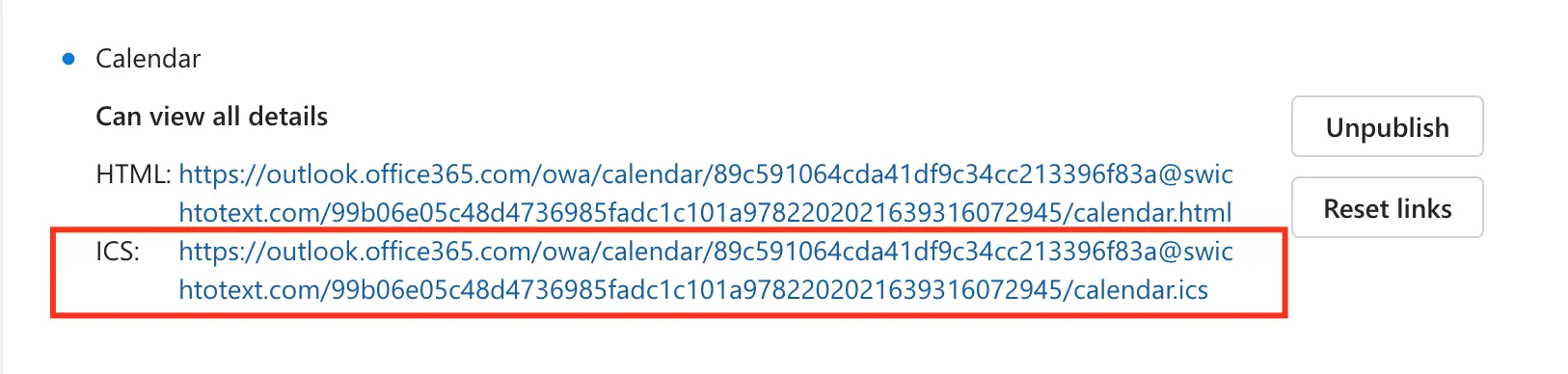
Outlook.com (free consumer account). Open Outlook on the web, click View > Calendar Settings
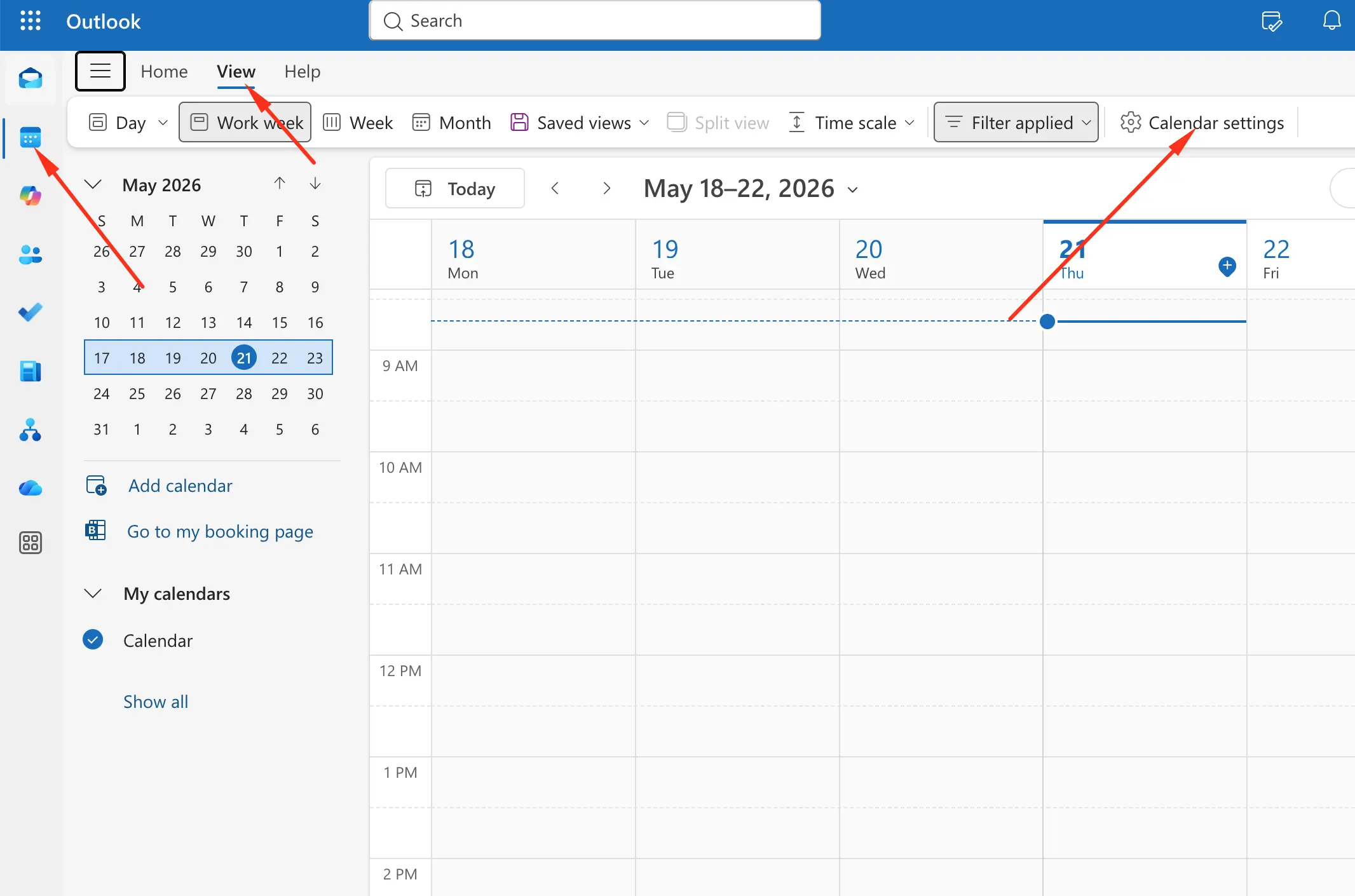
Then navigate to Calendar > Shared calendars. Under "Publish a calendar," pick the calendar you want to share, choose a permission level (see the next section to pick the right one), and click Publish. Copy the ICS link Outlook generates.
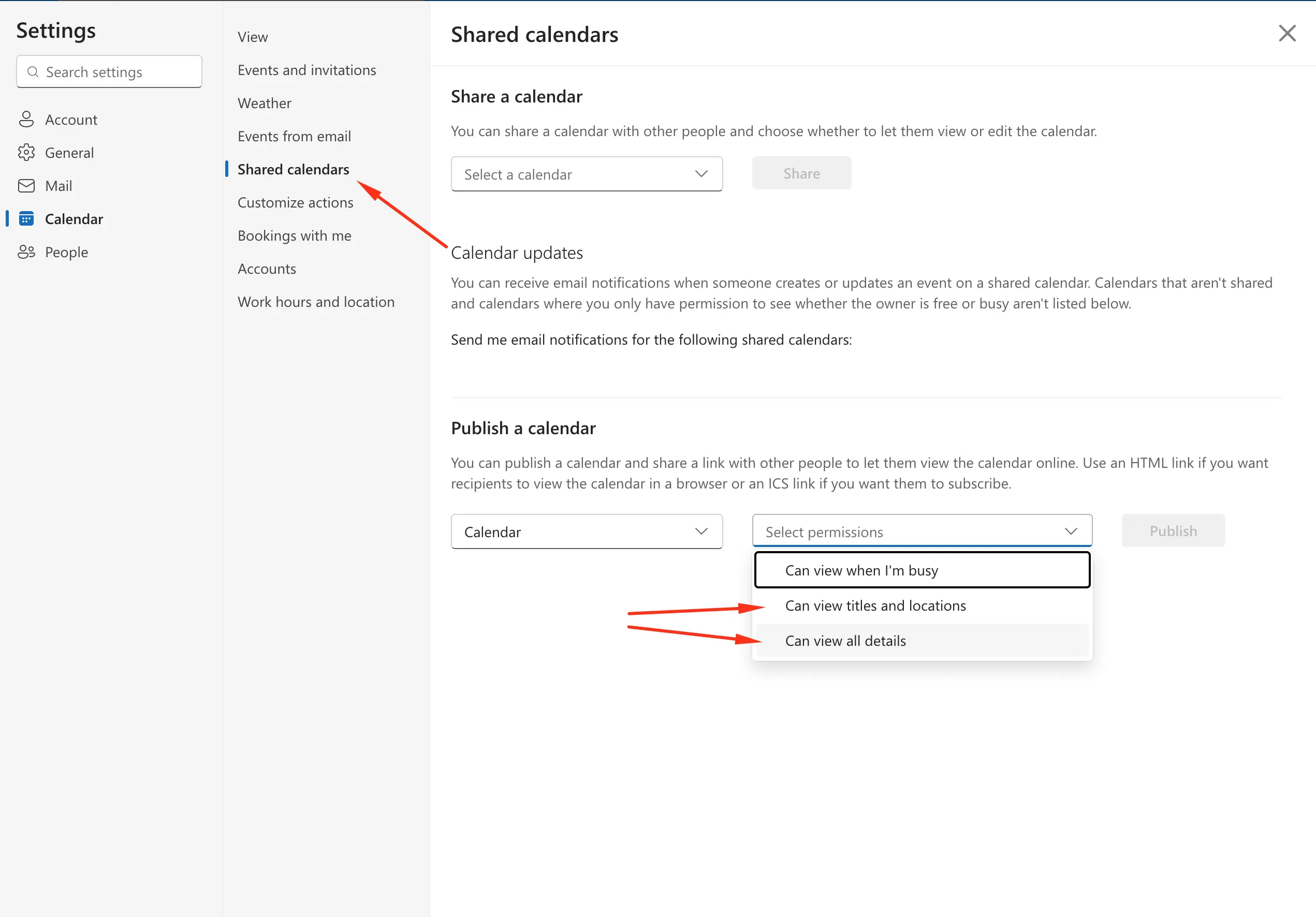
Microsoft 365 (work or school account). Same Settings > Calendar > Shared calendars path. If you don't see the Publish option at all, your IT administrator has disabled calendar publishing at the tenant level. This is a common policy in regulated industries. Some admins instead leave publishing enabled but restrict the permission options (typically blocking "Can view all details" while allowing the narrower levels). If you're in that situation, the "Can view titles and locations" route covered below still works for Remindlo. If publishing is fully blocked, try the direct Microsoft connection above; it does not require calendar publishing, although app consent may still need administrator approval.
Classic Outlook desktop. Open the calendar, go to Home > Publish online > Publish to WebDAV server (older versions) or use the modern "Share Calendar" dialog if you're signed into a Microsoft 365 mailbox. The desktop client doesn't generate the ICS URL itself: it just exposes the underlying mailbox's web publishing setting, so the URL is still the outlook.office365.com/owa/... one.
If none of the above produce a working ICS URL, see our cross-calendar walkthrough on adding SMS reminders to any calendar, which covers Outlook, iCloud, Fastmail, Yahoo, Proton, and most webmail/hosting providers.
Which permission level should you pick?
Outlook's publish dialog asks you to choose one of three permission levels. The choice determines which fields end up in the ICS feed, and therefore what Remindlo can see.
Outlook permission | What the ICS feed contains | Works with Remindlo? |
|---|---|---|
Can view when I'm busy | Time blocks and free/busy status only. No title, no location, no notes. | No. The events are effectively blank, so there is no phone number for Remindlo to pick up. |
Can view titles and locations | Event title and location field. Notes/body are stripped out. | Yes, if the phone number is in the title or the location field. |
Can view all details | Everything: title, location, notes/body, attendee information. | Yes. Put the phone number in the notes, title or location. |
Recommended default: "Can view all details." It gives you the most freedom to keep client information where you'd naturally put it (in the event notes, alongside booking context like service type or address). The ICS URL itself functions as a long, randomised access token, so anyone without the link cannot read your events: the practical security trade-off versus the narrower levels is small for most service businesses.
When to pick "Can view titles and locations" instead. Two situations: (1) your Microsoft 365 admin has restricted the "all details" option at the tenant level, or (2) you genuinely keep sensitive content in event notes (medical observations, financial figures, personal context) that you don't want flowing through any third-party tool. In both cases, put the client's phone number in the event title or the location field, since those are the only fields the feed will carry. For a personalised greeting when no guest name is available, use Mary Smith 07912 345678 in the title. Keep the service and address separate from the name. A title starting with Boiler service would produce "Hi Boiler", and a hyphen before the phone number would remain in {{last_name}}.
"Can view when I'm busy" is fine for sharing your availability with colleagues, but not for Remindlo. There's nothing in the feed to act on.
Connect the optional ICS feed to Remindlo
Create a free account at remindlo.co.uk/register. The free plan includes 10 SMS per month, which is enough to test the flow end-to-end with real clients before committing to anything.
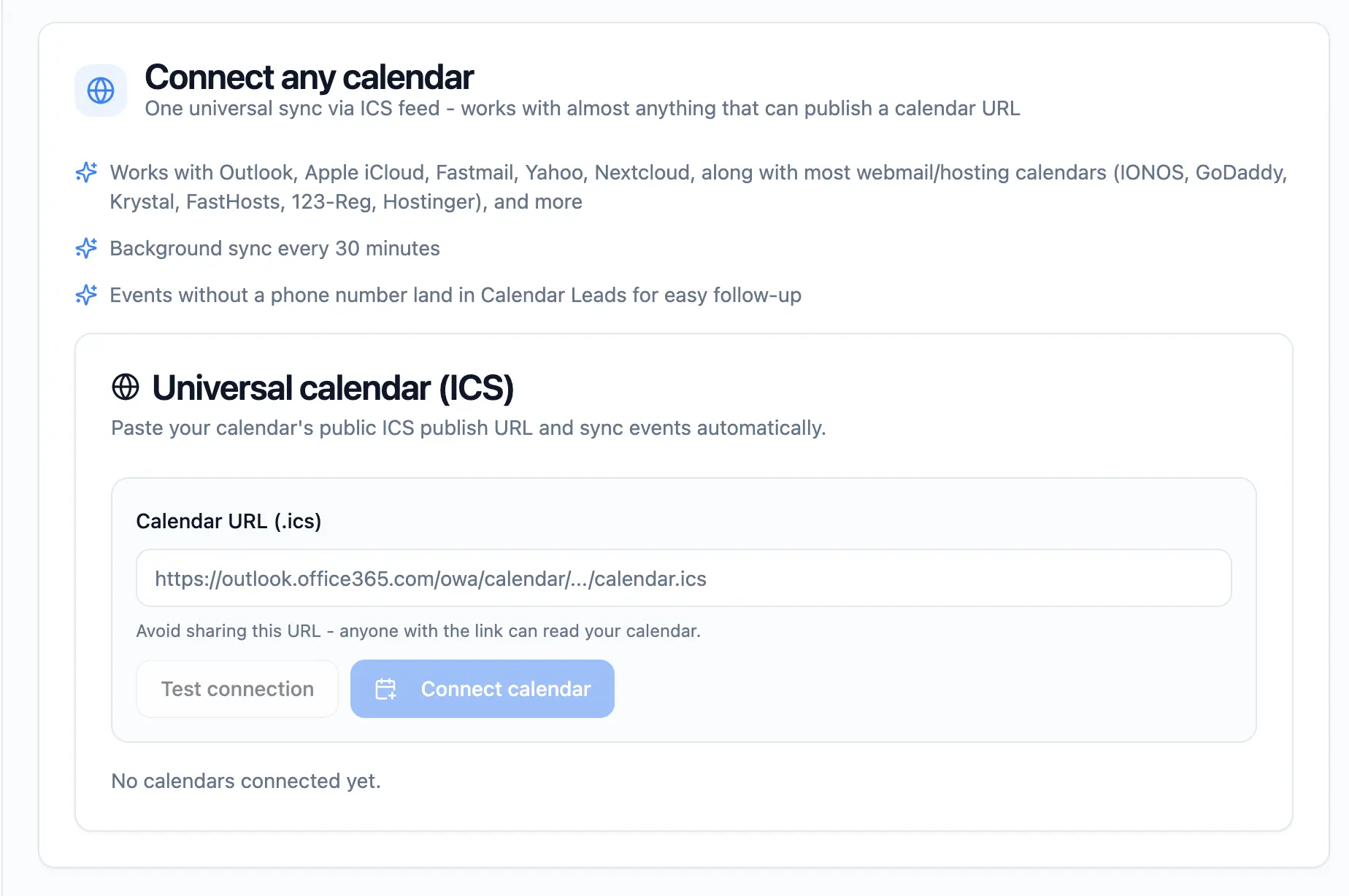
In the dashboard, go to Integrations > Connect any calendar and paste your ICS URL into the "Calendar URL (.ics)" field. Remindlo runs a test fetch, shows you how many events it can see, and saves the feed. From that point onwards it polls roughly every hour, picks up new appointments, and schedules reminders based on your running reminder campaigns.
If you also have a Google Calendar SMS reminders, you can connect both. Remindlo treats them as separate feeds, deduplicates contacts by phone number, and schedules a single reminder per appointment.
What it costs
Plan | Monthly cost | SMS included | Per additional SMS |
|---|---|---|---|
Free | £0 | 10 | - |
Starter | £19 | 75 | ~20p |
Standard | £49 | 250 | ~20p |
All plans include email reminders. At two reminders per appointment and 30 appointments per month, Starter at 60 SMS sits comfortably inside the 75 allowance. If one SMS reminder prevents one no-show per month and an average appointment is worth £80-150, Starter pays for itself four to eight times over. For a longer breakdown of where the real revenue lift comes from, see why your customer list is your most valuable business asset.
A few Outlook-specific gotchas worth knowing
ICS feeds refresh every hour, not in real time. If you create an appointment for tomorrow morning at 8am and want a reminder sent immediately, the feed needs to pick the event up first. In practice this is rarely an issue because reminder windows are measured in hours or days, but if you book very last-minute work, factor in the delay. Want to send out manual reminders for such cases - we got you covered through the Messages section, where, with a paid plan, you can send such messages.
Cancellations propagate, but slowly. When you delete an Outlook event, the ICS feed reflects the deletion on the next refresh, and Remindlo cancels any pending reminders for that event. Rescheduling works the same way: the new time replaces the old one on the next sync.
Microsoft 365 policies can affect either route. Disabling calendar publishing blocks ICS, but does not by itself block the direct Microsoft connection. App consent is a separate policy. If Microsoft asks for administrator approval, ask your IT team to review the requested permissions; Zapier is not a guaranteed way around that requirement.
Recurring events. Standard recurrences (every Tuesday at 10am) sync correctly. Edge cases like "every second Thursday except bank holidays" depend on how Outlook expands the recurrence in the feed. Most Outlook publishers handle this cleanly, but it's worth spot-checking the first recurring event you add.
Method 3: Outlook + Zapier + Remindlo (for work accounts and custom flows)
If you need to combine Outlook with other tools, filter events or map fields yourself, Remindlo’s Zapier integration is an alternative to the direct connection.
Zapier also connects through Microsoft’s APIs without calendar publishing. Availability and administrator consent depend on the account, connector and organisation policies.
Example Zap: new Outlook event > SMS reminder
Trigger: New event added to your Outlook calendar.
Action: Create a contact and schedule a reminder in Remindlo.
Effect: similar to Method 2, but with more flexibility. You can filter on event title (only trigger for events tagged "Client"), add delays to catch edits, or route different event types to different reminder campaigns.
Example Zap: Microsoft Bookings appointment > SMS reminder
If your team uses Microsoft Bookings for online booking, Zapier can listen for new bookings directly and trigger Remindlo SMS reminders without going through the calendar at all. This is useful when you want richer fields than what ends up in the calendar event itself (booking notes, service type, intake form answers).
When to choose a custom Zapier workflow
The direct Microsoft connection is the starting point for calendar reminders. Choose Zapier when your workflow needs additional controls:
You need to filter events or map fields before they reach Remindlo.
You need a workflow trigger whose timing and capabilities fit your use case; check the connector and plan.
Your appointment data lives somewhere other than the calendar (Microsoft Bookings, a CRM, a form).
You want to chain multiple actions per booking (create contact, add tag, log to spreadsheet, send SMS).
Zapier's free plan allows 100 tasks per month and paid plans start at $19.99/month. This is on top of your Remindlo plan, so factor in both costs.
How the three methods compare
Route | How you connect | When to use it |
|---|---|---|
Outlook built-in reminders | Configure reminders in Outlook | Your own schedule and meeting invitations; no automatic client SMS |
Remindlo direct Microsoft connection | Connect Microsoft Account in Integrations | Automatic reminders from your default Microsoft calendar; no add-in or published link |
Remindlo ICS alternative | Publish a calendar and paste its ICS URL | A separate calendar or a feed-based setup; publishing must be allowed |
Zapier + Remindlo | Configure a workflow and map event fields | Custom filters and multi-app workflows; account and consent requirements vary |
Beyond appointment reminders: recurring service reactivation
Appointment reminders confirm bookings that already exist on your calendar. That's a fix for next week's revenue. The bigger compounding fix, especially for service businesses with predictable recurrences, is reminding clients to book in the first place.
A heating engineer doesn't need to remind a customer that tomorrow's 9am boiler service is happening. They need to remind that same customer in 12 months that the next service is due, before the customer forgets, drifts to whoever advertises on Google first, and is gone. The same dynamic applies to MOT garages, vets, dentists, opticians, accountants doing annual returns, and any other business where the next visit is broadly predictable from the last one.
Remindlo handles both flows. Appointment reminders run off your Outlook events. Recurring service reminders run off your customer contact list, where each client has a service date and a recurrence (every 12 months for boilers, every 6 months for dental checkups, every year for MOT tests). The combination is where the real revenue lift sits.
For industry-specific examples:
MOT garages: how to send automated MOT reminders.
Heating engineers: how to automate boiler service reminders.
Vet practices: reducing no-shows at your vet practice.
Allied health (osteopath, physio, acupuncture): every no-show costs an allied health clinic two patients.
If you also keep some appointments in Google Calendar, see the sibling guides on how to automate appointment reminders with Google Calendar and how to send SMS Reminders from iCloud Calendar (Apple). Remindlo can read from both calendars at the same time and treat them as one feed.
Frequently asked questions
Can Outlook send automatic SMS reminders to my clients?
Outlook alone does not send client SMS reminders. Connect Microsoft Account in Remindlo’s Integrations dashboard for automatic reminders from your default calendar. The optional ICS route and Zapier workflows are alternatives.
Does Office 365 or Microsoft 365 send SMS appointment reminders?
Microsoft 365 and Office 365 calendars can connect directly to Remindlo through Microsoft sign-in. Remindlo sends the SMS; the calendar itself does not. Your organisation may require administrator approval.
What is the longest reminder you can set for an appointment in Outlook?
Outlook's built-in reminder lead time goes up to two weeks, the maximum in its reminder dropdown. That is fine for a personal heads-up, but it still only reminds you, not your client, and it cannot chase clients whose next service is months away. For client-facing reminders and recurring service nudges at any lead time, connect Outlook to Remindlo (Method 2).
Do I need a Microsoft 365 subscription, or does Outlook.com work?
Both personal Outlook.com accounts and Microsoft 365 work or school accounts can use the direct connection. The Microsoft account must hold the calendar you want to sync. Work or school accounts may require administrator approval. The direct connection does not depend on calendar publishing.
How quickly do new appointments show up?
The direct connection checks periodically in the background; ICS is polled roughly every hour. New, changed and cancelled events are processed on the next successful sync. Neither route is instantaneous, so allow time before the reminder is due. Zapier timing depends on your trigger and plan.
What happens if I cancel or reschedule an appointment?
Remindlo detects the change on the next sync. Pending reminders for the original time are cancelled automatically, and a new reminder is scheduled for the new time if you rescheduled. With Zapier, the behaviour depends on how you configured the Zap: most users add a second Zap to handle the "event updated" trigger.
For the optional ICS route, which publish permission level should I choose: "titles and locations" or "all details"?
"Can view all details" is the recommended default because it lets you keep the client's phone number in the event notes alongside other booking context, which is where most service businesses naturally put it. "Can view titles and locations" works too: the notes do not make it into that feed, so the number has to live in the title or the location field, both of which this level does share. "Can view when I'm busy" doesn't work for Remindlo because the feed contains no event content at all. If your Microsoft 365 admin has restricted "Can view all details" at the tenant level, "Can view titles and locations" is a safe fallback.
Is the ICS link a security risk?
The ICS link Outlook generates is a long, randomised URL that effectively acts as a read-only token to that calendar. Anyone with the link can read the events, but they cannot edit, delete, or post new ones. Treat it like a password and don't publish it anywhere public. If you suspect it's leaked, Outlook lets you regenerate the link, which immediately invalidates the old one.
Is it GDPR compliant to send appointment reminders by SMS?
Yes. Appointment reminders sent to existing clients about services they've already booked qualify as a legitimate interest under UK GDPR. Include your business name in the message and give clients an easy way to opt out (Remindlo handles STOP keywords automatically). For the full legal breakdown, see our UK GDPR and SMS compliance guide.
Can I connect both Outlook and Google Calendar?
Yes. Remindlo treats each calendar as a separate feed, deduplicates contacts by phone number, and schedules a single reminder per appointment. This is useful for teams where one practitioner is on Outlook and another is on Google, or for a single user whose work calendar is Microsoft 365 and personal calendar is Gmail.
How does this compare to dedicated Outlook scheduling tools?
Microsoft Bookings, FindTime, and similar Microsoft-native tools handle the booking side: online booking pages, availability management, attendee scheduling. Remindlo handles the layer underneath: what happens after a booking is made. If you already use Outlook for scheduling and want SMS reminders without changing your booking workflow, Remindlo sits on top of what you already have rather than replacing it.
The bottom line
Start with Connect Microsoft Account in Remindlo’s Integrations dashboard. Add a mobile number to your test event, enable a running reminder campaign and check the scheduled message. Use ICS for a feed-based setup or a separate calendar, and Zapier when you need a custom workflow.
Either way, start small: connect one calendar, send 10 free SMS, and measure the no-show rate before and after.