How to Connect Remindlo with Zapier
Automate SMS reminders by connecting Remindlo to 9,000+ apps through Zapier. Triggers, actions, and example workflows explained.
Contents
Remindlo integrates with Zapier, giving you access to over 9,000 apps. This means you can automate SMS reminders from virtually any booking platform, CRM, or form tool without writing a single line of code.
This guide covers everything you need to know: available triggers and actions, how to set up your first Zap, and ready-made workflows for popular tools like Calendly, Cal.com, and Acuity Scheduling.
It is not only booking tools: an online shop can trigger a Zap from a new order, which is how reorder reminders for online shops are built.
What You Need
A Remindlo account - create one for free.
A Zapier account - a free Zapier plan works for simple Zaps.
How to Connect Remindlo to Zapier
Log in to your Zapier account.
Click Create a Zap (or go to + Create in the top navigation).
Search for Remindlo when choosing a trigger or action app.
Zapier will ask you to connect your Remindlo account. Click Sign in and authorise the connection.
Once connected, you can use any of the triggers and actions listed below.
You can also start from the Remindlo Zapier integration page or directly from your Remindlo dashboard.
Available Triggers
Triggers start a Zap when something happens in Remindlo. Use these to push data from Remindlo into other apps.
All triggers are instant (webhook-based), so your Zaps fire within seconds of the event occurring in Remindlo - no polling delays.
Trigger | Description | Type |
|---|---|---|
New Contact | Triggers instantly when a new contact is created in Remindlo. | Instant |
Contact Updated | Triggers instantly when a contact's details are changed (name, phone, next due date, etc.). | Instant |
Contact Deleted | Triggers instantly when a contact is removed from Remindlo. | Instant |
New Campaign | Triggers instantly when a new campaign is created in Remindlo. | Instant |
Campaign Enrolled | Triggers instantly when a contact is enrolled in a campaign. | Instant |
Message Sent | Triggers instantly when an SMS is sent successfully to a contact. | Instant |
Message Failed | Triggers instantly when an SMS delivery fails. | Instant |
Example use cases for triggers:
New Contact - automatically add new contacts to a Google Sheet, sync them to your CRM (HubSpot, Salesforce, Pipedrive), or send a welcome email.
Contact Updated - keep your CRM or spreadsheet in sync whenever contact details change in Remindlo.
Contact Deleted - remove or archive the contact in your CRM or mailing list when they are deleted from Remindlo.
New Campaign - post a notification in Slack so your team knows a new campaign was created.
Campaign Enrolled - log enrolments to a Google Sheet, notify your team in Slack, or trigger a follow-up sequence in your email tool.
Message Sent - log successful SMS deliveries for compliance or reporting, or update a CRM activity feed.
Message Failed - get an instant Slack or email alert when an SMS fails to deliver, so you can follow up with the customer directly.
Available Actions
Actions let other apps push data into Remindlo. This is the most common direction: an event happens in your booking tool, and Remindlo sends the SMS reminder.
Write Actions
Action | Description |
|---|---|
Create Contact | Creates a new contact in Remindlo with their name, phone number, and appointment details. |
Enroll in Campaign | Enrolls an existing contact into a specific campaign, triggering the campaign's reminder sequence. |
Send Message | Sends an SMS message directly to a customer. Useful for one-off confirmations or custom notifications. |
Search Actions
Action | Description |
|---|---|
Find Contact | Searches for an existing contact in Remindlo by phone number or name. |
Find Campaign | Searches for a campaign in Remindlo by name. |
Get Contact by ID | Retrieves a specific contact using their Remindlo ID. |
Find or Create Contact | Searches for a contact and creates one if no match is found. Ideal for avoiding duplicate contacts. |
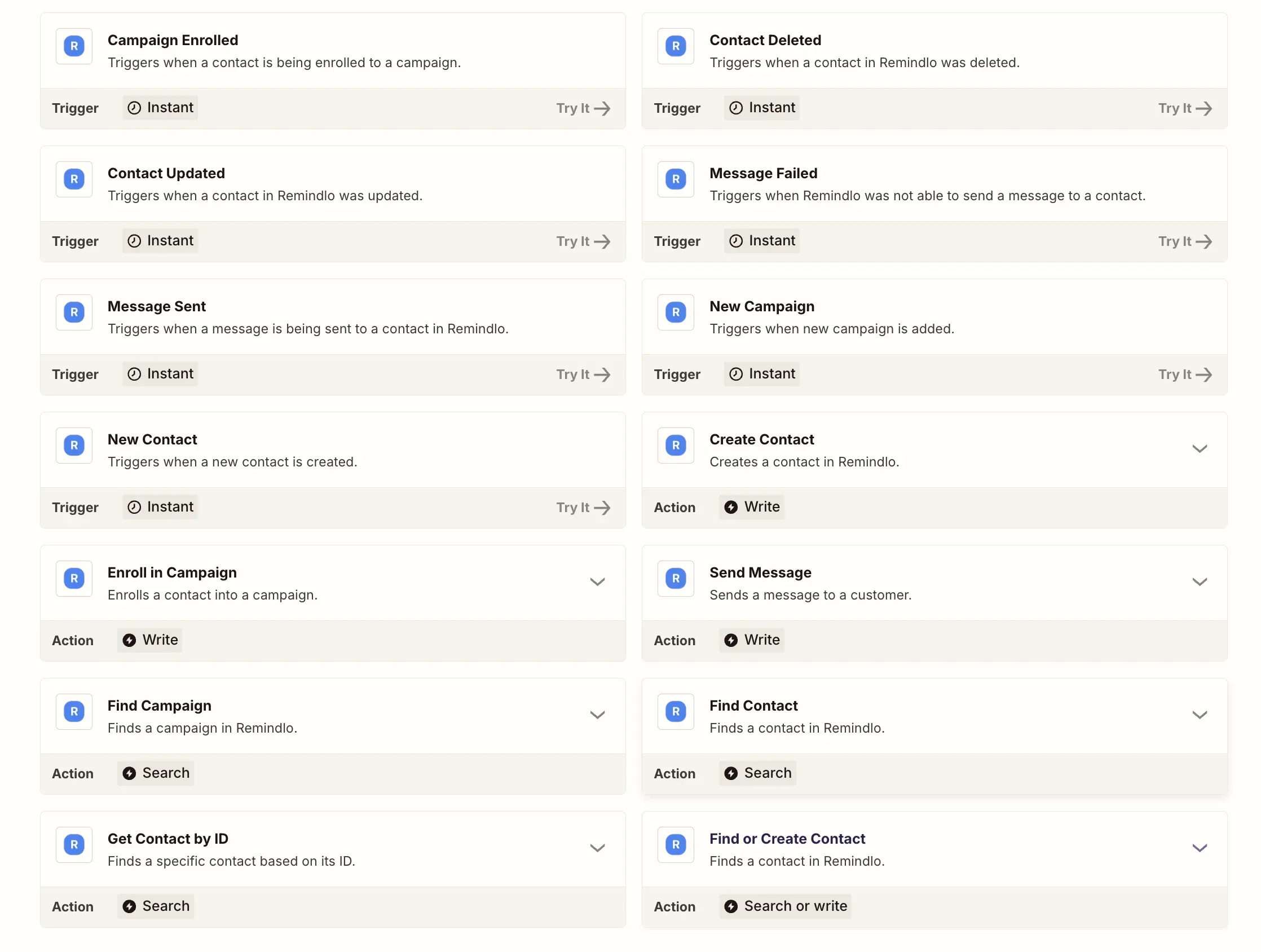
Here's how it looks on Zapier's side:
Common Workflows
Here are some of the most popular ways businesses use the Remindlo + Zapier integration.
Google Sheets → Remindlo
Add contacts to Remindlo automatically when a new row is added to a spreadsheet. Useful if you manage bookings or client lists in Google Sheets and you want to send them SMS later on.
Trigger: Google Sheets - New Spreadsheet Row
Action: Remindlo - Find or Create Contact
Action: Remindlo - Enroll in Campaign
Calendly → Remindlo
Automatically send SMS reminders for every new Calendly booking.
Trigger: Calendly - Invitee Created
Action: Remindlo - Find or Create Contact (using the invitee's phone number)
Action: Remindlo - Enroll in Campaign (assign to your reminder campaign)
→ Full Calendly + Remindlo setup guide
Cal.com → Remindlo
Trigger SMS reminders directly from Cal.com bookings without using Google Calendar as a bridge.
Trigger: Cal.com - Booking Created
Action: Remindlo - Find or Create Contact
Action: Remindlo - Enroll in Campaign
→ Full Cal.com + Remindlo setup guide
Acuity Scheduling → Remindlo
Add SMS reminders that go beyond Acuity's single-reminder-per-appointment limit.
Trigger: Acuity Scheduling - New Appointment
Action: Remindlo - Find or Create Contact
Action: Remindlo - Enroll in Campaign
→ Full Acuity + Remindlo setup guide
Square Appointments → Remindlo
Reach the customers Square cannot remind, and the route to use on the free Square plan, which has no Google Calendar sync.
Trigger: Square - New Appointment
Action: Square - Find Customer (a Square booking carries a customer ID rather than a phone number)
Action: Remindlo - Find or Create Contact
Action: Remindlo - Enroll in Campaign
→ Full Square Appointments + Remindlo setup guide
CRM → Remindlo
Send an SMS reminder when a deal reaches a specific stage or when a meeting is booked in your CRM.
Trigger: HubSpot / Salesforce / Pipedrive - New Meeting or Deal Stage Change
Action: Remindlo - Create Contact
Action: Remindlo - Send Message (for an immediate confirmation)
Form Submission → Remindlo
Collect a phone number through a form and automatically add the person as a Remindlo contact.
Trigger: Typeform / Google Forms / JotForm - New Submission
Action: Remindlo - Create Contact
Action: Remindlo - Enroll in Campaign
Stripe → Remindlo
Automatically add a contact and send an SMS when a customer completes a payment.
Trigger: Stripe - New Payment
Action: Remindlo - Find or Create Contact (using the customer's phone number)
Action: Remindlo - Enroll in Campaign
Step-by-Step: Build Your First Zap
This walkthrough uses Calendly as an example, but the same pattern works for any trigger app.
1. Create a Campaign in Remindlo
Before building your Zap, set up a campaign in Remindlo that defines when and what messages to send:
Go to your Remindlo dashboard.
Create a new Campaign (e.g. "Appointment Reminders").
Configure your reminder schedule (e.g. 24 hours before, 2 hours before).
Write your message templates using dynamic variables like
{{first_name}}and{{business_name}}.
2. Set Up the Trigger
In Zapier, click Create a Zap.
Choose your trigger app (e.g. Calendly) and select the trigger event (e.g. Invitee Created).
Connect your account and test the trigger to pull in sample data.
3. Add the Remindlo Action
Click the + button to add an action step.
Search for Remindlo and choose Find or Create Contact.
Map the fields from your trigger:
Phone number - map to the invitee's phone number field.
First name - map to the invitee's name field.
Appointment date - map to the event start time.
Test the action to confirm the contact appears in Remindlo.
4. (Optional) Add an Enroll in Campaign Step
Add another action step: Remindlo - Enroll in Campaign.
Select the campaign you created in step 1.
Use the contact ID from the previous step.
Test and publish your Zap.
5. Test the Full Flow
Book a test appointment using your own phone number. Verify that:
The Zap fires and the contact appears in Remindlo.
The contact is enrolled in the correct campaign.
You receive the SMS reminder at the configured time.
Tips and Best Practices
Use "Find or Create Contact" instead of "Create Contact" to avoid duplicates when a returning client books again.
Include the country code in phone numbers. If your trigger app does not include it, use a Zapier Formatter step to prepend +44 (UK) or the relevant code.
Name your Zaps clearly - for example, "Calendly → Remindlo SMS Reminder" so you can identify them later.
Test before going live - use Zapier's test feature at each step to confirm data is mapping correctly.
Check your Zap history - if reminders are not sending, review the Zap runs in Zapier's Task History to see where the issue is.
Troubleshooting
Zap is not triggering
Check that the Zap is turned on (the toggle should be green).
Remindlo triggers use polling, which means Zapier checks for new data every few minutes. Allow up to 15 minutes for a new trigger to fire (or use "Run Zap" to test immediately).
Verify the trigger app account is still connected in Zapier.
Contact not appearing in Remindlo
Check the Zap's Task History in Zapier for error messages.
Make sure the phone number field is mapped correctly and includes a country code.
Verify your Remindlo account is connected and authorised in Zapier.
Wrong campaign or missing enrolment
Double-check that the "Enroll in Campaign" step references the correct campaign.
Use the "Find Campaign" action if you need to look up a campaign by name dynamically.
Duplicate contacts
Switch from "Create Contact" to "Find or Create Contact". This searches by phone number first and only creates a new contact if no match exists.
Need Help?
If you need assistance setting up your Zapier integration, contact us at support@remindlo.co.uk. We are happy to help you build the right workflow for your business.
There's also an option to expand the number of use cases even firther using our REST API or Webhooks.