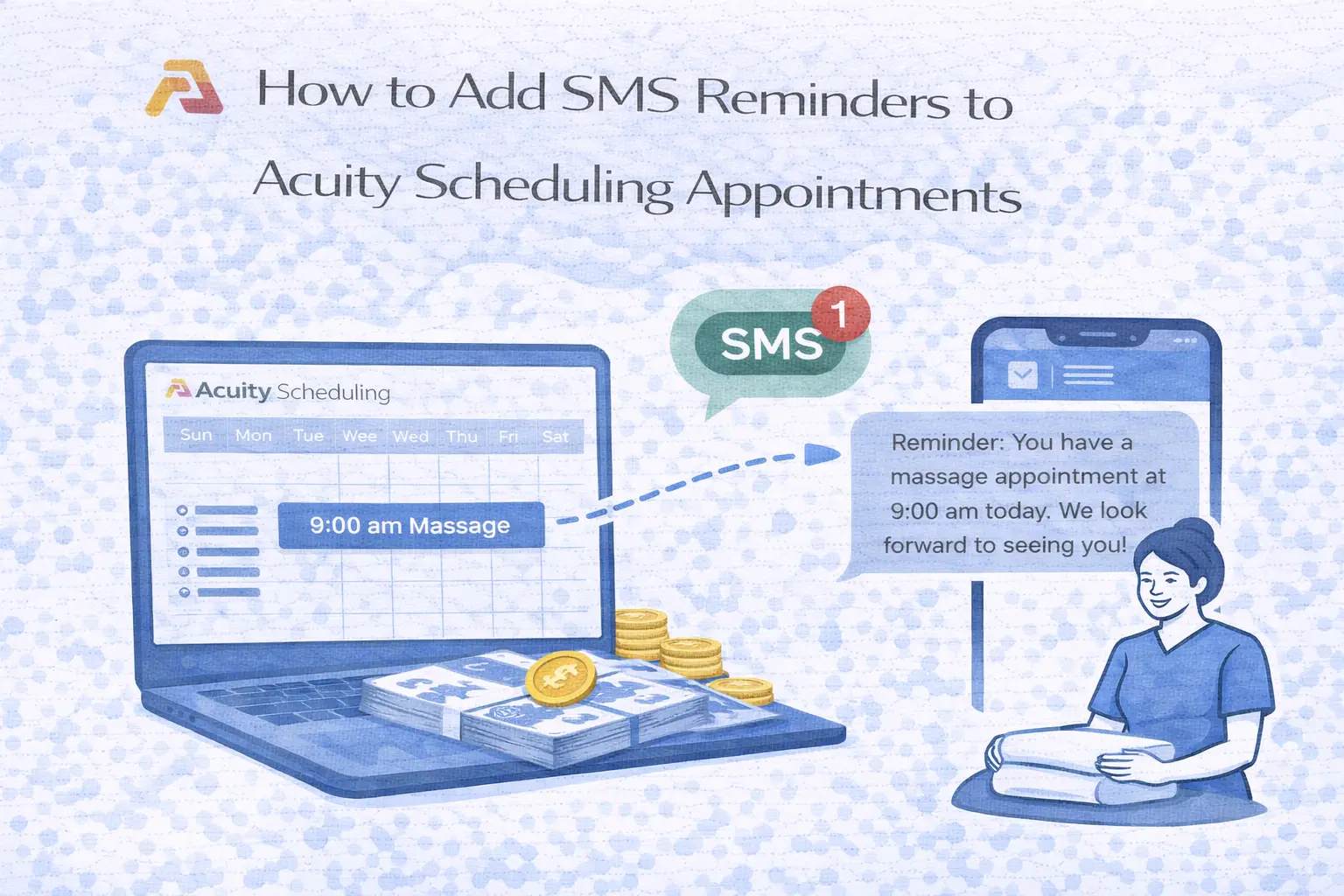
Acuity Scheduling SMS Reminders: Setup Guide
Send multiple automatic SMS reminders for Acuity Scheduling bookings using Remindlo and Google Calendar. Get a dedicated sender number and two-way messaging.
Contents
- What You Need
- Acuity Scheduling's Built-in SMS Reminders: What to Know
- The Alternative: Acuity → Google Calendar → Remindlo
- Method 1: Connect via Google Calendar Integration
- Method 2: Use the Remindlo Google Calendar Add-on
- Method 3: Connect Directly via Zapier
- Comparison: Acuity Native SMS vs Remindlo
- Example Reminder Messages You Can Send
- What Does Remindlo Cost on Top of Acuity?
- Can I Just Connect Twilio or ClickSend Directly?
- Beyond the Pre-Appointment Reminder
- Tips and Best Practices
- Troubleshooting
- Frequently Asked Questions
- Need Help?
Short answer: Acuity Scheduling, also sold as Squarespace Scheduling, sends one text per appointment and does not accept replies. To send several reminders per booking, write longer messages and see what clients write back, sync Acuity to Google Calendar and connect Remindlo to that calendar, or connect the two directly through Zapier. Setup takes about five minutes and Remindlo has a free plan you can test it on.
Acuity Scheduling (part of Squarespace) includes built-in SMS reminders, but with some significant limitations: you can only send one text per appointment, messages are capped at 300 characters, and clients cannot reply to the reminders. This guide shows you how to add more powerful SMS reminders to any Acuity Scheduling booking using Remindlo.
The approach is simple: Acuity syncs events to Google Calendar. Remindlo monitors your Google Calendar and automatically sends SMS reminders for every appointment that includes a phone number. You can also connect Acuity to Remindlo directly via Zapier.
What You Need
An Acuity Scheduling account on any paid plan (Emerging, Growing, or Powerhouse).
A Google account with Google Calendar.
A Remindlo account - create one for free.
Acuity connected to Google Calendar (we cover this below).
Acuity Scheduling's Built-in SMS Reminders: What to Know
Acuity Scheduling includes text message reminders on its Standard/Growing and Premium/Powerhouse plans. While there are no extra per-message fees, the feature comes with some notable restrictions:
Only one SMS reminder per appointment - Acuity sends a single text message per booking. You cannot schedule multiple reminders (for example, one the day before and another a few hours before). Research shows that multiple touchpoints are more effective at reducing no-shows.
300 character limit - your message is capped at 300 characters, and that limit includes toggled fields like your business name and appointment type. Special characters and emojis count as more than one character. If you exceed the limit, your message gets cut off.
Automatically assigned sender number - text messages are sent from a number assigned by Acuity, not a number associated with your business. Clients may not recognise the sender.
One-way messaging only - if a client replies to a reminder, they receive an automated response telling them to contact you by other means. There is no way to see or manage client replies within Acuity.
Not available on free trials - SMS reminders are only available on paid plans and cannot be tested during the free trial period.
Opt-in required - clients must explicitly opt in to receive text reminders. Acuity only sends SMS for appointments that are marked as opted in.
These limitations mean that if you want to send multiple reminders, use a recognisable sender number, or let clients reply to messages, you need an alternative approach.
The Alternative: Acuity → Google Calendar → Remindlo
Here is how it works:
Acuity syncs events to Google Calendar - this is a built-in Acuity feature available on all paid plans.
Remindlo monitors your Google Calendar - it automatically detects new events and reads phone numbers from the event details.
SMS reminders are sent automatically - Remindlo sends personalised text reminders before each appointment, from a dedicated phone number that your clients can reply to.
This gives you multiple reminders per appointment, no character restrictions on messages, a dedicated sender number, and two-way messaging.
Method 1: Connect via Google Calendar Integration
This is the recommended approach. It takes about 5 minutes to set up, and then everything runs on autopilot.
Step 1: Connect Acuity to Google Calendar
If you have not already done this:
Log in to your Acuity Scheduling account.
Navigate to Integrations in the left sidebar.
Under Sync with Other Calendars, click Google.
Click Connect to Google Calendar and follow the prompts to authorise access.
For each Acuity calendar, select which Google Calendar it should sync to using the dropdown menu.
Click Save.
Once connected, every new Acuity booking will automatically appear in your Google Calendar. Cancellations and rescheduled appointments sync too.
Step 2: Make Sure Phone Numbers Are Captured
Acuity collects client phone numbers by default through its intake forms. To verify:
Go to Appointment Types in Acuity.
Edit the relevant appointment type.
Under Intake Forms, check that a Phone field is present and set to required.
When someone books, their phone number will be included in the Google Calendar event details, which is exactly where Remindlo looks for it.
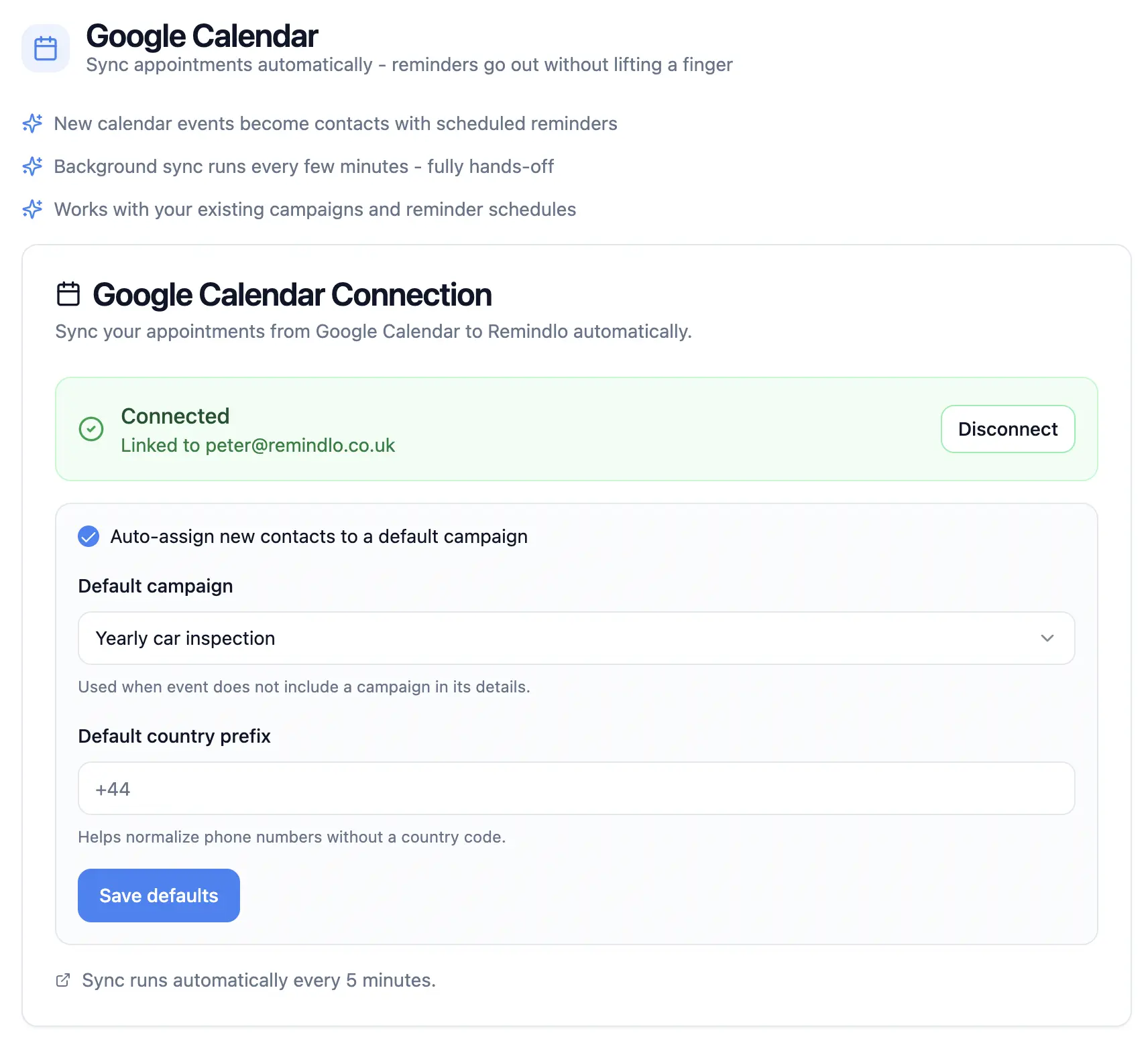
Step 3: Connect Google Calendar to Remindlo
Follow our detailed guide to connect your Google Calendar to Remindlo:
→ How to Integrate SMS Reminders into Google Calendar
The guide covers connecting your calendar, enabling autopilot, and customising your reminder messages with dynamic variables like {{first_name}} and {{business_name}}.
Step 4: Done - Remindlo Handles the Rest
Once connected, Remindlo runs on autopilot. For every new Acuity booking that includes a phone number, Remindlo will automatically:
Detect the event in your Google Calendar.
Extract the client's phone number from the event details.
Schedule multiple SMS reminders based on your configured timing (e.g. 24 hours before, 2 hours before).
Send personalised text messages from a dedicated phone number.
Remove scheduled reminders if the event is cancelled or rescheduled.
Method 2: Use the Remindlo Google Calendar Add-on
If you prefer more hands-on control, you can use the Remindlo sidebar plugin directly in Google Calendar. This add-on lets you:
Manually assign contacts to events.
Set a default country prefix for phone number normalisation.
Choose which campaign each event type belongs to.
For setup instructions, see the add-on section of our Google Calendar guide:
→ Google Calendar Add-on (Sidebar Plugin) Setup Guide
Method 3: Connect Directly via Zapier
If you prefer a direct connection without Google Calendar as a bridge, you can use Zapier to link Acuity Scheduling and Remindlo. With Zapier, you can set up a Zap that automatically adds a contact to Remindlo every time someone books through Acuity.
This method gives you the most flexibility: you can map specific Acuity fields to Remindlo contact fields, trigger different campaigns based on appointment types, and combine it with other automations across 9,000+ apps.
Comparison: Acuity Native SMS vs Remindlo
Feature | Acuity Native SMS | Remindlo via Google Calendar |
|---|---|---|
Reminders per appointment | 1 only | Multiple (e.g. 24h + 2h before) |
Message length | 300 characters (including fields) | Full-length personalised messages |
Sender number | Auto-assigned by Acuity | "Remindlo" as sender or always the same number |
Client replies | Auto-reply: "contact us by other means" | Two-way on numeric senders, replies land in your dashboard |
Message personalisation | Business name + appointment type toggles | Rich templates with dynamic variables |
Plan required | Growing or Powerhouse (paid only) | Works with any Acuity paid plan |
Free trial SMS | Not available | Available during Remindlo trial |
International SMS support | Supported, deliverability varies by country | Automatic provider routing per destination |
Setup effort | Built-in toggle | One-time Google Calendar connection (~5 min) |
Example Reminder Messages You Can Send
Remindlo reminders are built from templates you write yourself, so the wording is yours rather than a fixed format with toggles. Here are three templates and what the client actually receives.
The day before the appointment
Hi {{first_name}}, this is {{business_name}}. Reminder: your appointment is tomorrow at {{next_due_at_hour}}. Need to move it? {{business_booking_url}}
Renders as: Hi Sarah, this is Bright Studio. Reminder: your appointment is tomorrow at 14:30. Need to move it? bright.studio/book
A few hours before
{{first_name}}, see you at {{next_due_at_hour}} today. {{business_name}}. Running late or need to reschedule, call {{business_phone}}.
Renders as: Sarah, see you at 14:30 today. Bright Studio. Running late or need to reschedule, call 020 7946 0101.
The day after the visit
Thanks for coming in on {{last_service_at_date}}, {{first_name}}. If you have a moment, we would love a quick review. Book your next visit any time: {{business_booking_url}}
Acuity caps its own reminder at 300 characters and counts toggled fields such as your business name against that limit. Remindlo has no such cap, so the message above fits without being cut off.
What Does Remindlo Cost on Top of Acuity?
Remindlo is billed separately from Acuity, and there is a free tier so you can run the whole flow before paying anything. Unlike Acuity, SMS is available during the Remindlo trial.
Plan | Price | SMS included |
|---|---|---|
Free | £0 | 10 SMS per month |
Starter | £19/month or £199/year | 75 per month (900 per year) |
Standard | £49/month or £499/year | 250 per month (3,000 per year) |
If you need more messages in a given month, one-off packs cost £9 for 50 SMS, £49 for 300 and £219 for 1,500. If you run out mid-month, we automatically top your account up with the 50 SMS pack, which works out at £0.18 per SMS. There is no separate per-message charge and no bill at the end of the month. Nor is there a per-seat charge, so adding team members does not multiply the cost.
Can I Just Connect Twilio or ClickSend Directly?
Yes, and for some teams that is the right call. You can wire Twilio, ClickSend or any other SMS gateway to Acuity yourself using Zapier, Make or their APIs.
What you take on when you do is worth knowing up front:
Sender setup - you register and maintain the number or sender ID, and the registration rules differ from country to country.
Scheduling - an SMS API sends immediately. "24 hours before the appointment" is logic you have to build and keep running, and sending two reminders means running it twice.
Cancellations and reschedules - when a booking moves, something has to withdraw or re-time the queued message.
Consent and opt-outs - recording who agreed to be messaged and honouring opt-out requests stays your responsibility.
Delivery visibility - you get webhooks and logs rather than a dashboard your team can read.
Remindlo sits on top of that same carrier layer, routing through Twilio and Telnyx automatically depending on the destination, and packages the scheduling, cancellation handling, opt-out tracking and delivery reporting around it. If you would rather own that yourself, the direct gateway route is perfectly viable. If you would rather not maintain it, this is precisely the part Remindlo replaces.
Beyond the Pre-Appointment Reminder
Reminders before the appointment are the obvious use, but an Acuity booking also gives you an anchor for messages after the visit. Remindlo campaigns can be timed in either direction:
Before the visit - one or several reminders, for example seven days, three days and one day ahead. Acuity's native SMS allows only one.
After the visit - a thank-you or review request the day after, using
{{last_service_at_date}}.Win-back - a message weeks or months later to clients who have not rebooked, with your booking link so they can book in one tap.
All three run off the same synced calendar, so once Acuity is connected there is nothing to add per booking.
Tips and Best Practices
Send two reminders - one the day before and one a few hours before the appointment. This is the most effective pattern for reducing no-shows, and something Acuity's native SMS cannot do.
Include your business name - since Remindlo sends from a dedicated number, adding your business name in the message helps clients immediately recognise who is texting.
Use dynamic variables - personalise messages with
{{first_name}},{{business_name}}, and{{business_phone}}for a professional touch.Disable Acuity's built-in SMS - once Remindlo is running, you may want to turn off Acuity's native text reminders to avoid clients receiving duplicate messages from different numbers.
Test with a sample booking - book a test appointment through your Acuity link using your own phone number to verify the full flow works before going live.
Troubleshooting
Acuity events not appearing in Google Calendar
Check that Acuity's Google Calendar integration is connected. Go to Integrations → Sync with Other Calendars and verify the Google Calendar connection.
Make sure you selected the correct destination calendar for each Acuity calendar in the sync settings.
New events typically sync immediately, but allow a moment and refresh your Google Calendar.
Phone numbers not detected by Remindlo
Ensure the phone field is included and required in your Acuity intake forms.
Check that the number includes a country code (e.g. +44 for the UK, +1 for the US). You can set a default country prefix in the Remindlo Google Calendar add-on. Then we'll add it automatically if you forget to add it yourself.
Open the event in Google Calendar and check that the phone number appears in the event description or notes, or in the location field on its own or after a
Tel:label.
Reminders not sending
Verify your Remindlo account is active and the Google Calendar is connected.
Check the Remindlo dashboard for sync status and any error messages.
Make sure the event is far enough in the future for reminders to be scheduled (past events are ignored).
Duplicate reminders from Acuity and Remindlo
If you are using both Acuity's native SMS and Remindlo, clients may receive messages from two different numbers. Disable Acuity's text reminders under Notifications → Text Reminders to avoid confusion.
Frequently Asked Questions
Is Acuity Scheduling the same as Squarespace Scheduling?
Yes. Acuity has been sold as Squarespace Scheduling since Squarespace acquired it, and the two are the same product underneath. Every step in this guide applies to both, whichever name your account uses.
Does Acuity include SMS reminders on its own?
Yes, on its paid tiers, but with limits worth knowing: one text per appointment, a 300 character cap that counts toggled fields such as your business name, a sender number assigned automatically rather than one your clients recognise, no way to receive replies, and no SMS at all during the free trial. Those constraints are why many teams add a separate reminder layer instead of relying on the built-in one.
Is there an additional cost on top of Acuity?
Remindlo has a free plan that includes 10 SMS per month, so a low-volume setup can cost nothing extra. Paid plans are £19 per month for 75 SMS and £49 per month for 250 SMS, with yearly options at £199 and £499. Extra packs cost £9 for 50 SMS, £49 for 300 and £219 for 1,500, and overage is £0.18 per SMS. There is no per-seat charge.
Can I send more than one reminder per appointment?
Yes, and this is the main practical gain over Acuity's native SMS, which sends exactly one. A single Remindlo campaign can carry several timings, for example seven days, three days and one day before the visit, plus a follow-up the day after.
Can I customise the reminder message, or does it sound automated?
You write the message yourself. Templates support variables such as {{first_name}}, {{business_name}}, {{business_phone}} and {{business_booking_url}}, so each text reads as though you sent it personally, and there is no 300 character cap to truncate it. The example messages above show a template alongside what the client actually receives.
How does consent work, and do clients need to opt in?
Acuity only sends its own texts to clients who have ticked its opt-in box. In Remindlo the consent record lives on the contact, so you can capture agreement in your Acuity intake form, in your booking terms or in person, and mark the contact accordingly. Contacts without consent are skipped. Because the rules differ from country to country, treat this as an operational step you own rather than something a tool decides for you.
Can clients reply to the reminders?
That depends on the sender the message goes out from. Where Remindlo sends from a standard phone number, replies come back into your dashboard and you can answer from there. Where messages go out under an alphanumeric sender ID, which shows your business name in place of a number, mobile networks provide no return path and those messages are one-way. In that case give clients a route inside the message itself using {{business_phone}} or {{business_booking_url}}. Acuity's built-in SMS auto-replies telling the client to get in touch another way.
Do I have to turn off Acuity's own text reminders?
Not strictly, but you should. Running both means clients receive two messages from two different senders for the same appointment. Switch Acuity's text reminders off under Notifications, then Text Reminders, once Remindlo is live.
What if my bookings come from Square Appointments instead?
The approach is the same, with different limits to work around. Square sends one text per booking, only between one hour and three days beforehand, and its Google Calendar sync needs the Plus plan. Our Square Appointments SMS reminders guide walks through the three ways to connect it, including the route that works on Square's free plan.
Need Help?
If you run into any issues setting up SMS reminders for your Acuity Scheduling appointments, contact us at support@remindlo.co.uk. We are happy to help you get everything connected.