Five admin jobs a small UK business can automate with the tools it already has
 by Edgars Lapins, guest author
Contents
Quick answer
Most small businesses already pay for, or get free, more automation than they realise. If you run on Google Workspace, Microsoft 365 or simply the calendar on your phone, there's a good chance the tools to take a few repetitive jobs off your plate are sitting in a settings menu you've never opened.
This isn't a list of new apps to buy. It's five everyday admin jobs, with the settings that already exist in Gmail, Google Calendar, Outlook and Microsoft Teams to handle them. None of them needs anything new installed, and each one saves you from having to remember something.
A quick note first: features change, and some depend on which plan you're on. Where a feature needs a particular plan, I say so. It's worth checking your own account settings before you plan around any of them.
1. Client and appointment reminders
If clients book time with you, reminders are the obvious first job to hand over. Forgetting to send one is easy on a busy day, and a missed appointment is time you can't sell again.
In Google Calendar, appointment schedules let you publish a booking page with your availability. When someone books, Calendar can send confirmation emails and reminders. According to Google's help page, you can send up to five reminders per booking, although you can't edit the text of those reminder emails. You can also add buffer time between appointments, set a maximum number of bookings per day, and block out specific dates such as bank holidays.
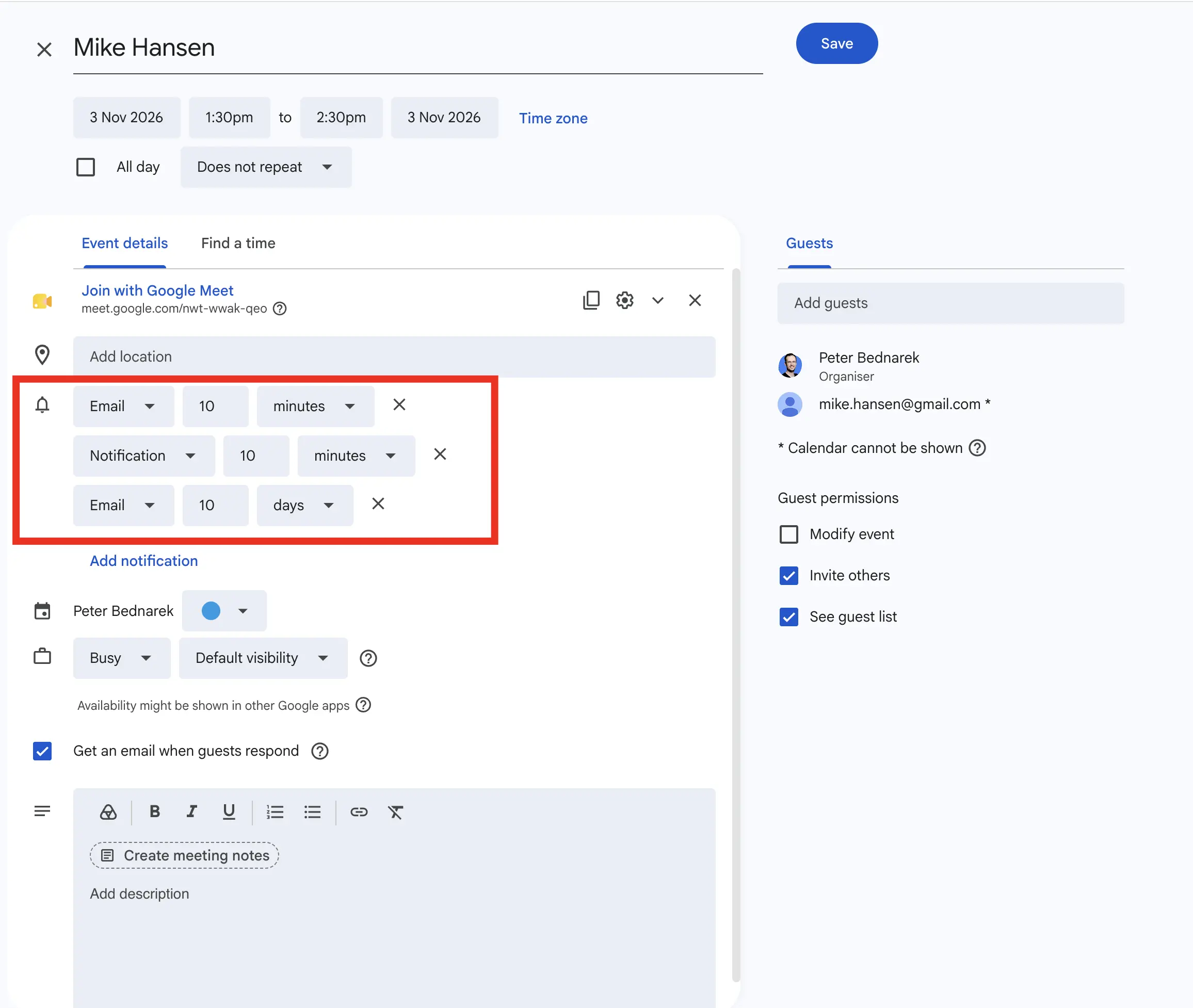
Google notes that some appointment scheduling features need an eligible Google Workspace or Google One subscription, so check what your account offers before you rely on a particular feature. You set appointment schedules up on a computer rather than in the phone app.
If you already book clients manually into your calendar, a lighter option is to add reminders to the calendar event itself and invite the client by email, so their own calendar reminds them too.
A few practical tips:
Send the first reminder a day or two ahead, so there's time to rebook if plans have changed.
Put the address, parking notes or video link in the description, which Google includes in confirmation emails.
Keep one schedule per type of appointment, so durations and buffers are right for each.
2. Answering common enquiries
Many small businesses answer the same five or six questions every week: prices, opening hours, what to bring, how long a job takes, whether you cover a particular postcode. Typing the same answer each time is slow, and the quality of the reply depends on how busy you are that day.
In Gmail, templates let you save a message and drop it into a new email or a reply in a couple of clicks. You turn them on under Settings, See all settings, Advanced, then Templates. Once a template exists, you can also create a filter that sends it automatically: search for the messages you want to catch, choose Create filter, then tick Send template. Google notes that templates can only be turned on and used in Gmail on a computer, not in the mobile app.
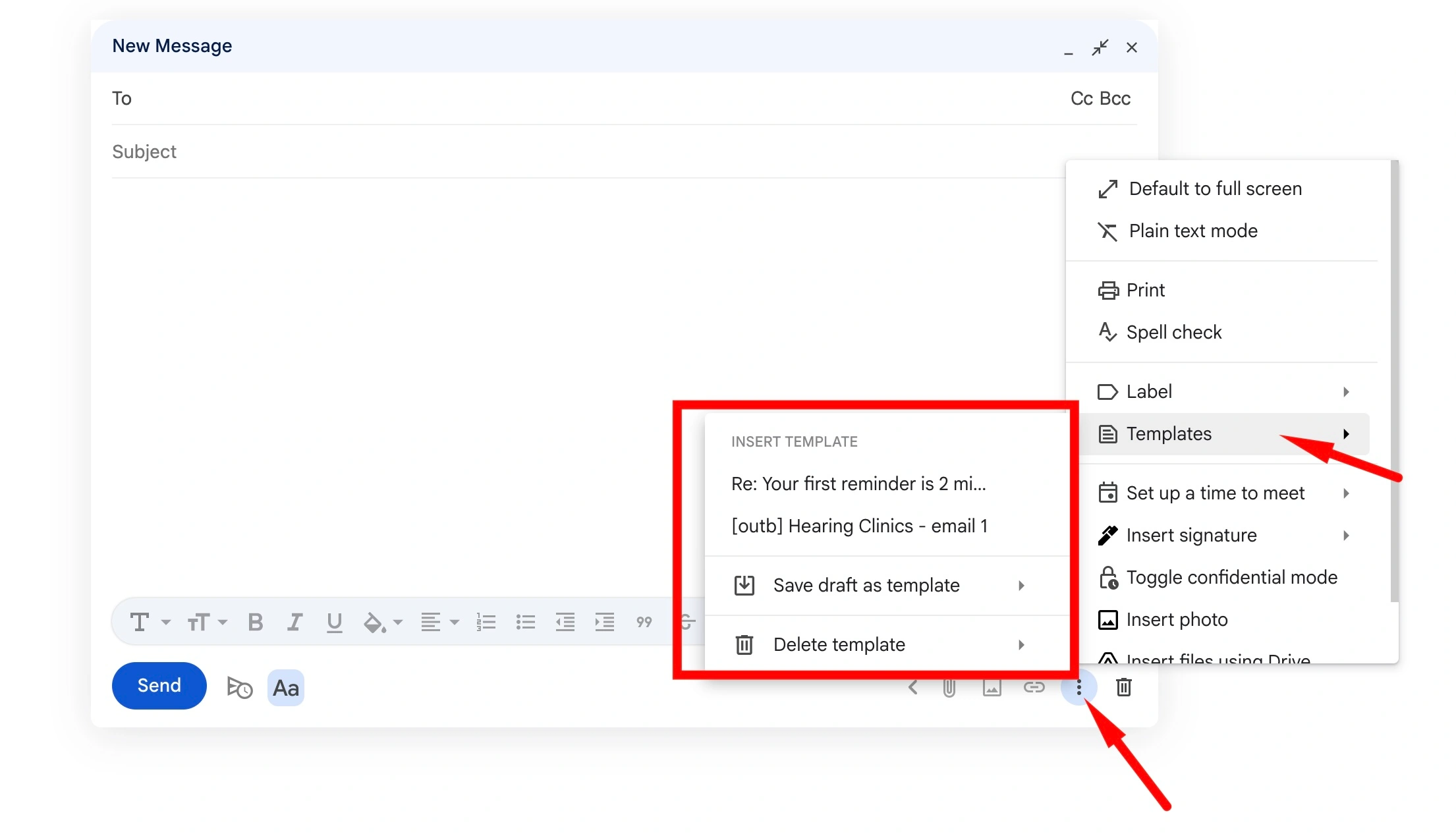
A good use for this is an automatic acknowledgement for messages sent to a particular address, for example a bookings@ or enquiries@ alias, so the sender knows you've received it and when to expect a proper reply.
In Outlook, rules do a similar sorting job. Every rule has a name, a condition and an action, so you can move messages from a booking form into their own folder, flag anything with "quote" in the subject, or change the importance of messages from key clients. Rules are available in new Outlook, classic Outlook, Outlook on the web and Outlook.com, though Microsoft notes that new Outlook doesn't yet support rules for third-party accounts such as Gmail.
Keep automatic replies short and honest. "Thanks, we have your message and will reply by the end of the next working day" is better than anything that pretends to be a person.
3. Staff rotas
If you employ a few people on shifts, the rota is probably a spreadsheet that gets emailed round, changed, and emailed round again. Everyone ends up with a slightly different version.
If you use Microsoft Teams, you already have Shifts. Microsoft describes it as the scheduling and time tracking app included with Teams: "If you have Teams, you have Shifts". A manager who owns the team can create a schedule, group staff by role, add shifts and open shifts, and then publish it. Once published, staff can see their own shifts and the team's on their phone, and depending on the settings you choose, they can request time off, swap or offer shifts, and set shift reminders.
If your rota already lives in Excel, Shifts can import a schedule from an Excel workbook, which saves rebuilding it by hand.
If you're on Google Workspace, a shared Google Calendar for the rota is the simplest version. Create a calendar called "Rota", share it with staff, and add each shift as an event with the person invited. Their own calendars then show their shifts with reminders, and a change you make is a change everyone sees.
Either way, you get the same result: one version of the rota, visible to everyone, with reminders that don't depend on you.
4. Tax and filing deadlines
UK small businesses juggle a handful of fixed dates every year, and Making Tax Digital for Income Tax adds more of them for sole traders and landlords.
According to GOV.UK, you need to use Making Tax Digital for Income Tax if you're a sole trader or landlord registered for Self Assessment and your qualifying income from self-employment or property is over the relevant threshold. The start dates depend on that income:
Over £50,000 in the 2024 to 2025 tax year: from 06/04/2026.
Over £30,000 in the 2025 to 2026 tax year: from 06/04/2027.
Over £20,000 in the 2026 to 2027 tax year: from 06/04/2028.
Once you're in, quarterly updates are due through your software. For the standard update periods, which follow the tax year, the deadlines are:
Update period | Deadline |
|---|---|
06/04 to 05/07 | 07/08 |
06/04 to 05/10 | 07/11 |
06/04 to 05/01 | 07/02 |
06/04 to 05/04 | 07/05 (the following tax year) |
GOV.UK also says HMRC won't apply penalty points for late quarterly updates during the 2026 to 2027 tax year, but penalty points will still apply for late tax returns. From the following tax year, missed deadlines will build up penalty points.
This isn't tax advice, and whether these rules apply to you is a question for GOV.UK's own checker or your accountant. But the automation part is simple: put the dates in your calendar as recurring events, once, with reminders set a couple of weeks ahead. Both Google Calendar and Outlook support yearly repeating events with multiple reminders.
A useful habit is to put a short checklist in the event description: which bank accounts to reconcile, where your receipts live, who to send things to. When the reminder pops up in July, you're not starting from a blank page.
The same trick works for the other recurring dates in your year: VAT returns if you're registered, insurance renewals, MOT and servicing for business vehicles, domain and software renewals.
5. Chasing unpaid invoices
Chasing payment is the admin job most owners put off, because it feels awkward. Turning it into a routine makes it less personal and much more consistent.
You don't need dedicated software to start:
Save your chasers as templates. In Gmail, write three short templates: a friendly reminder a few days after the due date, a firmer follow-up, and a final one. In Outlook, you can save the wording as a draft or a signature block you reuse. Polite, factual wording that includes the invoice number, the amount and how to pay works best.
Set a calendar reminder when you send each invoice. When you raise an invoice with 30-day terms, add an event on the due date with the client name and invoice number in the title. That reminder is your prompt to check the bank and send the first chaser if needed.
Sort replies automatically. An Outlook rule or Gmail filter that moves anything with "invoice" or "remittance" in the subject into one folder or label means payment confirmations don't get lost among everything else.
If your accounting software already sends automatic reminders, use that instead and keep these tools for the follow-ups that need a personal touch. The point is that no unpaid invoice should rely on you happening to remember it.
Where to start
Pick the one job that costs you the most time or the most worry, set it up this week, and live with it for a month before adding the next.
When you reach the point where the built-in tools aren't enough, for example joining your booking system to your accounts or handling enquiries out of hours, that's the time to look at more specialised tools or outside help. Until then, the software you already pay for can probably do more than you think.
Editor's note from Remindlo
Google's booking reminders are email/notification only, and you can't change their wording. If your clients are more likely to read a text, Remindlo connects to the Google or Outlook calendar you already use and sends SMS and email reminders in your own words before each appointment. There's a free plan to try it on. – Peter Bednarek, Founder