
How to Write and Edit Message Templates
Edit your reminder wording, use variables safely, and keep messages inside one SMS segment.
Contents
A template is the wording a campaign sends. Each campaign points at one template, and the template is rendered separately for every contact - their name, their date, your business details - just before the message goes out.
This guide covers the mechanics: where to edit, which variables exist, and how to stay inside one SMS. For what a reminder should actually say, read what we found when we read 72 reminder texts businesses wrote themselves - 42% of them gave the customer no way to respond.
Where templates live
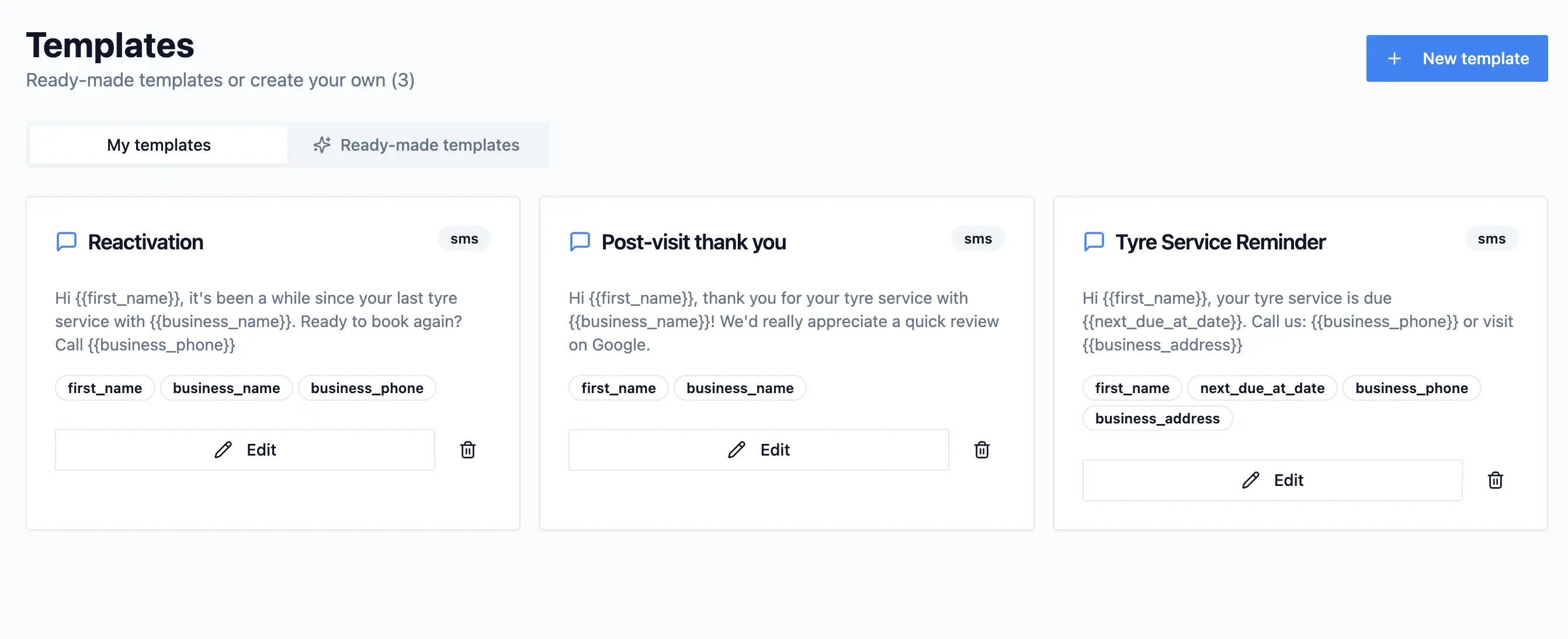
Open Templates in the dashboard. Your account starts with wording already written for your industry - one template per lifecycle campaign (pre-visit, post-visit, reactivation).
Edit one in place, or create a new one and point a campaign at it from the Campaigns page. Editing a template changes every future message from every campaign using it; messages already sent are unaffected.
Variables
Anything in double curly braces is replaced per contact when the message is sent. Click a variable badge under the message box to insert it rather than typing it - a variable that is not on this list will be rejected when you save.
From the contact
Variable | What it inserts |
|---|---|
{{first_name}} | Customer's first name |
{{last_name}} | Customer's last name |
{{email}} | Customer's email address |
{{phone}} | Customer's phone number |
{{note}} | The note saved on the contact |
{{next_due_at_date}} | Next appointment date, formatted for your country |
{{next_due_at_hour}} | Appointment time, in your business time zone |
{{last_service_at_date}} | Date of the last completed visit - for after-visit copy |
From your business settings
Variable | What it inserts |
|---|---|
{{business_name}} | Your business name |
{{business_phone}} | Your contact number |
{{business_email}} | Your business email |
{{business_address}} | Street and city from your settings |
{{business_booking_url}} | Your booking link |
These come from Settings. Fill them in once and every template picks them up.
What happens when a variable is empty
This is the failure mode that survives proofreading, because nothing warns you at the time.
Three variables clean up after themselves. If you have no booking link saved, "Book online: {{business_booking_url}}" removes the whole phrase rather than leaving a dangling "Book online:". The same applies to {{business_address}} ("visit us at ...") and {{next_due_at_hour}} for all-day appointments ("at ...").
{{last_service_at_date}} is a case worth calling out: it only has a value for contacts whose last visit Remindlo knows about. In an after-visit campaign (post-visit thank you, reactivation) that is guaranteed - the reminder cannot fire without it. In a pre-visit template it will often render empty, so keep it to the campaigns it was meant for.
Every other variable renders as nothing at all. A template ending "Call {{business_phone}}" becomes "Call " for a business that never saved a phone number - a call to action pointing at empty space. The fix is not in the template; it is filling in Settings.
The character budget
An SMS is billed in segments. One segment is 160 characters; past that, each segment holds 153. The editor warns you when a message goes over 160.
Write the budget backwards - reserve the call to action first, then spend what is left:
Element | Typical cost |
|---|---|
Greeting with first name | 12-18 |
Business name | 10-20 |
What is due, and when | 30-45 |
Call to action with a route | 25-40 |
Sign-off | 8-15 |
That lands around 85-138 characters - one segment, with room. What usually breaks the budget is not the call to action, it is a second sentence of pleasantry.
The curly apostrophe trap
A single character outside the GSM-7 alphabet switches the entire message to Unicode encoding, where a segment holds 70 characters instead of 160.
The usual culprit is not an emoji. It is the curly apostrophe - the slanted one that phones and word processors substitute automatically when you type "don't". It looks near-identical to the straight ASCII apostrophe on screen, which is exactly why it survives proofreading. Turn off smart quotes wherever you draft your wording, or avoid the contraction.
If you write in a language that needs accented characters outside GSM-7, you are simply on the 70-character budget. Better to know that than to find out from your usage.
Links and segments
Use short links. A full Google Maps URL can run past 100 characters; the g.page/... short link from your Google Business Profile is usually around 20. Same destination, 80 characters cheaper.
Ready-made templates
Beyond the wording seeded for your industry, the Ready-made templates tab holds professionally written starting points for dentists, hairdressers, veterinarians, physiotherapists and more. Copy one and adjust it - they are starting points, not finished messages, and none of them knows your phone number.
There is also a free public SMS template generator if you want to draft something outside the dashboard.
SMS and email templates
Templates carry a channel. An SMS template is plain text and lives under the character budget above. An email template is wrapped in a branded layout with your business name, and replies go to your business email address - there is no character limit worth worrying about, and email does not count against your SMS allowance.
A campaign sending on both channels needs wording for both.
Test with a real message, not the preview
The preview shows sample values. It cannot show you what an empty business field does to your call to action, and it cannot show you that your apostrophe pushed the message into a second segment.
Add yourself as a contact with your own mobile number and a date a few days out.
Enrol yourself in the campaign using the template.
Read what actually arrives, as a customer would.
Two things to check on the message in your hand: does it tell you what to do next and hand you the means to do it, and who did it come from? Most UK and EU business SMS arrives from a sender name rather than a number, and sender names are one-way - so "reply to confirm" quietly fails. If that is what you see, your call to action has to be a number, a link, or an email address spelled out in the body.
Troubleshooting
"Unsupported variables detected" when saving
The variable is not on the supported list, or it has a typo. Click the badges under the message box to insert them rather than typing them by hand.
Messages arrive with a word missing
A variable rendered empty because the field behind it is blank. Check Settings for business fields, and the contact record for name, date, or note.
One message is using more SMS than expected
Either it is over 160 characters, or it contains a character outside GSM-7 - most often a curly apostrophe or an emoji - which drops the limit to 70. Check the exact text sent in Messages.
A placeholder went out to customers
Notes to yourself ship. If you wrote [review link] or [your number here] intending to come back to it, assume it will send exactly like that.
Frequently asked questions
Do I have to write my own templates?
No. Your account comes with wording for your industry that is ready to send. The one thing worth adding by hand is a route - your phone number, or a review link in the post-visit message.
Can different campaigns use the same template?
Yes, and editing it changes all of them. Duplicate the template first if you want to vary the wording per campaign.
Does editing a template change messages already scheduled?
Templates are rendered at the moment of sending, so a change applies to everything that has not gone out yet. Messages already sent keep the text they were sent with, which you can see in Messages.
Can I use emojis?
You can, but one emoji cuts your segment from 160 characters to 70. On a short message that is fine; on anything near the limit it doubles the cost.
Next steps
Fill in your phone number, address and booking link in Settings so the variables have something to render.
Open Templates and check each one ends with an action and a route.
Send yourself one real message and read it as a customer.
Related: How to set up campaigns.