
How to Send SMS Reminders from iCloud Calendar (Apple)
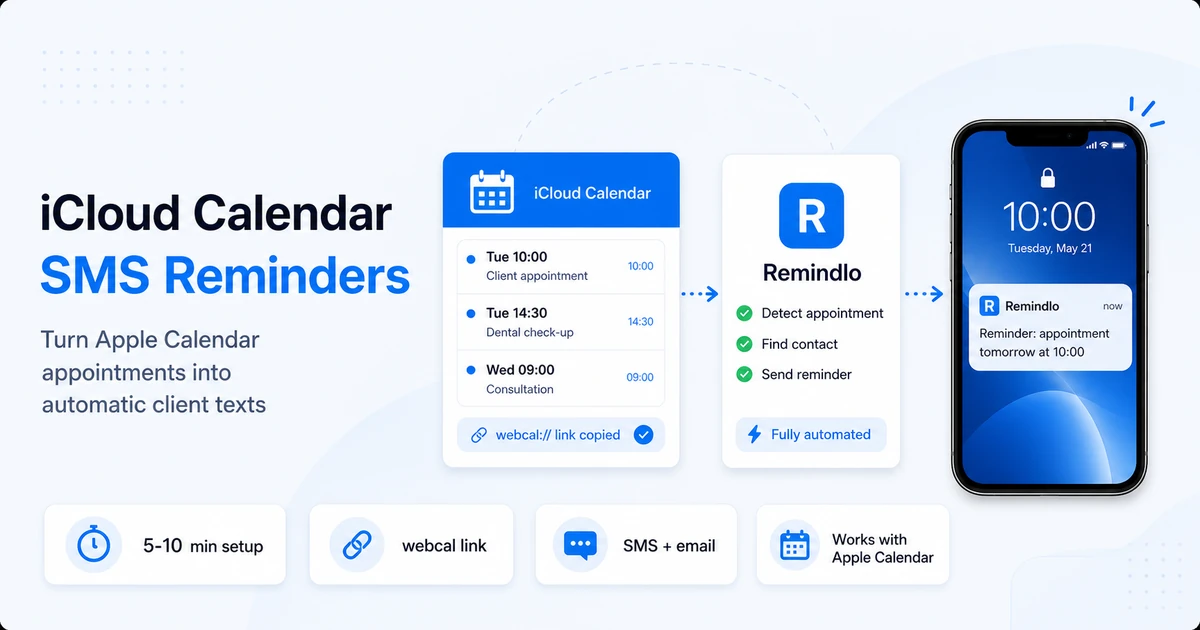
Connect your Apple iCloud calendar to Remindlo and send automatic SMS appointment reminders to clients. Copy your public calendar link (webcal), paste it into Remindlo, done.
Contents
- Overview
- What you will need
- Good to know before you start: iCloud gives you a "webcal" link
- Step 1: Publish your iCloud calendar and copy the link
- Step 2: Paste the link into Remindlo
- Step 3: Put the client's phone number in the event
- Where the client's name comes from
- Step 4: Set up your reminder campaign
- How iCloud syncing behaves
- Troubleshooting
- Frequently asked questions
- Next steps
Overview
If your bookings live in Apple's Calendar app or iCloud.com, Remindlo can send an automatic SMS to each client before their appointment, so fewer people forget and fewer slots go to waste. You do not change how you book. You just publish your iCloud calendar as a public link, paste that link into Remindlo once, and reminders go out on their own.
This guide covers the Apple-specific bit: how to find and copy the right link. For the wider picture (why SMS beats email, phone-number formatting, reminder timing), see Calendar SMS reminders for small businesses.
Want to see the product side first? The iCloud and Apple Calendar integration covers what the reminders look like once your calendar is connected.
Prefer Outlook or Microsoft 365? See the Outlook and Office 365 integration, or the full walkthrough in Automate appointment reminders with Outlook Calendar.
What you will need
An iCloud calendar with your appointments in it (a dedicated "Work" or "Clients" calendar is ideal, so personal events stay private).
Client mobile numbers written into the event (we explain where in Step 3).
A free Remindlo account. The free plan includes 10 SMS a month, which is enough to test the whole flow.
Good to know before you start: iCloud gives you a "webcal" link
When you publish an iCloud calendar, Apple hands you a link that starts with webcal:// rather than https://, for example:
webcal://p106-caldav.icloud.com/published/2/XXXXXXXXXXXXXXXX
That is normal. webcal:// is just Apple's way of labelling a calendar subscription link. Under the bonnet, it is the same read-only calendar feed.
You do not need to edit it. Paste the link exactly as iCloud gives it to you. Remindlo recognises webcal:// links and connects to them automatically. (If you paste one somewhere that insists on https://, you can simply swap webcal:// for https:// at the front and the link still works, but in Remindlo it is not necessary.)
Step 1: Publish your iCloud calendar and copy the link
Publishing a calendar publicly is done on a computer or in a web browser. The iPhone and iPad Calendar app does not reliably expose the public-link option, so the simplest route on mobile is to open iCloud.com in Safari and follow the web steps below.
Option A: iCloud.com in a browser (any device)
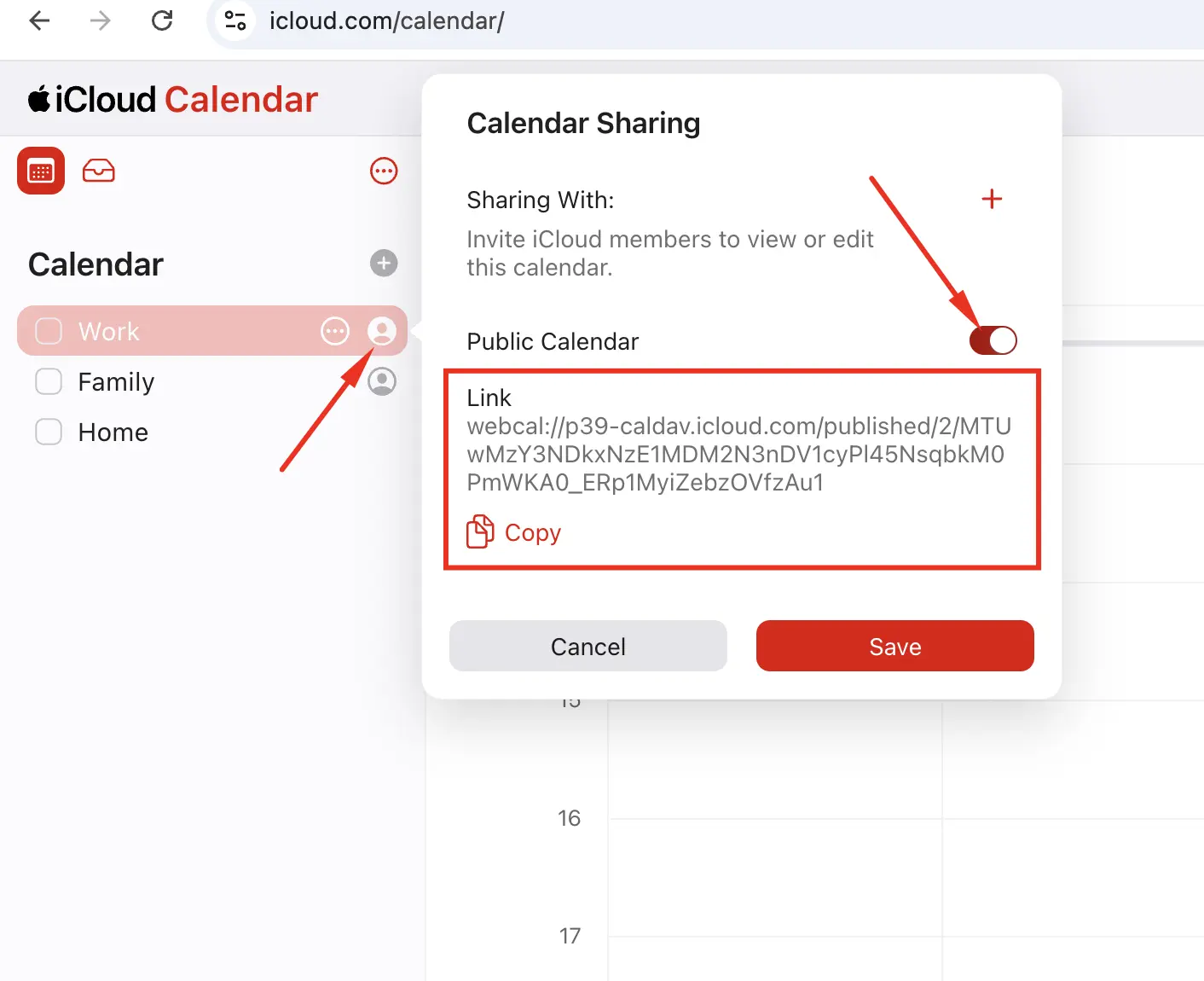
Go to iCloud.com and sign in, then open Calendar.
In the left sidebar, hover over the calendar you want to share and click the share icon (the person / "..." control next to the calendar name).
In Calendar Sharing, turn on Public Calendar.
A link appears underneath (it starts with
webcal://). Click Copy.Click Save to keep the calendar public.
Option B: Calendar app on Mac (desktop)
Open the Calendar app on your Mac.
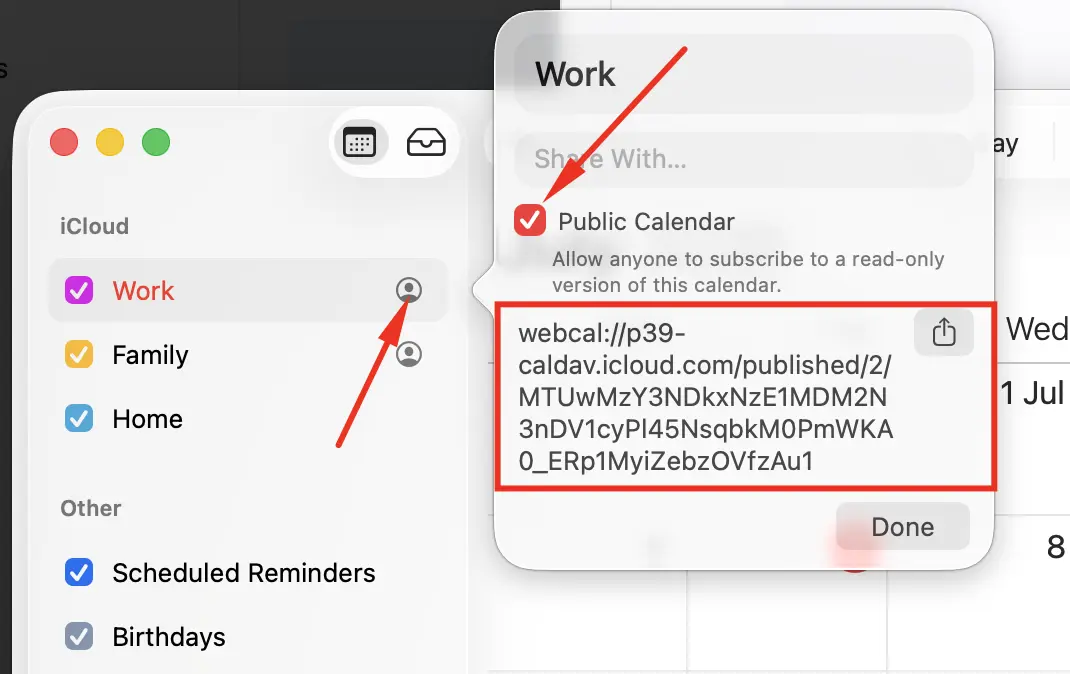
In the sidebar, find your calendar under iCloud. Move your pointer over it and click the broadcast / share icon next to its name (or Control-click the calendar and choose Sharing Settings).
Tick Public Calendar.
Click the share arrow next to the link and choose Copy Link.
Close the dialog. The calendar stays public until you untick the box.
Tip: Publish a separate "Work" or "Clients" calendar rather than your main personal one. A public calendar link lets anyone with the link read that calendar's events, so keep private appointments in a calendar you do not publish.
Step 2: Paste the link into Remindlo
Sign in to Remindlo (or create a free account).
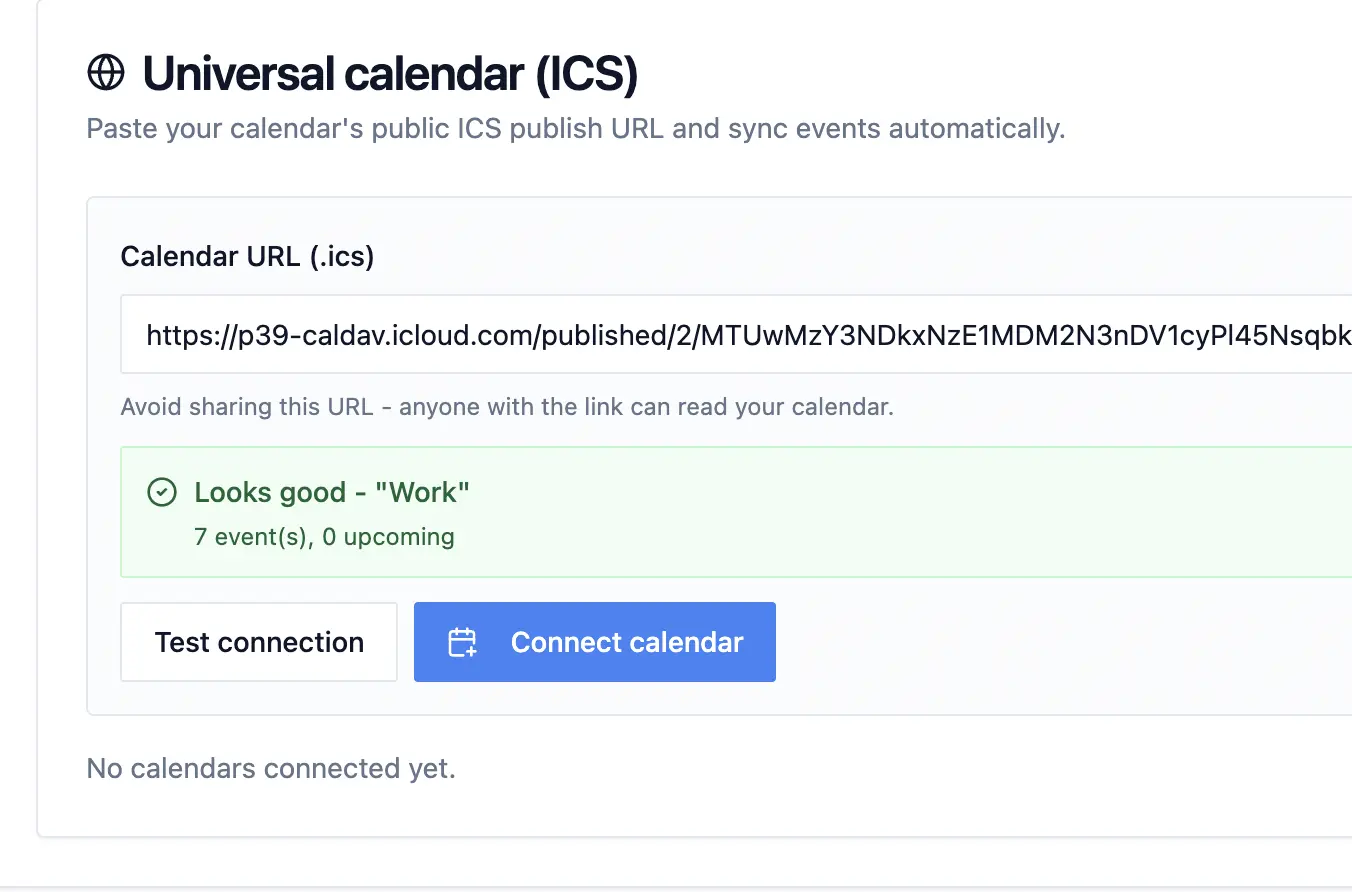
Go to Integrations and find Universal calendar (ICS) / "Connect any calendar".
Paste your copied link into the Calendar URL field. The
webcal://link works as-is.Click Test connection. Remindlo fetches the calendar and confirms how many events it can see.
Click Connect calendar. Syncing begins on the next polling cycle.
You can connect more than one calendar (for example iCloud plus Google). Remindlo deduplicates by phone number, so a client who appears in two calendars still only gets one reminder per appointment.
Step 3: Put the client's phone number in the event
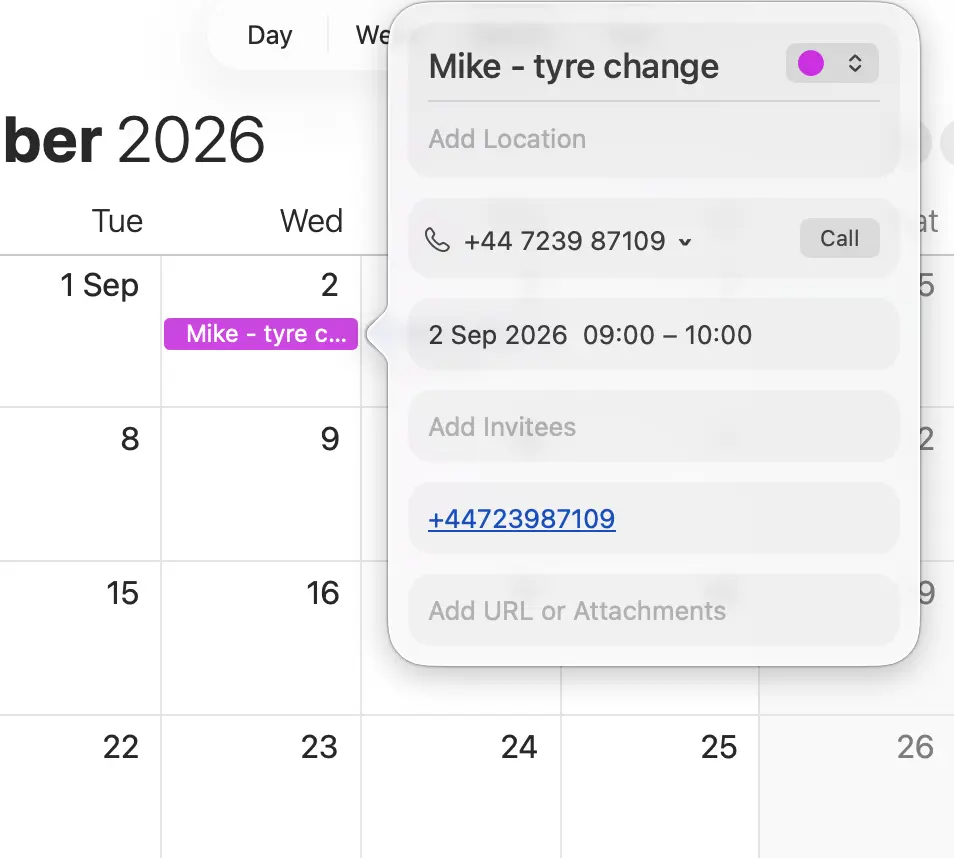
Remindlo reads the phone number straight from your calendar event. An iCloud public calendar shares the full event, including the Notes field, so the most reliable place to put the number is in the event's Notes.
Add the mobile number to the Notes of each appointment, for example
Phone: 07912 345678.UK and international formats both work. The international form (
+447912345678) is safest; for local numbers, set your default country in Remindlo settings so07...is understood.Events with no number get no reminder. Add a number to the event and Remindlo picks it up on the next sync.
If you keep the number in the Location field instead, that works too - Remindlo checks it after the Notes and the title. Put it there on its own (
07912 345678) or label it (Tel: 07912 345678). A number buried inside a longer address is skipped, so a street number, postcode or meeting ID is never mistaken for a phone number.
Where the client's name comes from
Remindlo uses the selected guest's name if your published iCloud feed includes it. Otherwise, it takes the name from the event title, not from the Notes field. Use Jane Smith as the title and Phone: 07912 345678 in Notes; keep service details, the address and price in Notes too. If a guest name is unavailable and your title starts with a service or address, remove both {{first_name}} and {{last_name}} from the template and use "Hello". See Where the client's name comes from for the full rules.
Step 4: Set up your reminder campaign
A good default is two reminders per appointment:
3 days before, so there is time to rearrange.
24 hours before, as a final nudge.
Personalise the message with variables. A typical template:
Hi {{first_name}}, a quick reminder of your appointment with
{{business_name}} on {{next_due_at_date}} at {{next_due_at_hour}}.
Need to change it? Call {{business_phone}}. Thanks!
Send yourself a test first by putting your own number on a test event, then let it run.
See more about the types of campaigns we suggest setting up - The Three SMS Touchpoints Every Service Business Should Automate.
How iCloud syncing behaves
Refresh cadence: Remindlo checks the calendar about every hour, so a brand-new booking is picked up within that window rather than instantly.
Cancellations and changes: delete or move an event in iCloud and Remindlo notices on the next refresh. Reminders that have not been sent yet are cancelled or rescheduled automatically.
The link is a read-only key: treat the public link like a password. Anyone who has it can read that calendar. If it ever leaks, turn Public Calendar off and on again to issue a fresh link (see the note below about what that means for Remindlo).
Troubleshooting
"Calendar not found (404)" or sync suddenly stopped.
This almost always means the public link was regenerated. In iCloud, turning Public Calendar off and back on creates a brand-new link and permanently kills the old one. If you did that (or someone re-shared the calendar), your old link is dead. Fix it by copying the current link from iCloud again (Step 1) and pasting the fresh one into Remindlo, then remove the old feed entry.
"That doesn't look right" / no calendar data found.
You may have copied a link to an iCloud web page rather than the calendar feed itself. Make sure Public Calendar is switched on first, then copy the link that appears directly beneath the toggle.
The calendar connects but no events show.
Check that the events sit in the calendar you actually published, and that they are not so far in the future they fall outside the sync window. Past events do not trigger reminders.
Times look an hour off.
Confirm your time zone in Remindlo settings matches the one your iCloud calendar uses.
Numbers are not being picked up.
Make sure the mobile number is in the event Notes (or the title/location) and set your default country in settings so local 07... numbers are read correctly.
Frequently asked questions
Can Apple Calendar send SMS reminders to clients on its own?
No. Apple's Calendar reminds you about your own day, but it cannot text your clients. Remindlo adds that layer by reading your published calendar and sending the SMS.
How do I send SMS reminders from my iCloud calendar?
Three short steps: publish the calendar as a public link in iCloud (Step 1), paste that link into Remindlo under Integrations (Step 2), and put each client's mobile number in the event notes (Step 3). From then on Remindlo sends the text reminders automatically on the schedule you set.
Do iCloud or Apple Calendar reminders reach my clients?
No. iCloud alerts and notifications only reach you (and anyone you have shared the calendar with as an editor). They never go to the client whose appointment it is. To send an appointment reminder to the client's phone, you connect the calendar to Remindlo, which reads the event and sends the SMS on your behalf.
What is a webcal link, and is it safe to paste into Remindlo?webcal:// is just the label Apple (and some other providers) put on a calendar subscription link. It points at the same read-only calendar feed as an https:// link would. It is safe to paste into Remindlo exactly as copied. Keep it private though, because anyone with the link can read that calendar.
Do I have to change the webcal link to https?
No. Paste the webcal:// link exactly as iCloud gives it. Remindlo handles it automatically.
Can I do this from my iPhone?
Publishing a public calendar is most reliable on a computer or via iCloud.com in a browser (which also works in Safari on iPhone). Once the calendar is connected, you manage everything else, including adding numbers to events, from any device.
Is a public calendar a privacy risk?
The link is read-only, but anyone holding it can view that calendar. Publish a dedicated work calendar, not your personal one, and keep the link private. You can revoke it any time by turning off Public Calendar.
Is this GDPR compliant?
Yes. Appointment reminders to existing clients are treated as legitimate interest under UK GDPR. Include your business name and an easy opt-out. Remindlo handles STOP replies for you. To be sure, you can consult with your legal advisors.
Can I connect iCloud and Google Calendar together?
Yes. Connect both; Remindlo deduplicates by phone number so each appointment triggers a single reminder.
Next steps
New to the whole idea? Start with Calendar SMS reminders for small businesses.
On Microsoft instead? See Automate appointment reminders with Outlook Calendar.
Wondering what it does once connected? See the iCloud integration overview.
Ready to try it? Create a free Remindlo account and send your first 10 SMS on us.